Set Up Your Own Project
The template project is already configured. Follow these steps when you add the plugin to another project (install it from Fab and enable it, see Add AFT to your own project), or to understand what the template configuration does.
1. Project Settings
Open Edit > Project Settings > Plugins.
AFT Core
| Setting | Value |
|---|---|
| Default Rules | /AFT/Data/DA_AFT_DefaultRules |
| Default State Graph | /AFT/Data/DA_AFT_DefaultStateGraph |
| Default Cue Set | your cue set (hit sparks, guard effects, sounds) |
AFT Game
| Setting | Value |
|---|---|
| Front End Map | the map of your menus (game mode AFTFrontEndGameMode) |
| Default Battle Map | the map used when a stage has no level |
| Quick Battle Fighters | fighters used when a battle map is played directly |
| Lobby Backend | LAN, Platform or Local: backend of the online lobby (see Online Backends) |
| Keyboard Layout | QWERTY (WASD) or AZERTY (ZQSD) |
Maps & Modes: set Global Default Game Mode to AFTBattleGameMode, or set the game mode per map in the World Settings.
The full list is in Project Settings.
2. Asset Manager
The menus find the fighters, stages, rules and game modes (and the UI policy) through the Asset Manager. Add these primary asset types in
Project Settings > Game > Asset Manager (or copy them from the template DefaultGame.ini):
[/Script/Engine.AssetManagerSettings]
+PrimaryAssetTypesToScan=(PrimaryAssetType="AFTFighter",AssetBaseClass="/Script/AFTCore.AFTFighterData",bHasBlueprintClasses=False,bIsEditorOnly=False,Directories=((Path="/Game"),(Path="/AFT")),SpecificAssets=,Rules=(Priority=-1,ChunkId=-1,bApplyRecursively=True,CookRule=AlwaysCook))
+PrimaryAssetTypesToScan=(PrimaryAssetType="AFTStage",AssetBaseClass="/Script/AFTCore.AFTStageData",bHasBlueprintClasses=False,bIsEditorOnly=False,Directories=((Path="/Game"),(Path="/AFT")),SpecificAssets=,Rules=(Priority=-1,ChunkId=-1,bApplyRecursively=True,CookRule=AlwaysCook))
+PrimaryAssetTypesToScan=(PrimaryAssetType="AFTRules",AssetBaseClass="/Script/AFTCore.AFTBattleRules",bHasBlueprintClasses=False,bIsEditorOnly=False,Directories=((Path="/Game"),(Path="/AFT")),SpecificAssets=,Rules=(Priority=-1,ChunkId=-1,bApplyRecursively=True,CookRule=AlwaysCook))
+PrimaryAssetTypesToScan=(PrimaryAssetType="AFTGameMode",AssetBaseClass="/Script/AFTGame.AFTGameModeDefinition",bHasBlueprintClasses=False,bIsEditorOnly=False,Directories=((Path="/Game"),(Path="/AFT")),SpecificAssets=,Rules=(Priority=-1,ChunkId=-1,bApplyRecursively=True,CookRule=AlwaysCook))
+PrimaryAssetTypesToScan=(PrimaryAssetType="AFTUIPolicy",AssetBaseClass="/Script/AFTGame.AFTUIPolicy",bHasBlueprintClasses=False,bIsEditorOnly=False,Directories=((Path="/Game"),(Path="/AFT")),SpecificAssets=,Rules=(Priority=-1,ChunkId=-1,bApplyRecursively=True,CookRule=AlwaysCook))
CookRule=AlwaysCook makes sure every fighter, stage and mode is packaged even when no map references it directly. Without
these entries the character select screen is empty in a packaged build.
3. A battle map
- Create a level with your stage art.
- From Place Actors > AFT Fighting, drop an AFT Stage Info: its transform is the origin of the simulation (X = screen right, Z = up). Set the camera framing and the Preview Half Width (stage walls). See Stages.
- Drop an AFT Match Tester to play the map directly from the editor, and click a preset (Versus CPU, Training...).
- In the World Settings, set GameMode Override to
AFTBattleGameMode. - Create an AFT Stage data asset (Content Browser > right click > AFT > Stage) that points to the level, so that it appears in the stage select screen.
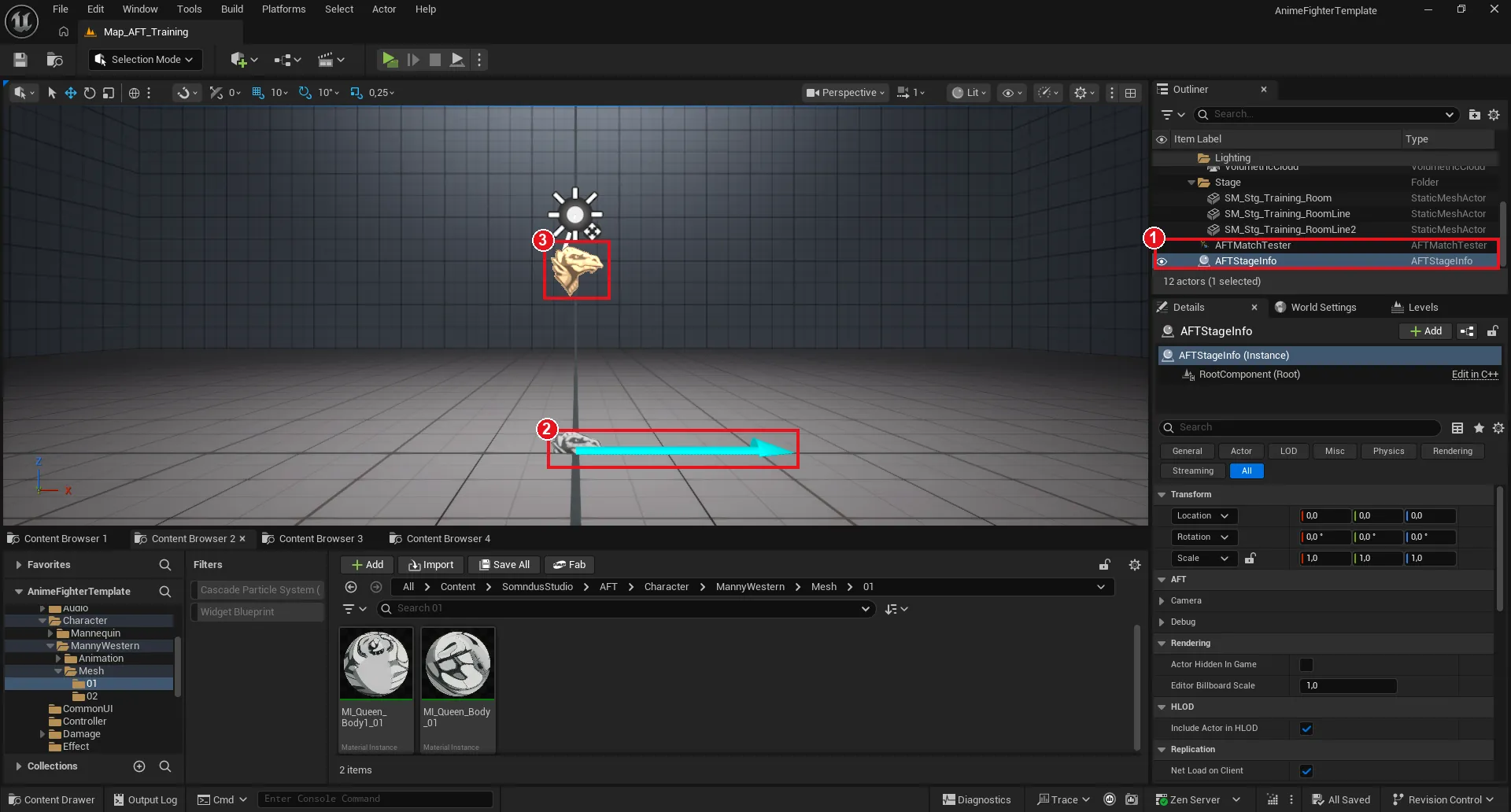
- The AFT Match Tester and AFT Stage Info actors of
Map_AFT_Trainingin the Outliner - The Stage Info arrow: X = screen right
- The selected Stage Info
4. A first fighter
Create a fighter from your mesh and animations with the fighter wizard, or from Content Browser > right click > AFT > Fighter. Then press Play in your battle map.
5. Menus (optional)
Create a menus map, set its game mode to AFTFrontEndGameMode, set it as AFT Game > Front End Map and as the Game Default
Map. Set AFT Game > UI > UI Policy (/AFT/UI/DA_AFT_UIPolicy, or your own copy). The built-in C++ screens work without any
widget asset; to make your own UI, see Custom UI.
Every AFT asset
Every asset type is created from Content Browser > right click > AFT:
| Menu entry | Asset | Page |
|---|---|---|
| Fighter | UAFTFighterData | Fighter Data Asset |
| Action | UAFTActionAsset | Actions and Frame Events |
| State Graph | UAFTStateGraph | State Graph Editor |
| Battle Rules | UAFTBattleRules | Battle Rules |
| Stage | UAFTStageData | Stages |
| Cue Set | UAFTCueSet | Effects and Sounds |
| Game Mode | UAFTGameModeDefinition | Game Modes |
| Arcade Ladder | UAFTArcadeLadder | Game Modes |
| Input Bindings | UAFTInputBindings | Input and Controls |