Training Mode
The training mode gives the tools players expect from a modern fighting game: a frame meter in the Guilty Gear Strive /
Street Fighter 6 style, damage and frame data panels, an input log and the hitboxes. The template opens on the
training room: press Play in Map_AFT_Training to try it.
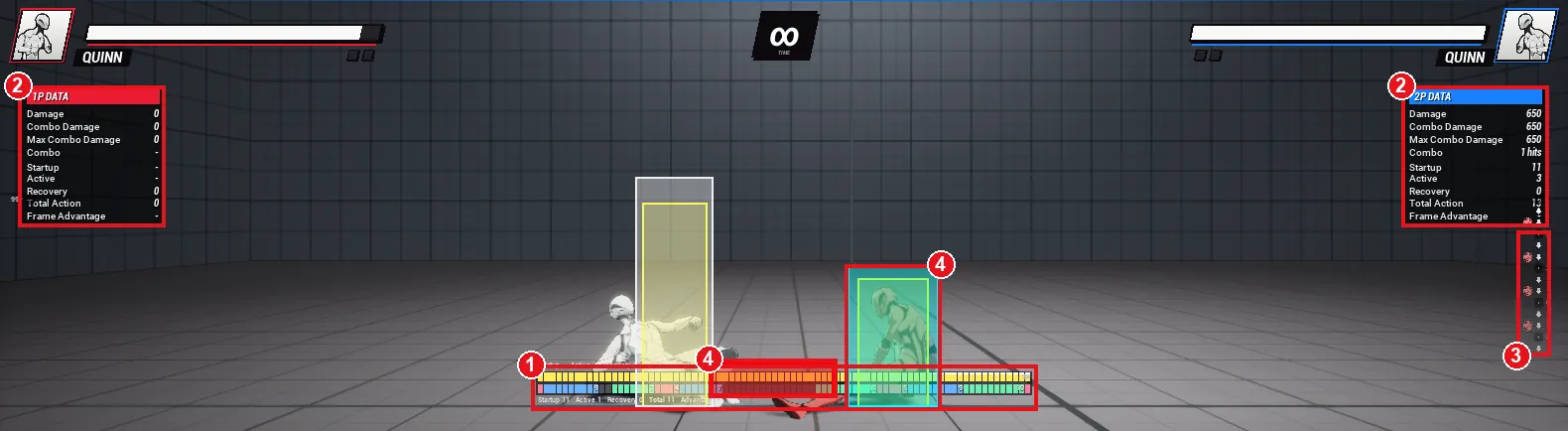
- Frame meter
- 1P DATA / 2P DATA panels: damage and frame data of each side
- Input log
- Hitboxes (red) and hurtboxes (cyan)
The training HUD is UAFTTrainingHUD (Project Settings > AFT Game > UI > Training HUD Class), used for matches of type
Training. It extends the battle HUD (health, timer, rounds).
Frame meter

One row per side, one cell per frame. The top row is player 1, the bottom row player 2.
| Color | Meaning |
|---|---|
| Green | Startup: attack frames before the first active frame |
| Red | Active: frames with a hitbox or a throw box |
| Blue | Recovery: attack frames after the last active frame |
| Yellow | Stun: hit stun, block stun, knockdown, thrown |
| Teal | Movement: non attack actions that cannot be interrupted yet (dash, jump startup, landing...) |
| Dark | Can act (neutral) |
| White top stripe | Strike invulnerable |
| Pink bottom stripe | A projectile of the side has an active hitbox |
- Hit stop and super freeze frames are skipped, like in the reference games.
- The length of each run of frames is written over its last cells (
bShowRunLengths). - The summary above / below the rows gives the startup, active (with gaps, for example
3(4)2), recovery and total of the last attack, and the frame advantage once both sides can act again (bShowSummary).
Damage and frame data panels

One panel per side (1P DATA, 2P DATA): Damage of the last hit, Combo Damage, Max Combo Damage, Combo hits, then Startup, Active, Recovery, Total Action and Frame Advantage (blue when plus, red when minus).
Input log

The input history of each side, newest on top: the direction arrow, the buttons, and the number of frames each entry was held. The buttons use the button icons of the built-in look (light / medium / heavy punch and kick), or colored chips with the project button names when a button has no icon. Buttons still held from a previous entry are drawn faded.
Hitboxes
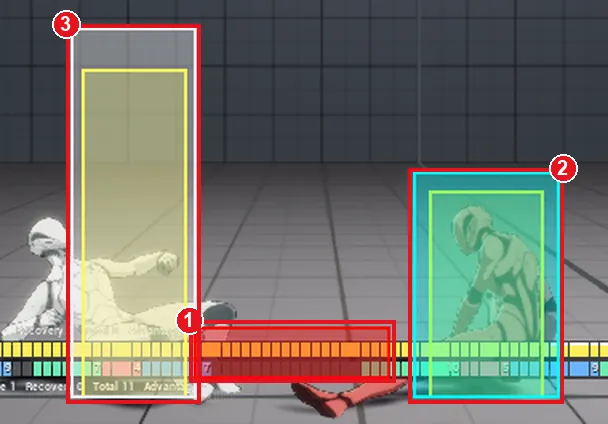
- Hitbox (red)
- Hurtbox (cyan) and push box (yellow)
- Strike invulnerable hurtbox (white) of a knocked down fighter
Boxes are drawn with a translucent fill and a solid border, in the colors of AFT Core > Debug > Box Style (shared with the
Fighter Editor): hurtbox cyan, hitbox red, push box yellow, throw box magenta, invulnerable hurtbox white. Outside the training
mode, use the console command aft.ShowBoxes 1 (2 hides the push boxes) or Show Boxes on the Match Tester (for its own
match only). aft.ShowBoxes 0 hides every box, even those of the training menu; -1 (default) goes back to the menu setting
(see Console Commands).
Training menu
Press Start to open the training menu:
| Entry | Effect |
|---|---|
| Reset position (center) | Both fighters back to the center. |
| Reset position (corner) | Fighters in the corner. |
| Dummy: stand / CPU | The dummy stands still or is played by the CPU (TrainingSetDummyController). |
| Hitboxes ON / OFF | Box viewer. |
| Frame meter ON / OFF | |
| Input log ON / OFF | |
| Damage / frame data ON / OFF | Both panels. |
| Resume, Settings, Character Select, Main Menu | Like the pause menu of the other modes. |
Health and meter are refilled automatically in training.
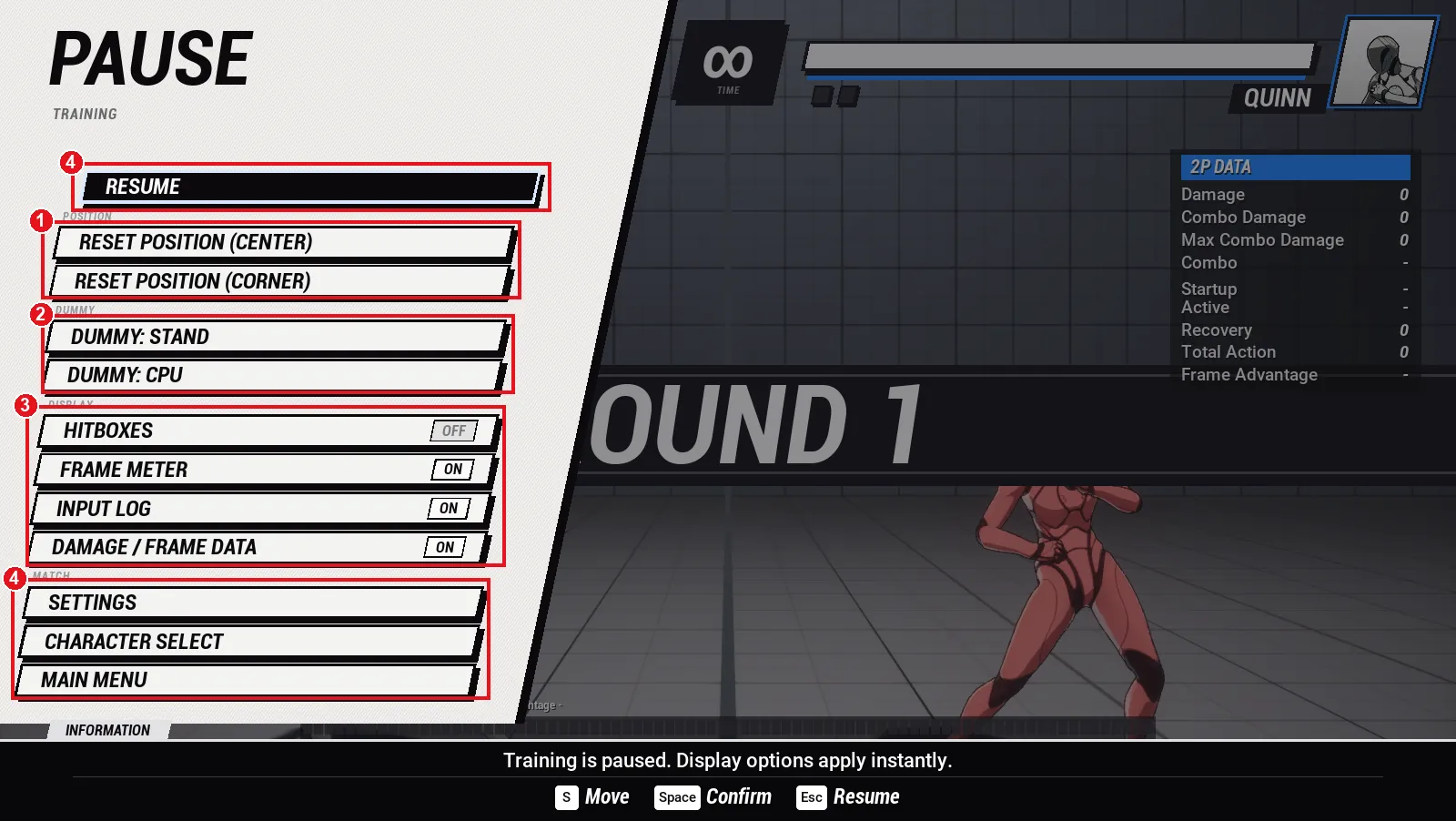
- Reset positions
- Dummy controller
- Display toggles
- Resume, character select, main menu
How it works
FAFTTrainingRecorder records the battle frame by frame (frame meter cells, frame data, damage, input log), outside of the
simulation, after every simulated frame including the frames re-simulated by a rollback. It is therefore rollback safe and also
works in the Sync Test and Rollback Loopback net modes: the training room is also a good place to test the netcode.
Read the data in Blueprint from UAFTBattleSubsystem:
| Function | Returns |
|---|---|
GetFrameMeter(MaxCells) | FAFTFrameMeter: rows of cells (Kind, Flags) and the summary (Startup, Active, ActiveText, Recovery, Total, Advantage). |
GetTrainingStats(Team) | FAFTTrainingStats: Damage, ComboDamage, ComboHits, MaxComboDamage, bInCombo, FrameData. |
GetInputLog(Team, MaxEntries) | Array of FAFTInputLogEntry: Numpad, Buttons, PressedButtons, Frames. |
SetTrainingDisplay / GetTrainingDisplay | FAFTTrainingDisplay: bFrameMeter, bInputLog, bStats, bHitboxes. |
TrainingResetPositions(Side, bSwapSides) | Reset the positions: -1 left corner, 0 center, 1 right corner (offline matches). With bSwapSides, player 1 starts on the right, facing left: practice from the other side. The pause menu does not offer it yet: call it from your own menu or HUD. |
TrainingSetDummyController(Controller, CpuLevel) | Dummy standing (None) or CPU. |
Use the widgets in your own HUD
The two widgets are regular UMG widgets: add them to any Widget Blueprint (palette category AFT):
- AFT Frame Meter (
UAFTFrameMeterWidget):MaxCells(10 to 300, 80 by default),bShowRunLengths,bShowSummaryand aStyle(every color, the font, cell width / height / spacing, row spacing). - AFT Input Log (
UAFTInputLogWidget):Team(0 = player 1 side),MaxEntries(18),bAlignRight(player 2 side) and aStyle(button colors A to H, direction and text colors, held opacity, font, row height, icon size).
To replace the whole training HUD, derive a Widget Blueprint from UAFTTrainingHUD (or UAFTBattleHUD), implement
On Training Update (stats of both sides and the display toggles), and set it as AFT Game > Training HUD Class.
See Custom UI.