Console Commands
AFT adds seven console commands. Open the console with the key under Esc (` on a QWERTY keyboard, ² on an AZERTY
one) in Play In Editor or in a development build, type the command and press Enter. A variable typed without a value prints
its current value. The console does not exist in a Shipping build: there, a Blueprint can still run a command (Execute Console
Command), as the screen shake setting of the template does with aft.CameraShake.
| Command | Values | Where | Effect |
|---|---|---|---|
aft.ShowBoxes | -1 (default), 0, 1, 2 | Battle | Shows or hides the simulation boxes |
aft.PlayAction | <Team> <Action> | Offline battle | The fighter of a team starts an action now |
aft.Arcade | <Fighter> [Fight] [Palette] | Play, any map | Starts the arcade of a fighter, at any fight, without the menus |
aft.CharacterSelect.Preview | -1 (default), 0, 1 | Character select | 3D fighters or static images |
aft.CameraShake | Scale, 1 (default) | Battle | Strength of the camera impact shake |
aft.Rumble | 1 (default), 0 | Battle | Controller vibration of the cues |
AFT.Editor.TimelineView | <PixelsPerFrame> [FirstFrame] [CurrentFrame] | Editor | Zoom and position of the Fighter Editor timeline |
aft.ShowBoxes
Draws the boxes of the simulation over the battle: hurtbox cyan, hitbox red, push box yellow, throw box magenta, invulnerable hurtbox white (colors of AFT Core > Debug > Box Style).
| Value | Effect |
|---|---|
-1 | Default: the boxes follow the Hitboxes option of the training menu and the Show Boxes option of the Match Tester (for its own match only, not for a match launched by the menus). |
0 | Hides every box, even when the training menu or the Match Tester shows them. |
1 | Shows every box. |
2 | Shows every box but the push boxes. |
aft.ShowBoxes 1

aft.ShowBoxes 1: Quinn's 5C on an active frame, its hitbox (red), the hurtboxes (cyan) and the push boxes (yellow)aft.ShowBoxes 2: the same frame without the push boxesaft.ShowBoxes 0: no box, although the battle shows them
It is a cheat variable: not available in a Shipping build.
aft.PlayAction
aft.PlayAction <Team> <Action>
In an offline battle, the active fighter of team 0 (left, player 1) or 1 (right) starts the action at once: no input, no meter
needed. <Action> is the name of the action asset, for example DA_Quinn_Special_Fireball. Use it to look at an
action in game without knowing its command, or to test a super and its cinematic
without building meter. Blueprint: TrainingPlayAction(Team, Action) of UAFTBattleSubsystem.
aft.PlayAction 0 DA_Quinn_Special_Fireball
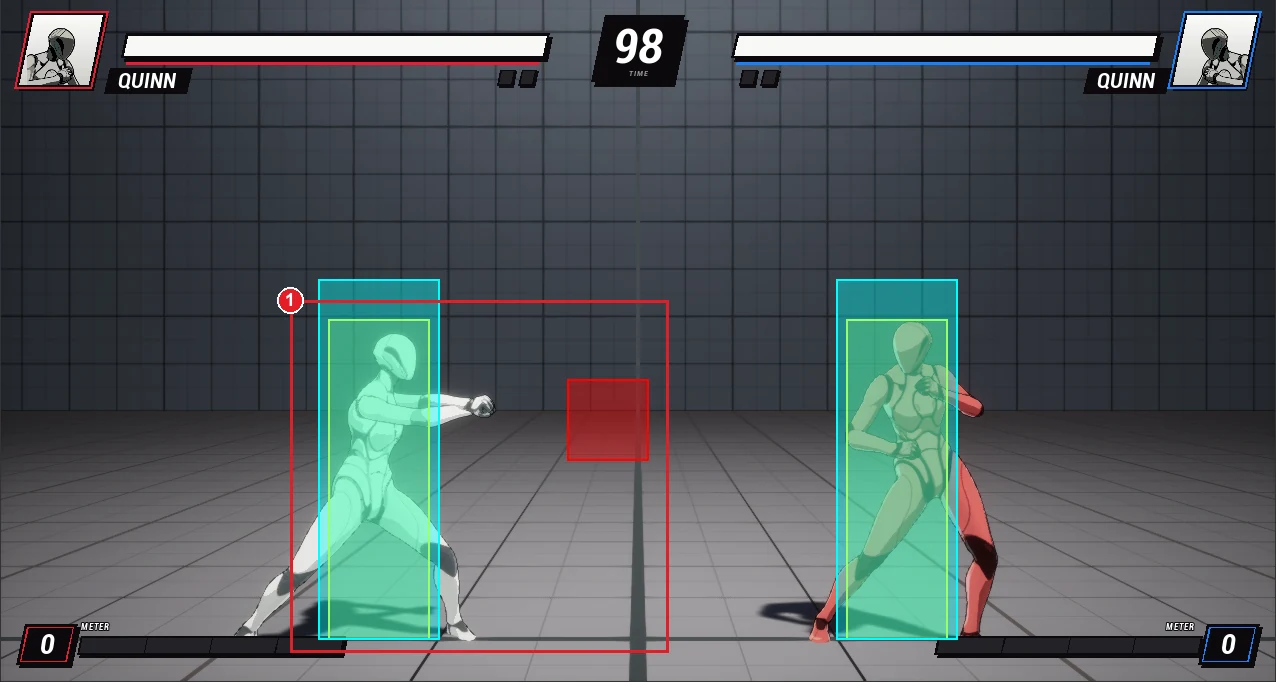
- Quinn (team
0) plays her fireball special, started by the command: the fireball is out (its hitbox is the red box, shown here withaft.ShowBoxes 1; the template fireball has no visual effect yet)
The Output Log says aft.PlayAction: <Action> started, or refused (online match, fighter KO or held by a throw); a warning
names the problem when no battle runs, an argument is missing or the fighter has no action of that name.
aft.Arcade
aft.Arcade <Fighter> [Fight] [Palette]
Starts the arcade of a fighter at once, without the menus: press Play on any map (the training
room, your stage), open the console and type the command. <Fighter> is the fighter data asset name (DA_Quinn) or its Fighter
Id (Quinn), [Fight] the fight of its ladder to start with (1 = the first, default), [Palette] its color (0 = the
first). The stage of the fight loads and the rest is the real arcade: result screen, next fight, continues, ARCADE CLEAR or
GAME OVER, then the main menu.
aft.Arcade DA_Quinn 3
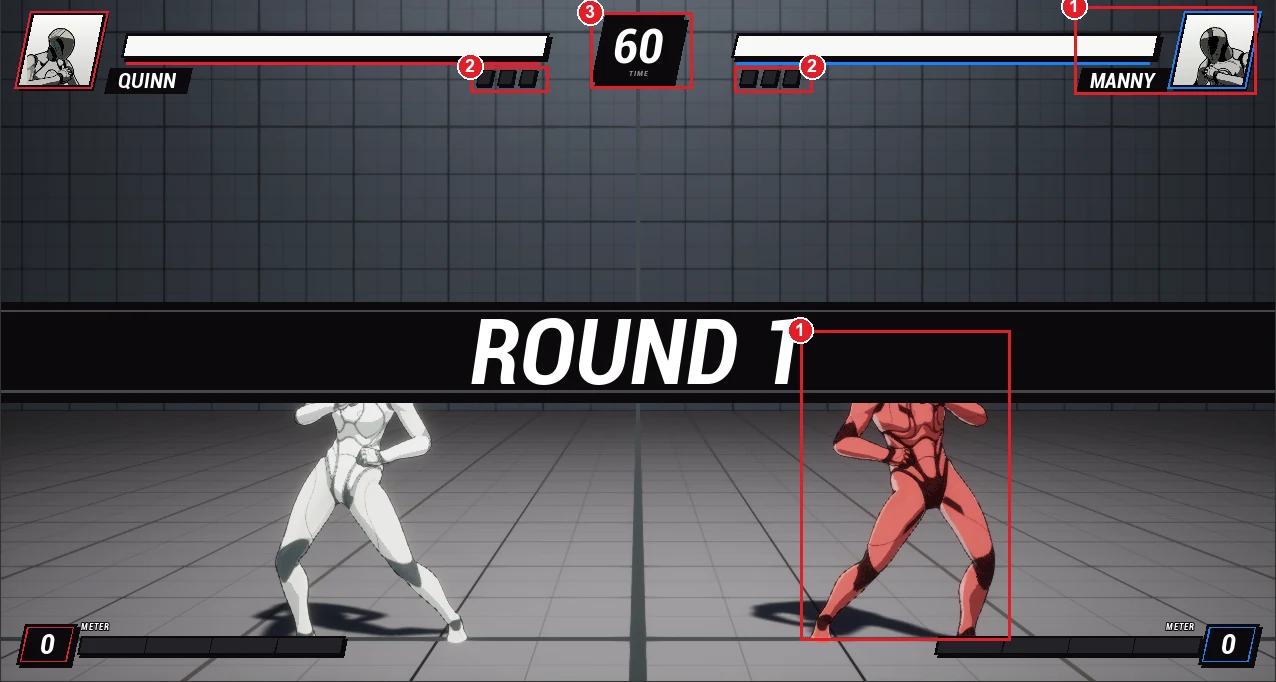
- The opponent of fight 3 of
DA_Quinn_Arcade: Manny in color 2 - Three round pips per side: 3 rounds to win, from the match options of that fight
- The 60 second timer, from the same match options
Use it to test a ladder after an edit, or to go straight to a boss. Blueprint (a test map, an Editor Utility): Launch
Arcade (UAFTMatchSubsystem::LaunchArcade(Fighter, FightIndex, Palette, Mode), FightIndex 0 = the first fight). A Match
Tester with Override Menus in the stage level would replace the fight: turn it off on your stages.
aft.CharacterSelect.Preview
Fighters of the character select, applied live, even with the screen open:
| Value | Effect |
|---|---|
-1 | Default: Project Settings > AFT Game > UI > Character Select Preview. |
0 | Real time 3D fighters. |
1 | Static images (the FullArt of each fighter). |
aft.CharacterSelect.Preview 1
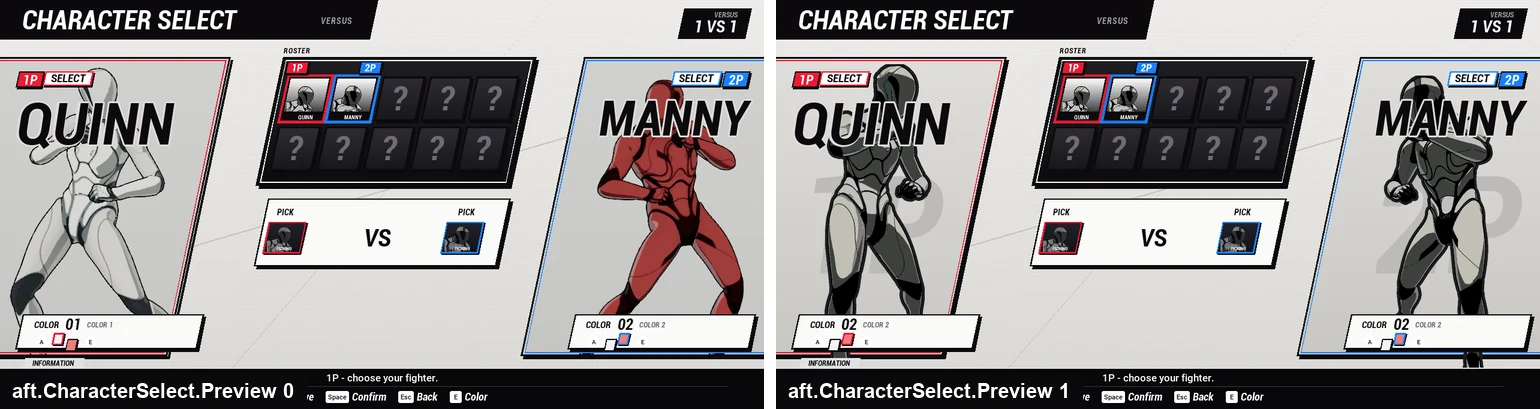
The same screen with 0 (left: the 3D models, in the picked color) and 1 (right: the FullArt images).
aft.CameraShake
Scale of the battle camera impact shake: 1 = default, 0 = off, 2 = twice
as strong. The template setting Gameplay > Battle > Screen Shake runs this command
(settings example). No capture: a shake does not show in a still image.
aft.CameraShake 0
aft.Rumble
Controller vibration of the cues: 1 = on (default), 0 = off for every player. For debugging; the players turn the vibration
off with the Controls > Vibration setting (see Vibration).
aft.Rumble 0
AFT.Editor.TimelineView
AFT.Editor.TimelineView <PixelsPerFrame> [FirstFrame] [CurrentFrame]
Editor only, with a Fighter Editor open: sets the zoom of its timeline (pixels per frame), the first visible frame and the current frame (frames counted from 1, as on the ruler). Handy for documentation captures and scripts, where the mouse cannot be used.
AFT.Editor.TimelineView 40 8 12
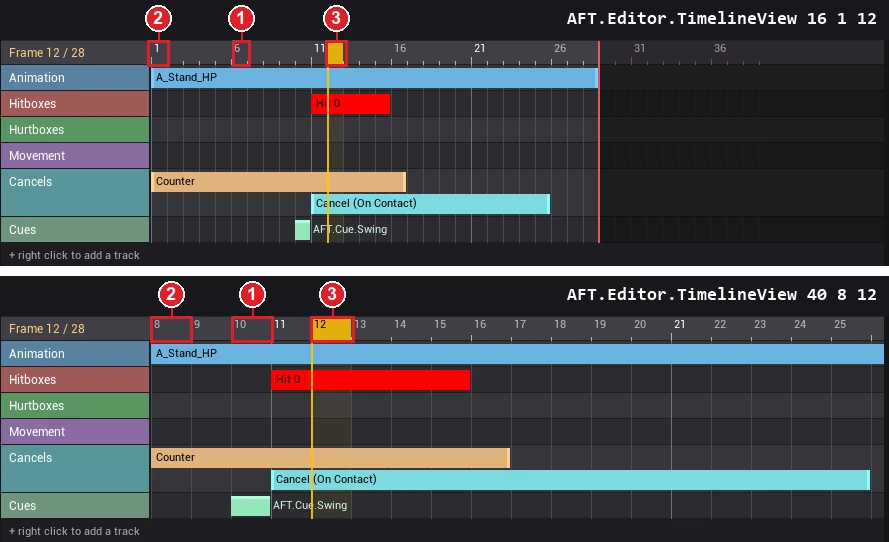
<PixelsPerFrame>: the width of one frame on the ruler, 16 then 40 pixels[FirstFrame]: the first frame shown, 1 then 8[CurrentFrame]: the current frame, 12 in both views (also shown by Frame 12 / 28 on the left)
The test AFT.Visual.ConsoleCommands types these commands, in a battle (then aft.Arcade DA_Quinn 3) and in the Fighter Editor, and saves the battle and
timeline captures of this page (Saved/Screenshots/AFT_Cmd_*.png); the character select ones come from
AFT.Visual.CharacterSelect3D. See Debugging and Tests.