Fighter Editor
The Fighter Editor opens when you double click an AFT Fighter data asset, or one of its AFT Action assets. It is the main tool to author a character: pick an action, scrub it frame by frame, place the hitboxes in the viewport and read the resulting frame data.
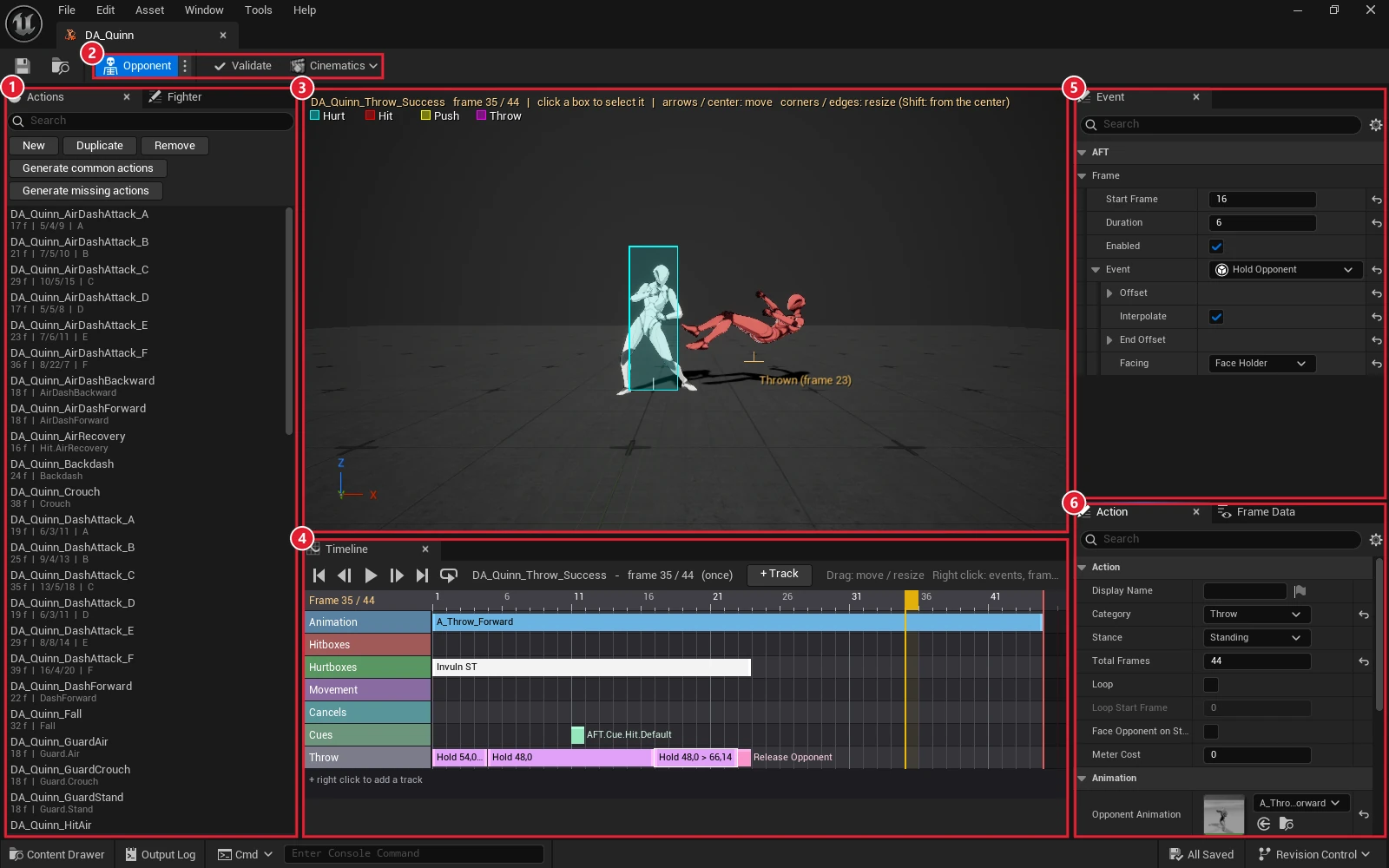
- Actions (and Fighter) tab
- Toolbar: Opponent, Validate, Cinematics
- Preview viewport (here the throw
Throw_Successafter the release, with the preview opponent) - Timeline, with the playback controls on its first row
- Event details
- Action details and Frame Data
Tabs
| Tab | Content |
|---|---|
| Actions | The actions of the fighter grouped by category, with a search box. New (create an action next to the fighter and add it to the list), Duplicate, Remove (from the fighter, the asset is kept), Generate common actions (create the standard actions whose slot is empty and fill the slots) and Generate missing actions (create only the standard actions the fighter does not have, the existing ones are kept as they are), see Create a Fighter from Animations. Both show a notification with the number of actions created. The selected action drives every other tab. |
| Preview | The fighter at the current frame (first palette, outline overlay) and its boxes, and the optional preview opponent. |
| Timeline | Frame-by-frame tracks of the action frame events. |
| Action | Details of the selected action (total frames, category, stance, loop, landing, opponent animation, hit definitions...). The animation of the action is on the Animation track of the timeline. |
| Event | Details of the selected frame event (box, hit index, velocity, cue...). |
| Fighter | Details of the fighter asset (stats, boxes, slots, commands, assists, presentation, cinematics). |
| Frame Data | Startup, active, recovery, total, on hit / on block advantage, damage and guard type of the selected action, computed from its events. |
Every tab can be moved, docked or closed like any Unreal editor tab (Window menu to reopen one).
Preview viewport
The boxes are drawn exactly like the in-game box viewer: a translucent fill and a solid border, with the colors of Project Settings > AFT Core > Debug > Box Style.
| Color | Box |
|---|---|
| Cyan | Hurtbox (vulnerable). The default fighter hurtbox is drawn fainter when the frame has no hurtbox of its own. |
| Red | Hitbox (attack) |
| Yellow | Push box (body collision) |
| Magenta | Throw box |
| White | Hurtbox while strike invulnerable |
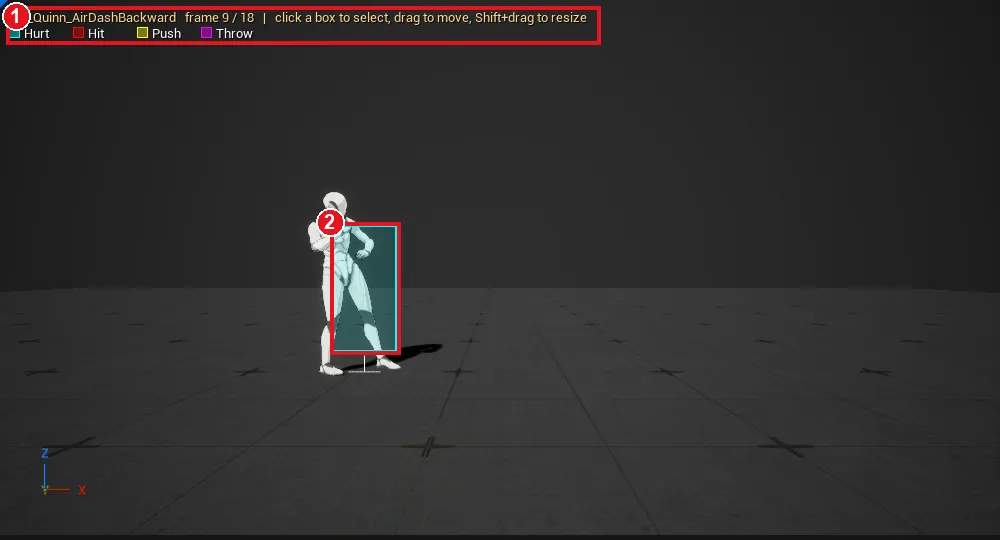
- Action, current frame, editing help and box legend
- Hurtbox of the fighter (cyan) at the current frame
- Hover a box to preselect it (its border lights up), click it to select its frame event (the Event tab shows it). Boxes of muted tracks cannot be picked. Selecting a box does not modify the asset.
- The selected box shows a gizmo:
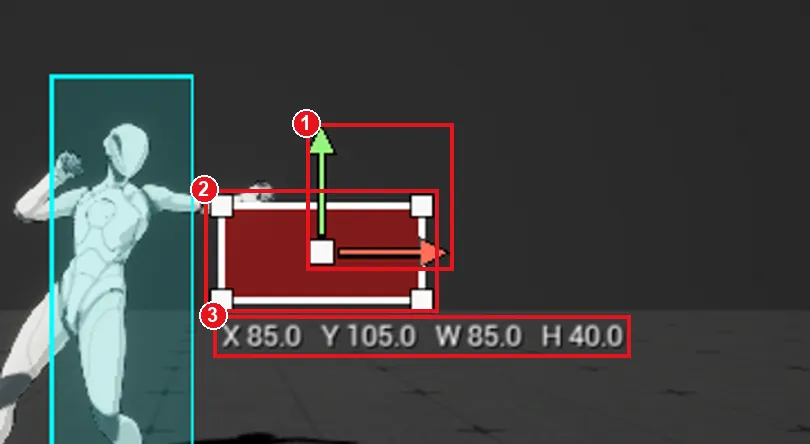
- X (red) and Y (green) arrows and the center square: move the box (along one axis with the arrows; Shift on the center or the body locks the move to one axis)
- Corner handles resize both axes (the opposite corner stays fixed), edges resize one axis; Shift resizes from the center. The hovered handle is drawn in yellow.
- The box values (center X / Y, Width, Height, in cm) under the box
- Each drag is one undo step (Ctrl + Z).
- Velocity events move the preview like in game, so you can check the travel distance of a move.
- The usual viewport navigation works (right mouse button to orbit / look, mouse wheel to zoom).
Preview opponent
The Opponent button of the toolbar shows an opponent in the viewport. By default it is the edited fighter in its second color; the ⋮ menu next to the button (Opponent Options) picks another fighter, saved in the action (Editor > Preview Opponent), and sets the distance used when the action holds nobody (110 cm by default): use it to judge the range of a move.
The opponent faces the fighter and looks like the right side of a real fight: it is
mirrored, so it shows the same side to the camera, with the same toon
lighting. It is turned around instead only when the fighter actor class rotates (bMirrorInsteadOfRotate off on the fighter
VisualClass, or on AFT Game > Default Fighter Actor Class).
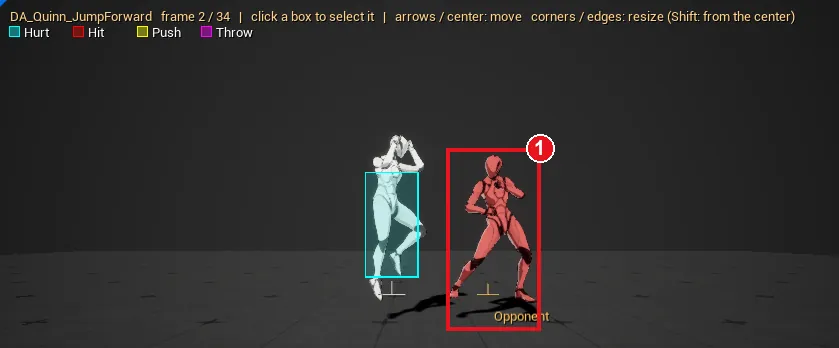
- The preview opponent, mirrored: front to the camera, like player 2 in game (frame 2 of
JumpForward)
During a held throw, the opponent follows the Hold Opponent events and plays the
OpponentAnimation of the action. After the Release Opponent event it is thrown with its own gravity, then plays its
knockdown.
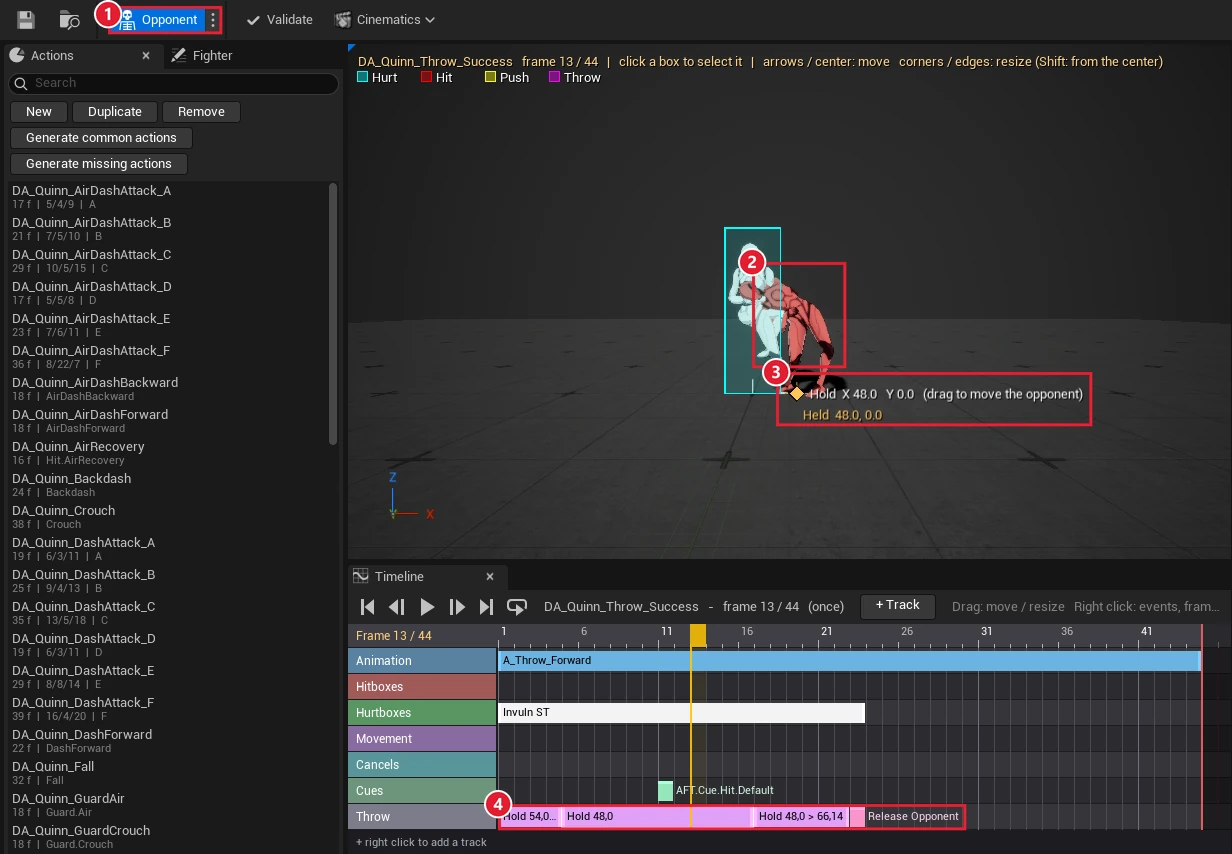
- Opponent button and its options menu (⋮)
- The preview opponent, folded by the knee (frame 13 of
Throw_Success) - The selected Hold Opponent event: the diamond is its start or end point, the line its path. Drag the diamond to move the opponent (one undo step per drag).
- The Hold Opponent and Release Opponent events on the timeline
Timeline
Each action is a fixed number of frames. Its events are organized in tracks (rows): tracks only organize the events, the runtime flattens them.
Playback
The playback controls are on the first row of the Timeline tab, right above the tracks, like in the Animation editor of Unreal:

| Button | Shortcut | Action |
|---|---|---|
| First frame | Home | Goes to frame 1. |
| Previous frame | Left | One frame back. |
| Play / Pause | Space | Plays the action at 60 fps; the button shows Pause while it plays. |
| Next frame | Right | One frame forward. |
| Last frame | End | Goes to the last frame. |
| Loop | On by default: the playback restarts at the Loop Start Frame of a looping action, else at frame 1. Off (crossed icon): the playback stops on the last frame. |
Then come the action name, the current frame (frame N / Total, loop or once), + Track and a reminder of the mouse
actions. The buttons do not take the keyboard focus: after a click, Space, Left, Right, Home and End keep acting on the timeline.
The tooltips give the shortcuts.
Tracks
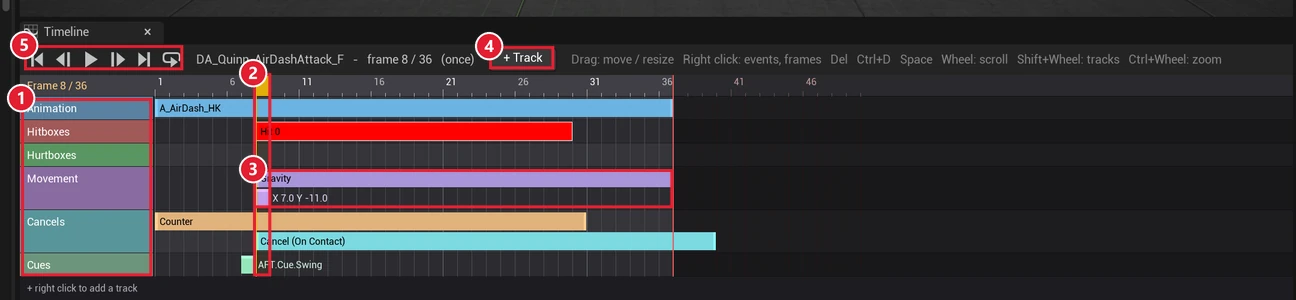
- Tracks: Animation (the animation of the action), Hitboxes, Hurtboxes, Movement, Cancels, Cues
- The current frame (playhead)
- Overlapping events of a track are drawn on sub-lanes (here a Gravity and a Velocity event)
- + Track
- The playback controls
- Click the ruler to scrub, the playhead shows the current frame. The grid stops a few frames after the end of the action (red line).
- Drag an event to move it, drag its edges to change its first frame and duration. Single frame events (cues, projectile spawn, meter...) are drawn as markers with their label on the right.
- Overlapping events of a track are stacked on sub-lanes; long labels are cut with "…".
- Mouse wheel scrolls the frames, Shift + wheel scrolls the tracks, Ctrl + wheel zooms.
- Muted tracks are ignored by the simulation: handy to test a move without one of its parts.
- + Track adds a track; tracks can be renamed, muted and removed.
Right click menu
Right click a frame of a track to add events and edit the frames of the action:
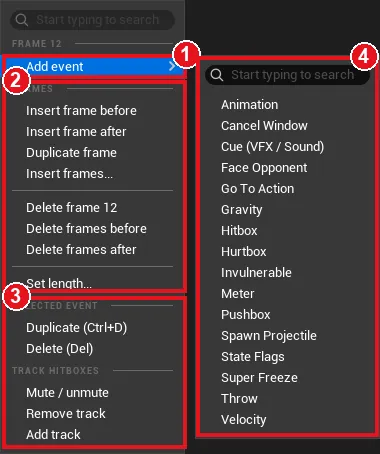
- Add event at this frame (searchable list of every event type, including your own C++ events)
- Frames: insert a frame before / after, duplicate the frame, Insert frames..., delete this frame / the frames before / the frames after, Set length...
- The selected event (Duplicate, Delete) and the track (Mute / unmute, Remove track, Add track)
- The event types
Insert frames... opens a small dialog:

- Count, Content (empty frames or copies of the current frame) and Where (before / after it)
- Insert
Right clicking after the last frame offers Extend the action to frame N. Every frame edit keeps the action consistent: events, the loop start frame and Go To Action frames of the same action move with the frames, and animation events are split or retimed so that every kept frame keeps its pose. Each edit is one undo step.
The available event types are described in Actions and Frame Events.
AFT.Editor.TimelineView <PixelsPerFrame> [FirstFrame] [CurrentFrame] sets the zoom, the first visible frame and the current frame
(1-based) of the open timeline: useful for documentation screenshots and automation.
Shortcuts
With the timeline or the viewport focused:
| Key | Action |
|---|---|
| Space | Play / pause the action at 60 fps |
| Left / Right | Previous / next frame |
| Home / End | First / last frame |
| Del (or Backspace) | Delete the selected event |
| Ctrl + D | Duplicate the selected event |
| Mouse wheel / Shift + wheel / Ctrl + wheel | Scroll frames / scroll tracks / zoom (timeline) |
Every edit is undoable (Ctrl + Z).
Toolbar
The playback controls are not in the toolbar but on the timeline, next to the frames they play (see Playback).
| Button | Description |
|---|---|
| Opponent (and ⋮) | Shows the preview opponent; the menu picks its fighter and its distance. |
| Validate | Checks the fighter and all its actions and lists the problems in the Message Log. |
| Cinematics | New Intro Sequence / New Victory Sequence: create a Level Sequence bound to this fighter, see Cinematics. New Action Cinematic (Super): create a Level Sequence for the edited action and a Cinematic event that plays it from the current frame to the end of the action, see Cinematic Supers. |
Frame data
The Frame Data tab reads the timeline:
- Startup: first frame with a hitbox or a throw box (1-based, fighting game convention).
- Active: from the first to the last active frame.
- Recovery: the frames after the last active frame. Total = the action length.
- On hit / On block: the advantage when the first hit connects on its first active frame, from the hit stun / block stun of its attack level in AFT Core > Default Rules (or the stun override of the hit definition).
- Damage and Guard type of the first hit.
The same values are available in Blueprint with Compute Frame Data on an action asset. The in-game frame meter of the training mode measures the real values, including cancels and gaps between active frames.