Input and Controls
AFT reads the devices directly (UAFTInputSubsystem): every gamepad is a device, and the keyboard is split in two virtual
pads (left and right) so that two players can share it. Devices are assigned to player slots from the menus (title screen and
side select), and each device keeps its own bindings.
Default layout
| Left keyboard | Right keyboard | Gamepad | |
|---|---|---|---|
| Up / Down / Left / Right | Z / S / Q / D (AZERTY) or W / S / A / D (QWERTY) | Arrows | D-pad, left stick |
| A / B / C (LP MP HP) | U / I / O | Num 4 / Num 5 / Num 6 | Square / Triangle / R1 (X / Y / RB) |
| D / E / F (LK MK HK) | J / K / L | Num 1 / Num 2 / Num 3 | Cross / Circle / R2 (A / B / RT) |
| G / H (Tag, Assist) | P / M | Num 7 / Num 8 | L1 / L2 (LB / LT) |
| Menu confirm | Space, U | Num 4 | Cross (A) |
| Menu back | Escape, I | Num 5 | Circle (B) |
| Start | Enter | Num 0 | Options (Menu) |
| Select | Tab | Num . | Share (View) |
| Tab left / right | A / E (AZERTY), Q / E (QWERTY) | L1 / R1 |
AFT uses a six button layout: the punches on the top row (U I O, X Y RB) and the kicks below (J K L, A B RT), like the
classic arcade panel, with the tag and assist buttons on the side. The throw is LP + LK (AD). See
Commands and Cancels.
The attack letters U I O J K L P M exist on both keyboard layouts, only the movement keys change.
QWERTY / AZERTY
Without a bindings asset, the built-in layout follows Project Settings > AFT Game > Input > Keyboard Layout:
| Value | Movement | Tab left |
|---|---|---|
QWERTY (WASD) (default of the plugin) | W A S D | Q |
AZERTY (ZQSD) (template project) | Z Q S D | A |
Unreal keys are the printed letters: on a French keyboard, ZQSD is at the physical position of WASD.
AFT Input Bindings asset
For full control, create an AFT Input Bindings data asset (UAFTInputBindings, Content Browser > right click > AFT > Input
Bindings) and set it in Project Settings > AFT Game > Input > Input Bindings.
| Property | Description |
|---|---|
Gamepad, KeyboardLeft, KeyboardRight | List of Key -> Action bindings per device kind. A key may have several actions (Space = confirm, U = button A and confirm). |
StickThreshold | Stick deflection turned into a direction (0.5). |
MenuRepeatDelay, MenuRepeatInterval | Menu navigation auto repeat (0.35 s, then every 0.08 s). |
Actions (EAFTBindingAction): Up, Down, Left, Right, ButtonA to ButtonH, MenuConfirm, MenuBack, MenuStart,
MenuSelect, MenuTabLeft, MenuTabRight.
The Reset To Qwerty and Reset To Azerty buttons of the asset fill it with the built-in layouts, a good starting point.
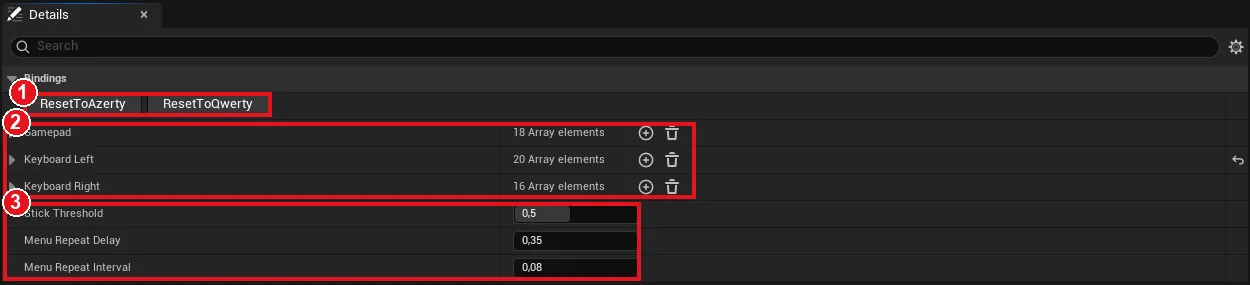
- Reset To Azerty / Reset To Qwerty
- Bindings of each device kind
- Stick threshold and menu repeat
Runtime rebinding
Players remap their fight buttons in the Button Layout screen (Settings > Controls in the template, or the Button Layout entry of the menus when the project has no settings screen), one tab per device kind: see Settings and button layout. Menu keys are not remapped.
UAFTInputSubsystem (Blueprint callable) does the same for your own options menu:
| Function | Description |
|---|---|
SetBinding(Kind, Action, Key) | Rebind an action for a device kind. |
GetBinding(Kind, Action) | Current key of an action. |
ResetBindings, ResetBindingsOfKind(Kind) | Back to the project defaults (every device kind, or one). |
GetDevices, GetDeviceDisplayName(DeviceKey), GetLastActiveDevice | Connected devices. |
AssignDevice(DeviceKey, PlayerSlot), ClearPlayerSlot, GetSlotDevice, GetDeviceSlot, IsPlayerSlotAssigned, EnsurePlayerOneAssigned | Player slots. |
PlayRumble(PlayerSlot, Intensity, Duration), StopAllRumble | Gamepad vibration of a player slot, used by the cues. |
SetRumbleEnabled(bEnabled), IsRumbleEnabled | The vibration option (on by default): off stops every vibration, including the force feedback of the local player controllers. The template Vibration setting calls it. |
Rebinds are saved per user in GameUserSettings.ini, section [AFT.InputBindings].
Inputs in the simulation
The simulation only sees, per team and per frame, the 4 directions and the 8 buttons A to H (resolved: left + right = neutral, up
- down = up). Commands are recognized from this history (32 frames), see Commands and Cancels. The button names shown to the players come from AFT Core > Input > Button Names.
Enhanced Input
AFT does not use Enhanced Input for the battle: reading the devices directly gives frame-exact, per-device inputs that do not depend on the local player setup, which the rollback needs. The menus also work with CommonUI navigation. Enhanced Input remains available for your own systems.