Screens
Every screen below works out of the box with its built-in look, and can be replaced by your own widget through the UI Policy. Every screen exposes On Menu Action (player slot, device, action) and Close Screen to Blueprint, plays the UI sounds of the policy, shows its message and button hints in the information bar, and works with the mouse.
Title screen
UAFTTitleScreen: "Press Start". The device that presses becomes player 1. Shows the name of the game on the title band:
Project Settings > Description, Project Displayed Title, else the Project Name (AnimeFighterTemplate gives
ANIME FIGHTER TEMPLATE).
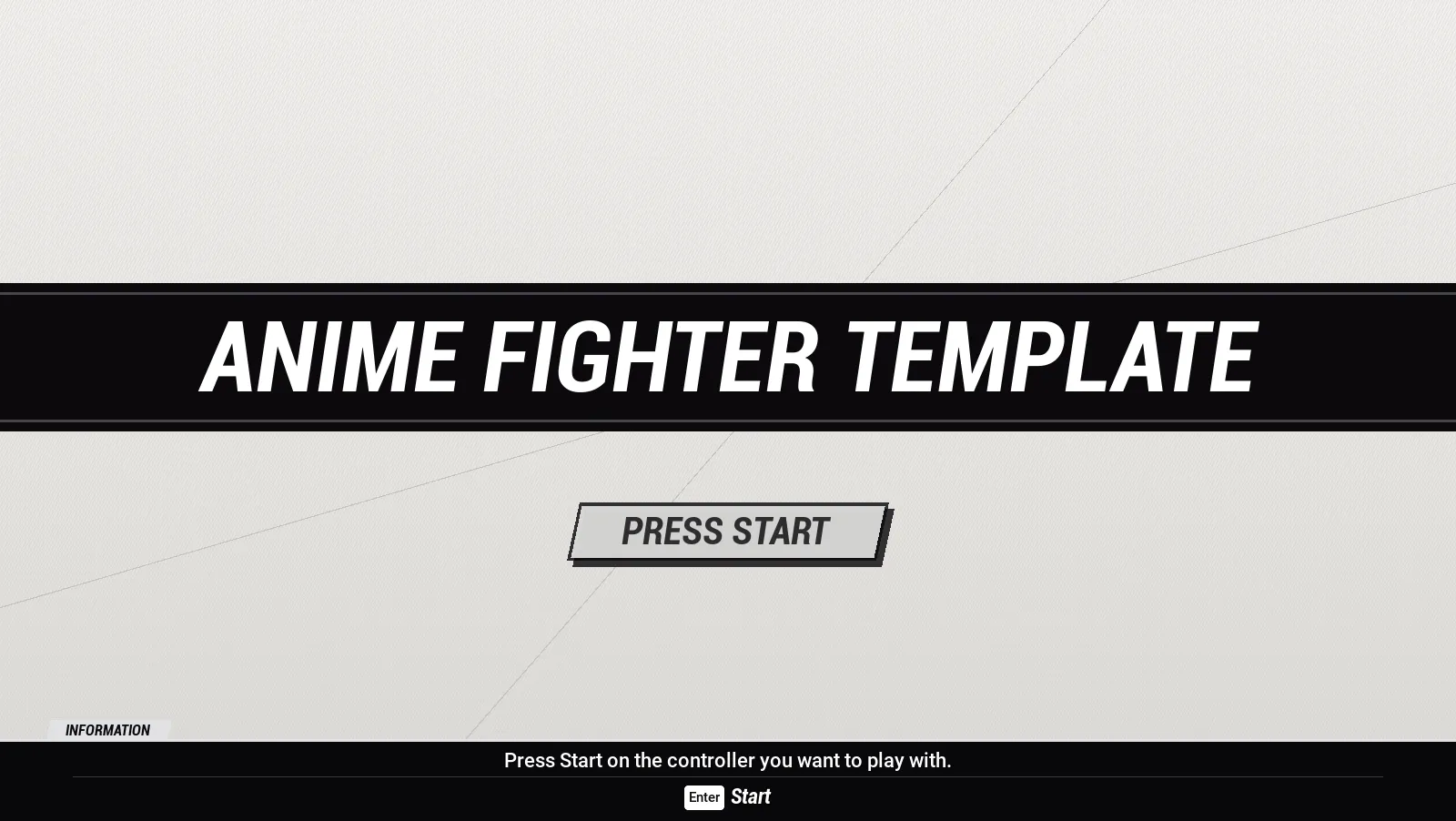
- Title band with the game name
- Pulsing PRESS START
- Information bar: message and button hints
Main menu
UAFTMainMenuScreen: one entry per game mode (AFT Game Mode assets, by SortOrder) with its pictogram,
then Settings and Quit. The preview panel shows the mode card and a fighter render; the information bar shows the mode
description. Selecting a mode opens its flow (UAFTUISubsystem::OpenModeFlow), or its EntryScreen when set.
In every menu of the built-in look (main menu, pause, training menu, settings, button layout, dialogs...), the focused button
is drawn in ink, with a frame on its edge that blinks white / blue and pops in when the focus moves (AddFocusFrame of
UAFTActivatableScreen in C++, colors Focus and FocusBlink of the UI style palette; in your Widget Blueprints, a widget
animation on the hovered / focused state does the same).
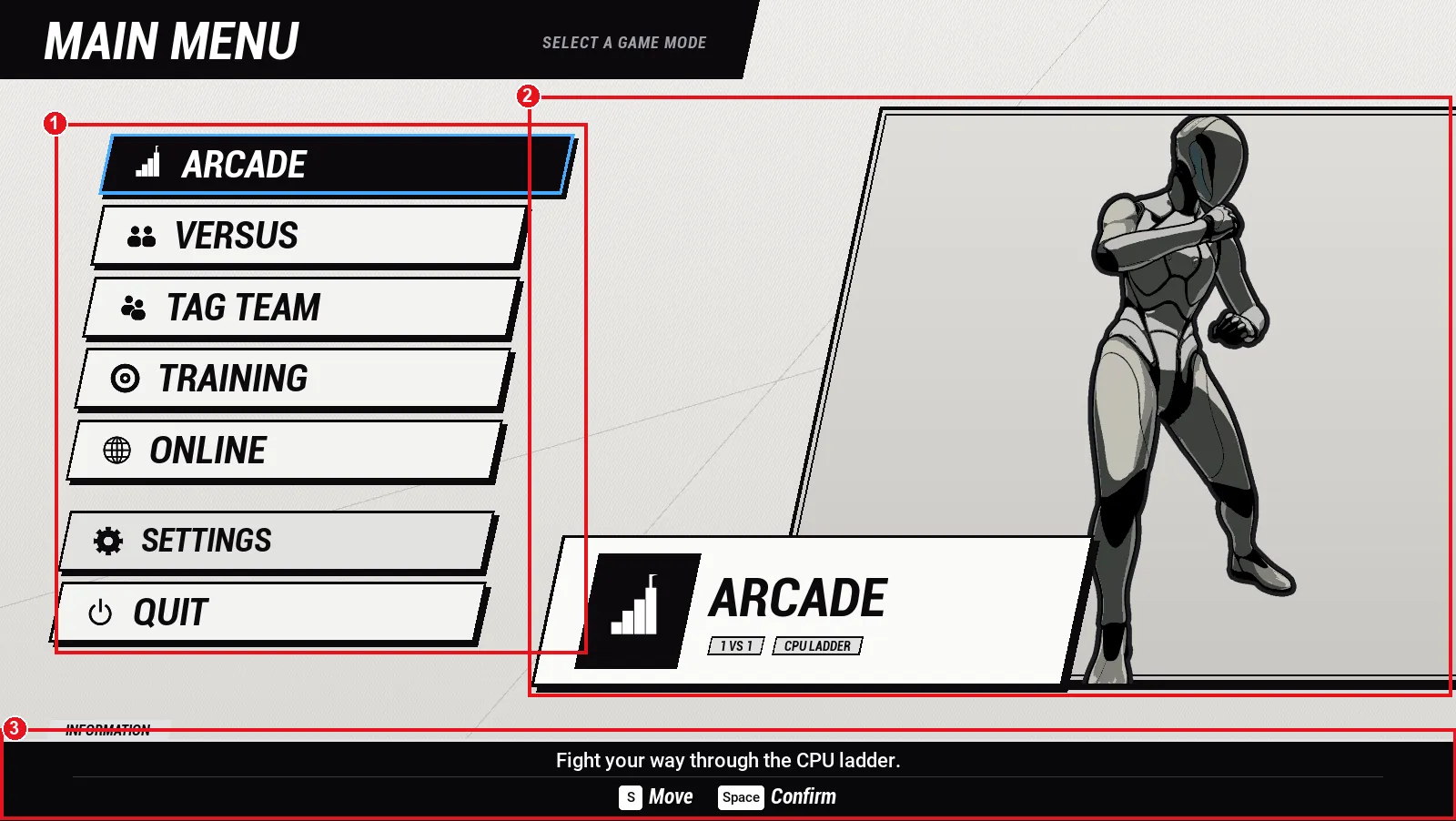
- Game modes, then Settings and Quit
- Preview panel: mode card and fighter render
- Information bar: description of the focused mode
Side select
UAFTSideSelectScreen (SIDE SELECT, controller setup): every connected device (gamepads, left / right keyboard) is a card in the
Controllers lane, moved to the 1P side or the 2P side, Street Fighter / Guilty Gear style. A side without a device is
played by the CPU when the mode allows it (CPU badge and level). Tab opens the match options.
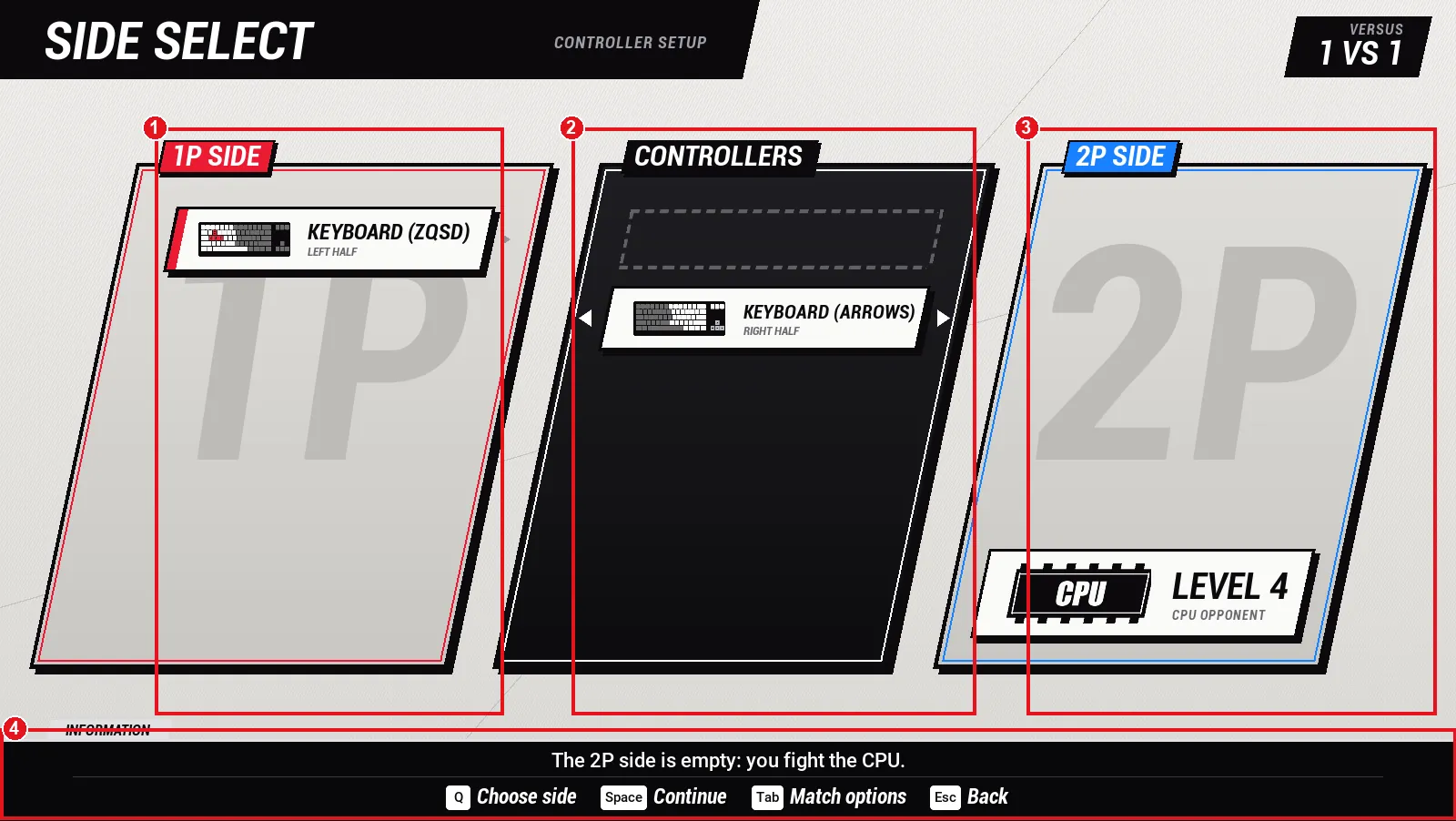
- 1P side: the left keyboard (ZQSD)
- Controllers: devices not assigned yet
- 2P side: CPU badge and level when no device is there
- Information bar: choose side, continue, match options, back
Match options
UAFTMatchOptionsScreen (modal): rounds to win, round time, fighter intros, CPU level (plus team size, 3 VS 3
by default or 2 VS 2, assists and shared meter in tag modes, see Teams of 3), Reset to the mode
defaults. The options are kept by UAFTMatchSubsystem (GetMatchOptions,
GetDefaultMatchOptions, SetMatchOptions): the defaults come from the battle rules of the mode, and
changed options are applied to the pending match as a transient copy of those rules. They are reset when a new match setup starts.
Open it from code with UAFTUISubsystem::ShowMatchOptions.
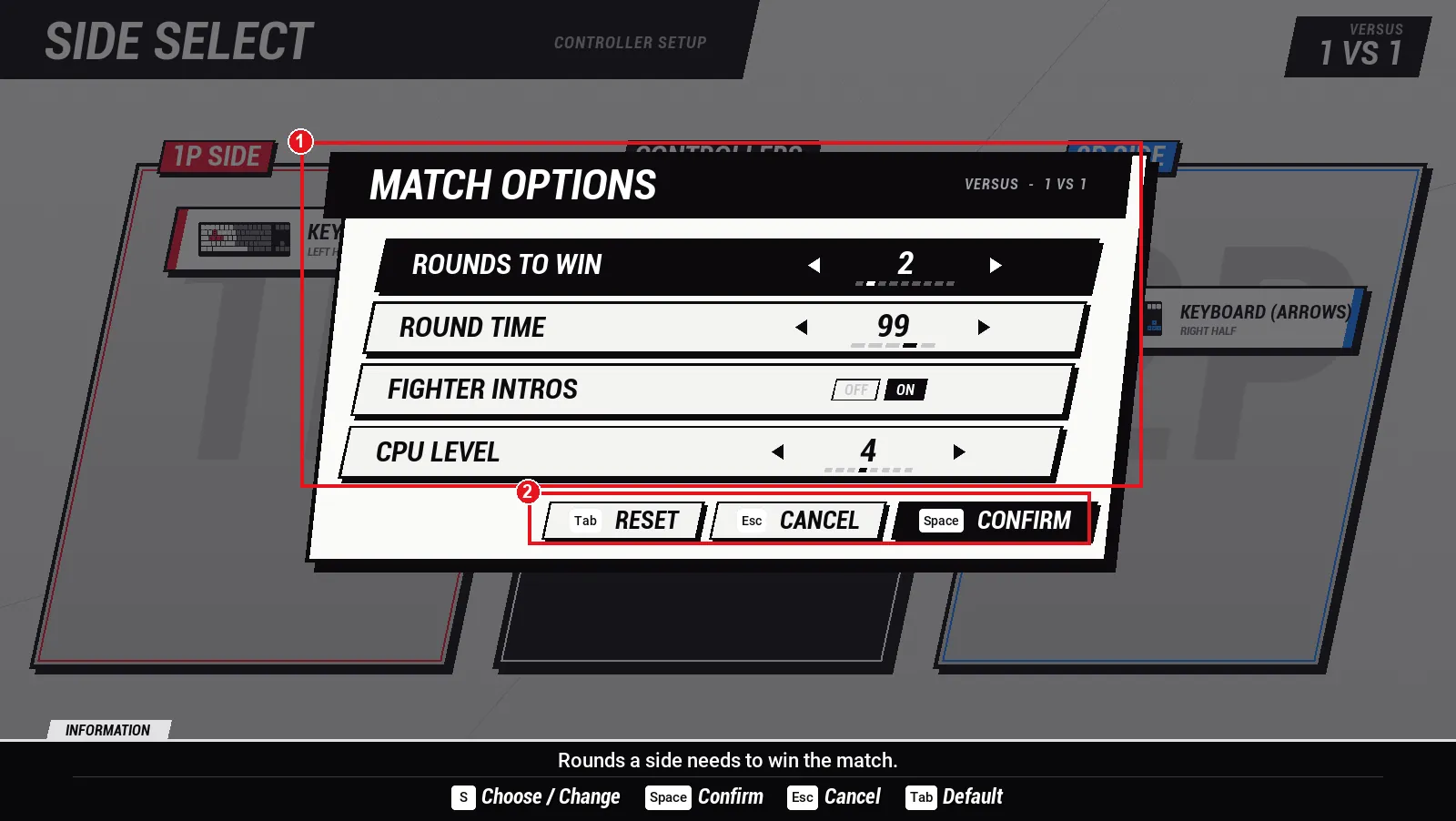
- The options of the match
- Reset, Cancel, Confirm
Character select
UAFTCharacterSelectScreen: side panels (the hovered fighter, big name, SELECT / READY tags, color picker), the roster board with
one cursor per side and the picks (tag team slots). Each side picks GetRequiredTeamSize
fighters (the mode TeamSize, or the team size of the match options in tag modes; the slots are narrower in 3 VS 3); player 1 also
picks for a CPU side. Confirm picks, Back cancels, Tab left / right changes the color. A side that is ready shows the
READY band and darkens: its fighter is locked in.
In arcade, only player 1 picks: the screen has no 2P side (panel, cursor, color, 3D model) and no picks card, the information bar gives the number of fights of the hovered fighter, and the first fight of its ladder starts as soon as player 1 confirms.
Blueprint: Get Roster, Get Cursor(Team), Is Team Ready(Team), Is Preview 3D, Get Preview Stage and the event
On Selection Changed(Team) (update your portraits, names...).
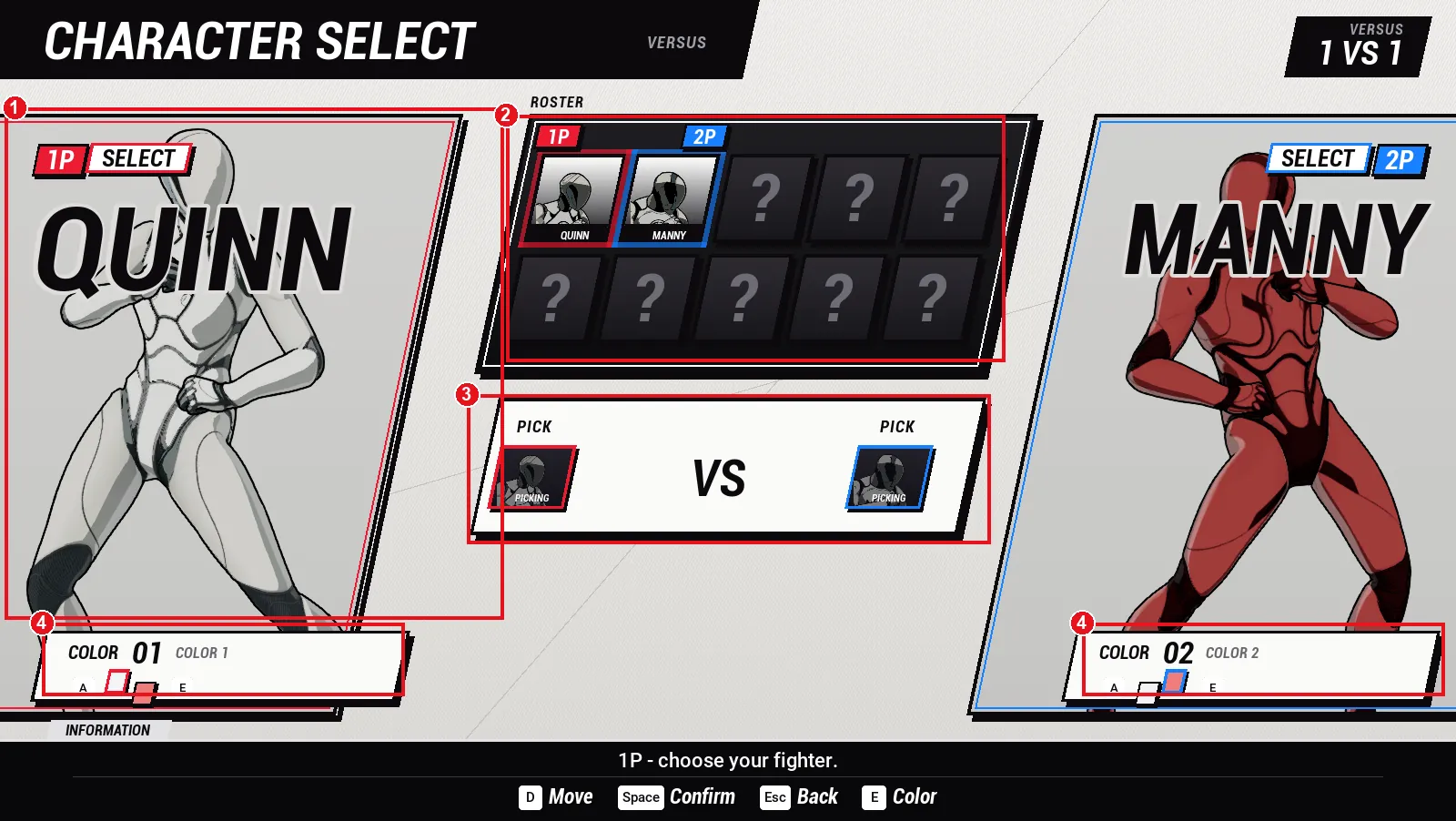
- Player 1 side panel: the fighter in 3D, name, SELECT / READY
- Roster board with the 1P / 2P cursors
- Picks of each side
- Color picker of each side
3D fighters or static image
The side panels show the hovered fighters in one of two ways, set in Project Settings > AFT Game > UI > Character Select Preview:
| Value | Side panels |
|---|---|
| 3D (real time) (default) | The fighter models play their Idle action, with the picked color applied live. Player 2 is mirrored like in battle. A newly hovered fighter slides in. |
| Static Image (Full Art) | The FullArt texture of the fighter (its Portrait without one) over a big 1P / 2P number. Nothing is rendered in 3D, and the image does not change with the color. |
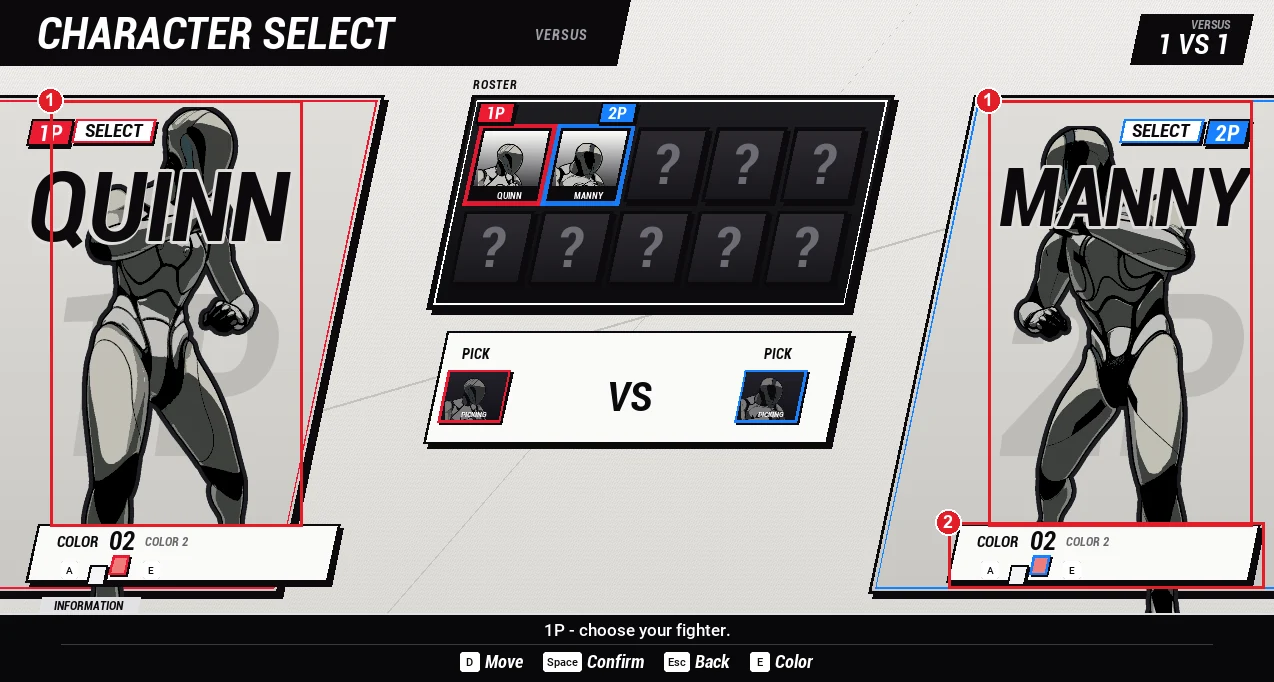
- The
FullArtimage of each side - Color 2 is picked, but the image keeps its colors
The setting is a Game ini setting (CharacterSelectPreview=Model3D or StaticImage in [/Script/AFTGame.AFTGameSettings]), so
a platform can override it in its own Game ini, for example the static image on a low-end console (see
Consoles).
The console command aft.CharacterSelect.Preview changes it while the game runs, even with the screen open: 0 = 3D, 1 = static
image, -1 (default) = the project setting. Handy to show both looks in a demo.
The 3D stage
The 3D fighters come from an AFT Character Select Stage actor (AAFTCharacterSelectStage). It holds:
- a camera;
- a directional light marked Atmosphere Sun Light, without shadows (the toon materials read its direction);
- an unlit backdrop with a gradient (
M_AFT_StageBackdrop, in the light grey of the side panels of the built-in look); - one skeletal mesh per side.
The fighters are drawn by the main scene, behind the UI: no render target, no scene capture. The side panels are windows onto the stage: the screen draws its paper background around them, plus their ink outline and shadow. Every frame, the screen sends each side the rectangle of its art. The stage then places the fighter where it fills that rectangle like the Full Art (feet at the bottom, 3 % margin), so the framing holds at every resolution and aspect ratio.
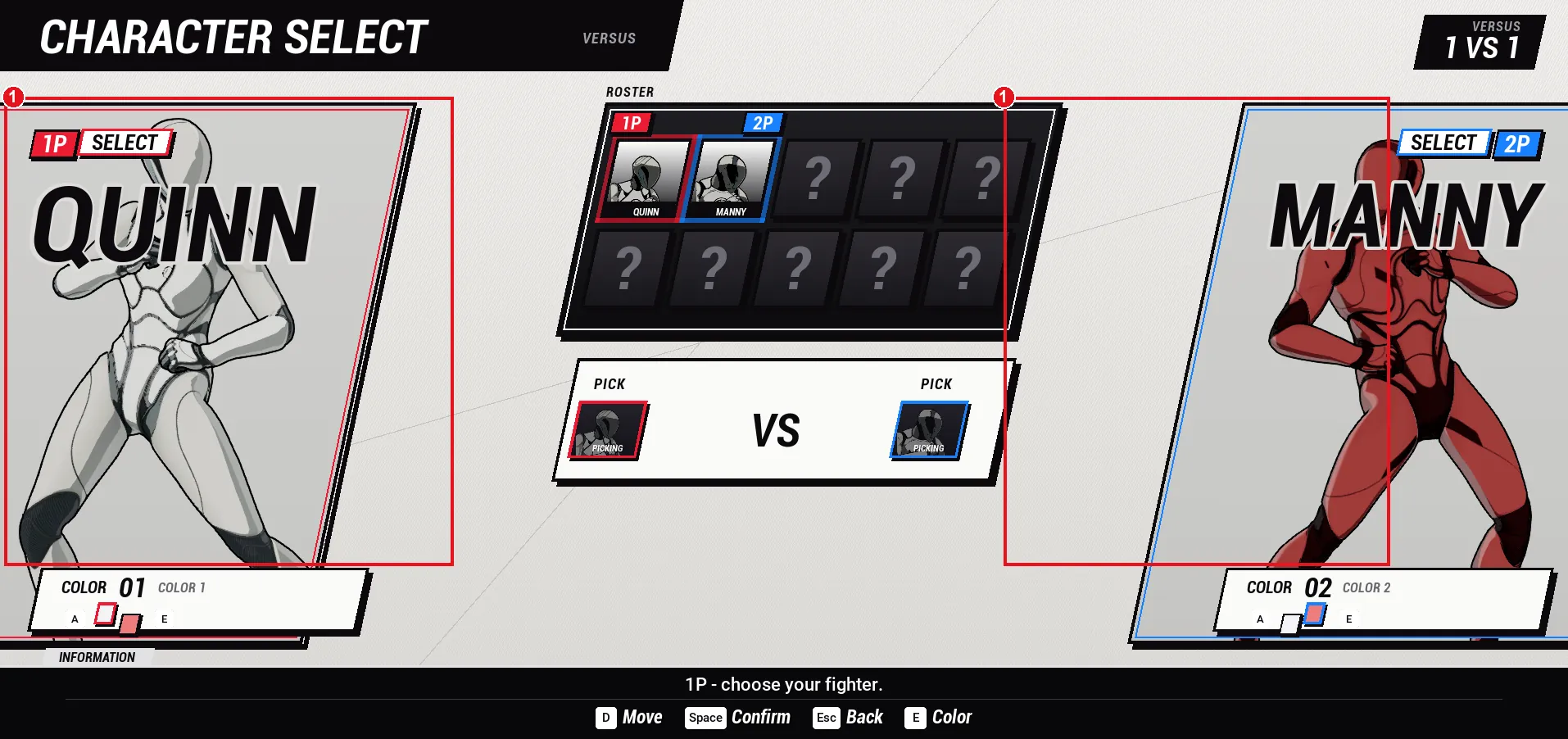
- In a wider window (about 1700 x 900 instead of 16:9), both fighters still fill their panel
The fighters play the action of their PoseSlot slot (Idle) the way the battle samples it, with the AnimClass of the fighter (or
the AFT fighter anim instance). Player 2 is mirrored when its fighter actor class mirrors instead of rotating (see
Mirroring).
| Setting | Default | Description |
|---|---|---|
FieldOfView | 20 | Vertical field of view of the camera, in degrees. Narrow = less perspective between the two sides. |
FighterTurn | 15 | Turn of the fighters toward the camera, in degrees (0 = the in-game facing). |
FrameMargin | 0.03 | Space between the fighter and its frame (fraction of the frame height). |
PoseSlot | AFT.Action.Idle | Action slot the fighters play, looped. |
SlideDistance, SlideTime | 0.1, 0.12 | Slide of a newly hovered fighter from the outer side of the screen (fraction of its height, seconds). 0 = no slide. |
Exposure | 0 | Exposure compensation (EV). The exposure is manual: the same picture every frame. |
bShowBackdrop | On | Draws the backdrop. Off: the level behind the stage is seen. |
BackdropMaterial, BackdropGradient | M_AFT_StageBackdrop, 0.139 to 0.872 | Unlit backdrop material (TopColor, BottomColor, GradientTop, GradientBottom parameters) and the screen heights of its gradient. |
Blueprint: Activate Stage, Deactivate Stage, Set Side Fighter(Side, Fighter, Palette), Set Side Frame, Set Backdrop Colors, Get Side Fighter, Get Side Mesh (side 0 = 1P on the left, 1 = 2P on the right), and the event On Side Fighter
Changed(Side, Fighter, Palette), called once the mesh, color and pose of a new fighter are set.
To customize it, place an AFT Character Select Stage, or a Blueprint subclass, in the menus map: the screen uses it. With none in
the map, the screen spawns the Character Select Stage Class of Project Settings > AFT Game > UI (None =
AAFTCharacterSelectStage) far above the level (Z = 50000). A Blueprint subclass can add its own set, lights or effects in
On Side Fighter Changed.
The stage costs two skeletal meshes, one unlit plane and one light without shadows. It is hidden and stops ticking as soon as the screen is left (stage select, back to the menu). With the static image, no stage is created.
Stage select
UAFTStageSelectScreen: stage preview (thumbnail, or a placeholder pictogram), the stages found by the Asset Manager (by
SelectOrder) plus Random, and the matchup. It opens after the character select when the mode shows it (bShowStageSelect,
not arcade) and the game has more than one stage: the template has two entries on the training room. It is a menu like the main
menu: any player of the match navigates it, with the same focus (ink fill and white / blue frame), no side cursor.
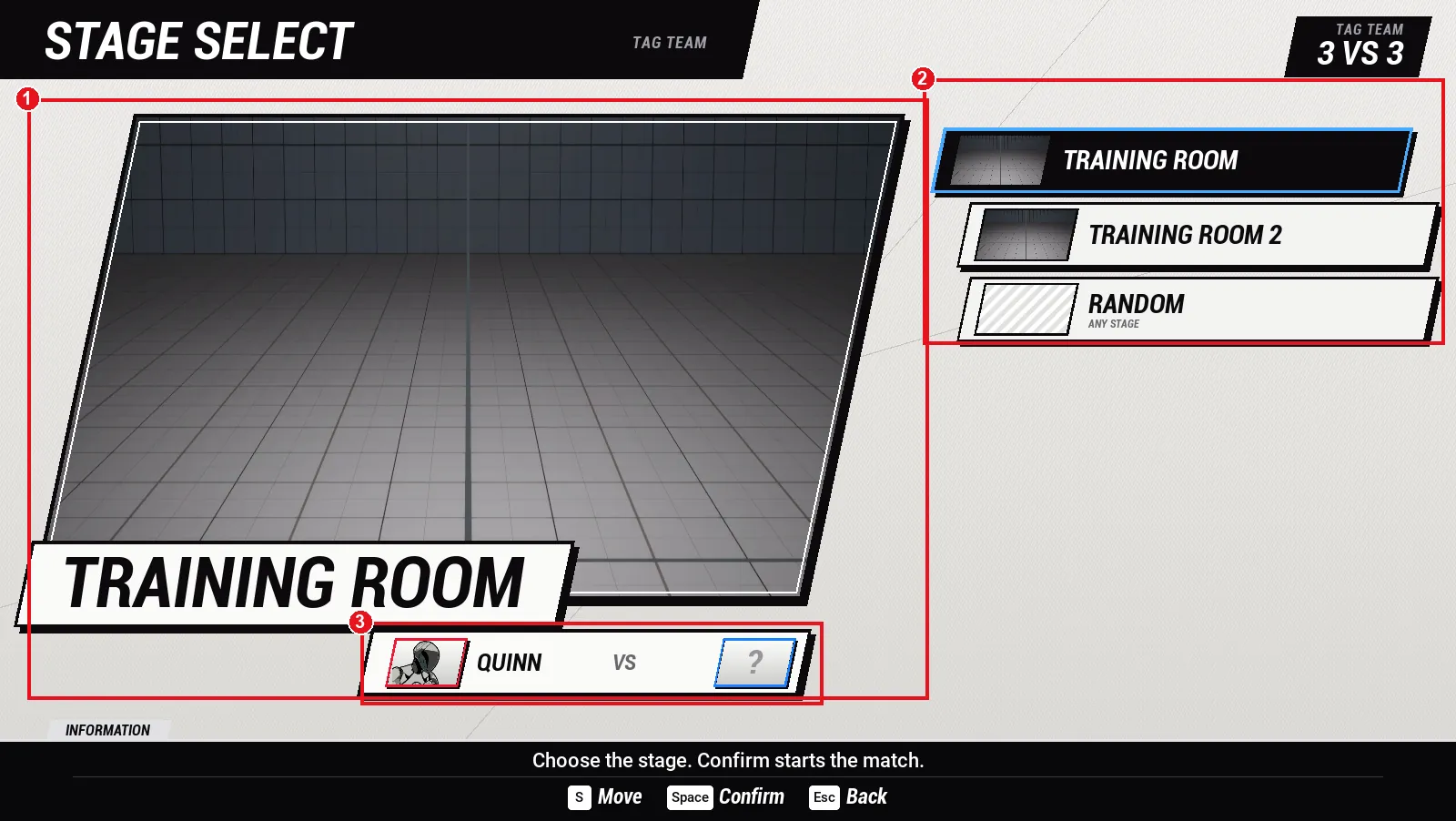
- Stage preview
- The stages, then Random
- Matchup
Online lobby
UAFTOnlineLobbyScreen (ONLINE): your fighter card (left / right to change it), Host Match / Find Match with the project
backend, then the lobbies found with their ping. Development builds add compact DEV: entries (forced backends, direct connect),
removed from Shipping builds. It drives UAFTOnlineSubsystem, see Online Backends.
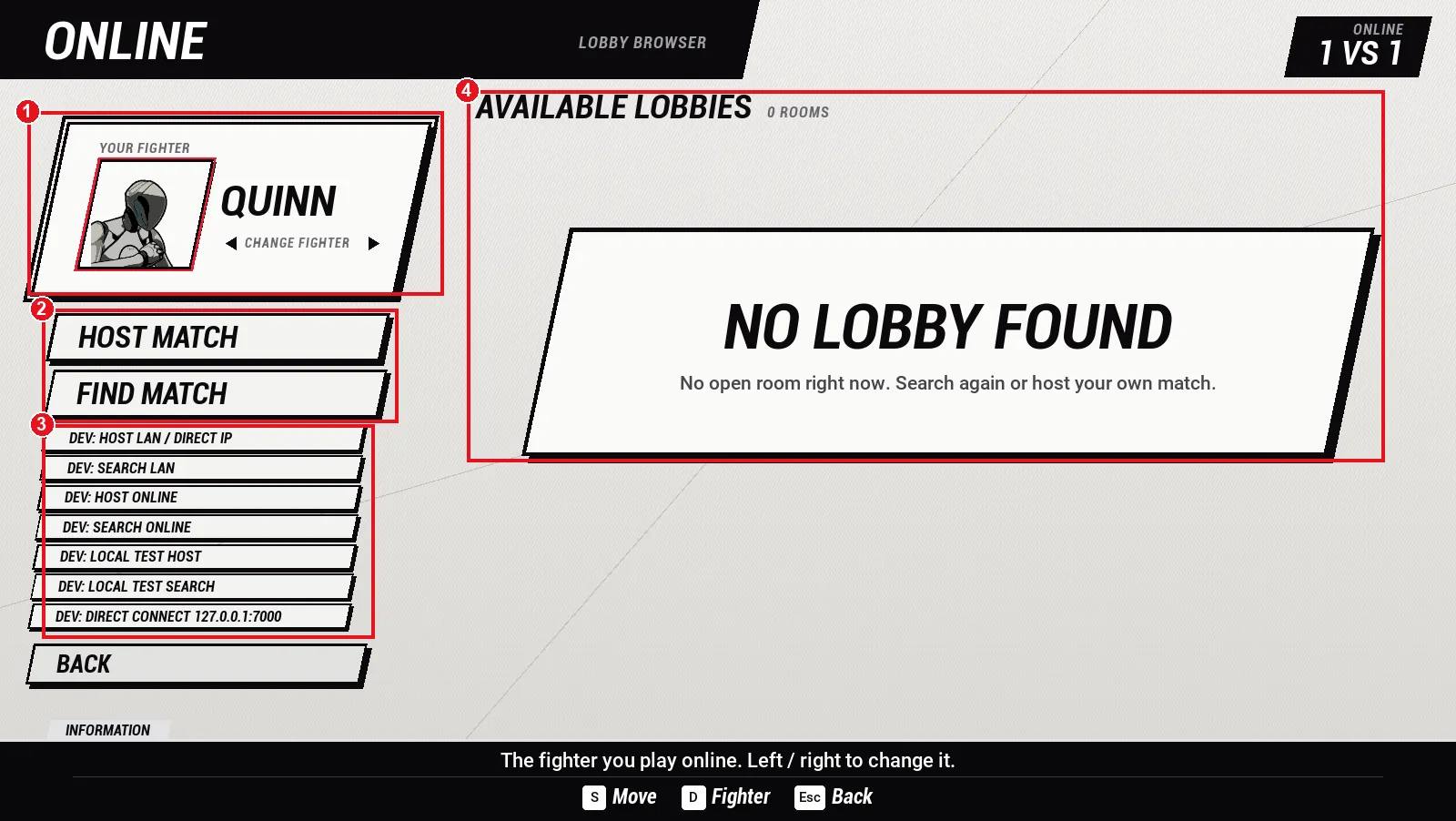
- Your fighter
- Host Match / Find Match (project backend)
DEV:entries (development builds only)- Lobby list (here empty). While searching or connecting, the card shows the engine throbber next to SEARCHING..., CONNECTING... or WAITING FOR AN OPPONENT.
Battle HUD
UAFTBattleHUD: portraits and names, slanted health bars with drain (and red health and one or two partner tiles
in tag team), round pips, timer, meter gauges,
combo counter, the round banners ("ROUND 1", "FIGHT!", "K.O."...) and the network status of online matches (ping, rollback frames,
frame advantage).
Blueprint: On HUD Update (both team views, timer, delta time, called every frame), On Phase Changed, On Battle Event (every simulation event: hit, block, throw, KO...), Get Phase Banner, Get Battle (the battle subsystem).
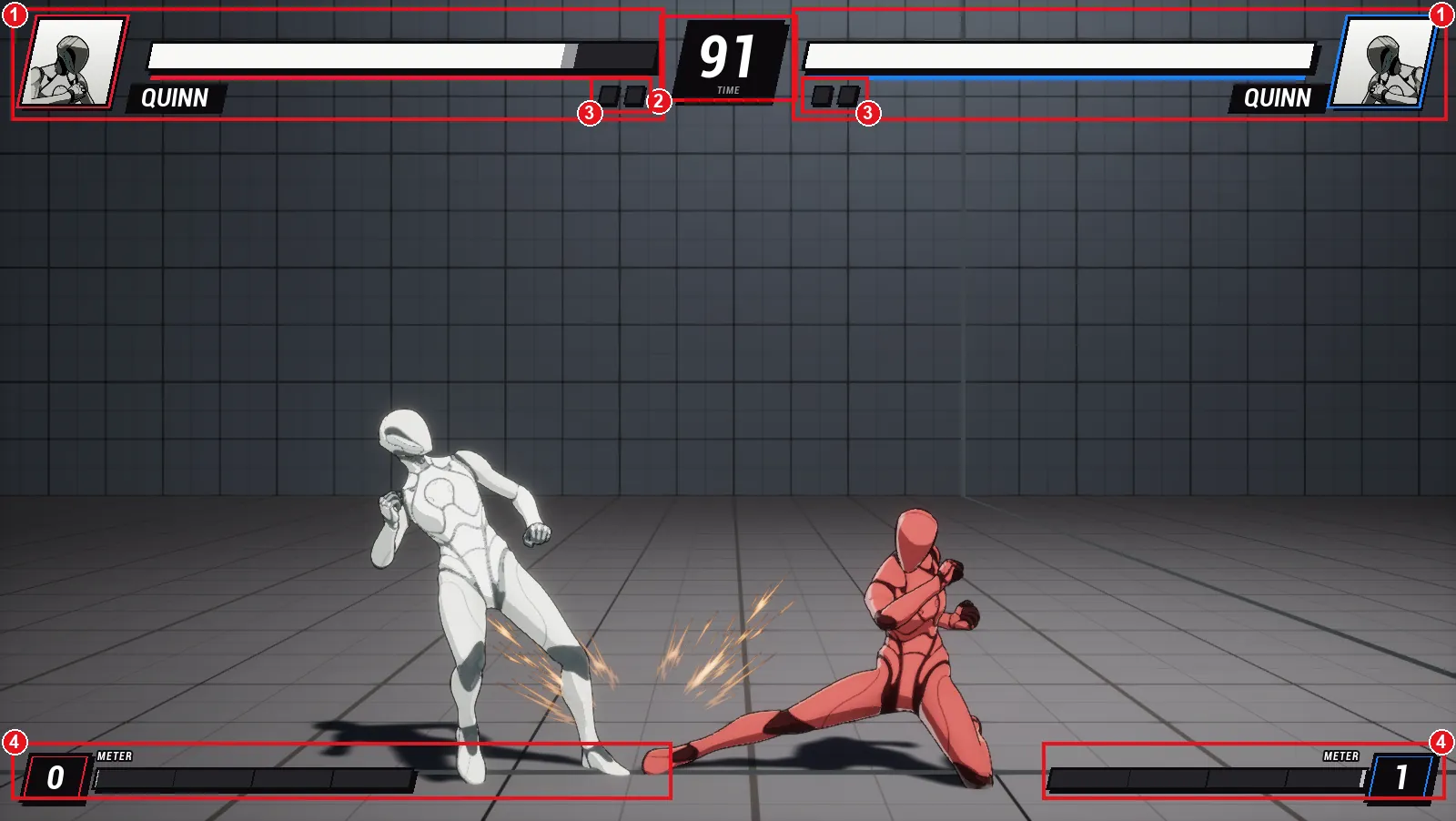
- Portrait, name and health bar of each side
- Timer
- Round pips
- Meter gauges
The training HUD (UAFTTrainingHUD) adds the frame meter, the input logs and the damage panels, see
Training Mode.
Pause menu
UAFTPauseMenu: a left panel over the battle with Resume, Settings, Character Select, Main Menu, plus the training
options in training matches (see Training Mode). It pauses the simulation in offline modes only;
online, the match keeps running.
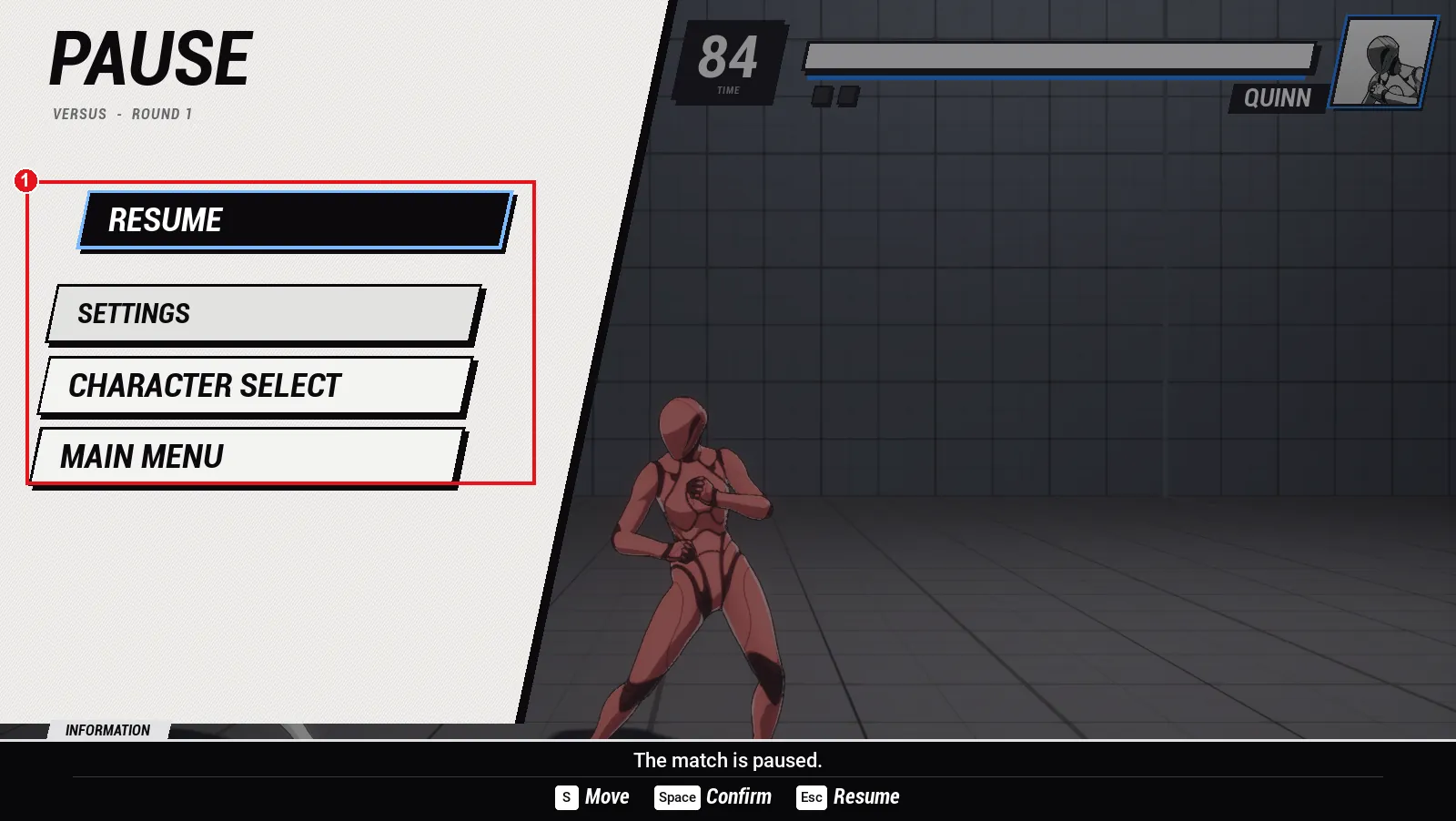
- Resume, Settings, Character Select, Main Menu
Results
UAFTResultScreen: the winner panel, the score card (fighters, round pips, time), then Rematch, Character Select or
Main Menu. In arcade it also shows the ladder (one step per fight) and its choices follow the
run: Next Fight after a win, Continue after a loss while a continue is left, ARCADE CLEAR after the last fight and
GAME OVER without continues (then Main Menu or Character Select). Blueprint: Get Entry Labels, Get Result Title.
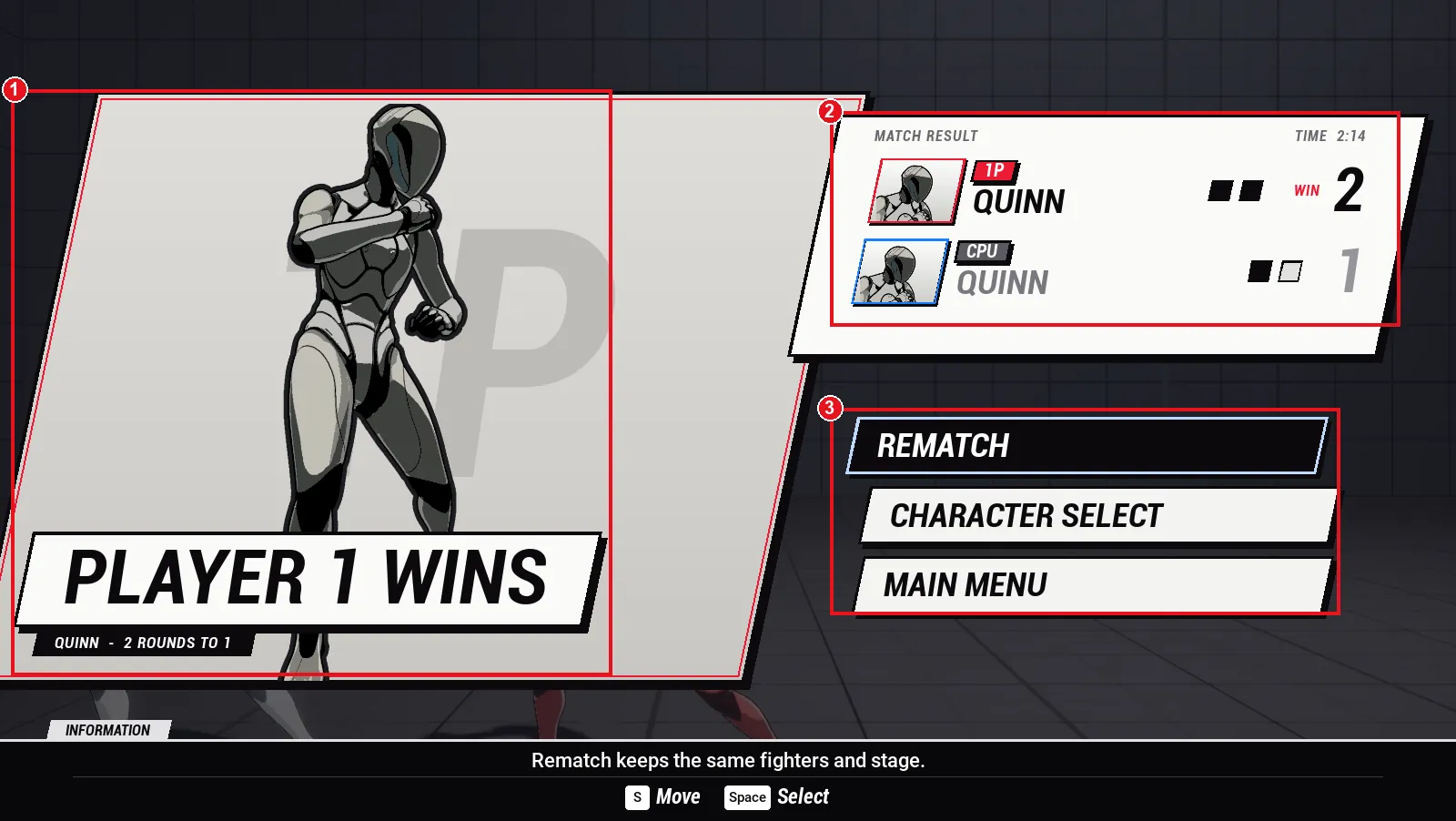
- Winner panel
- Score card
- Rematch, Character Select, Main Menu
Confirmation and alert
UAFTConfirmDialog (policy entries Confirmation and Alert): a card with a title band (error color for errors) and horizontal
choices, pushed on the Modal layer. Open them with Show Confirmation (Yes / No) and Show Alert (OK) of UAFTUISubsystem.
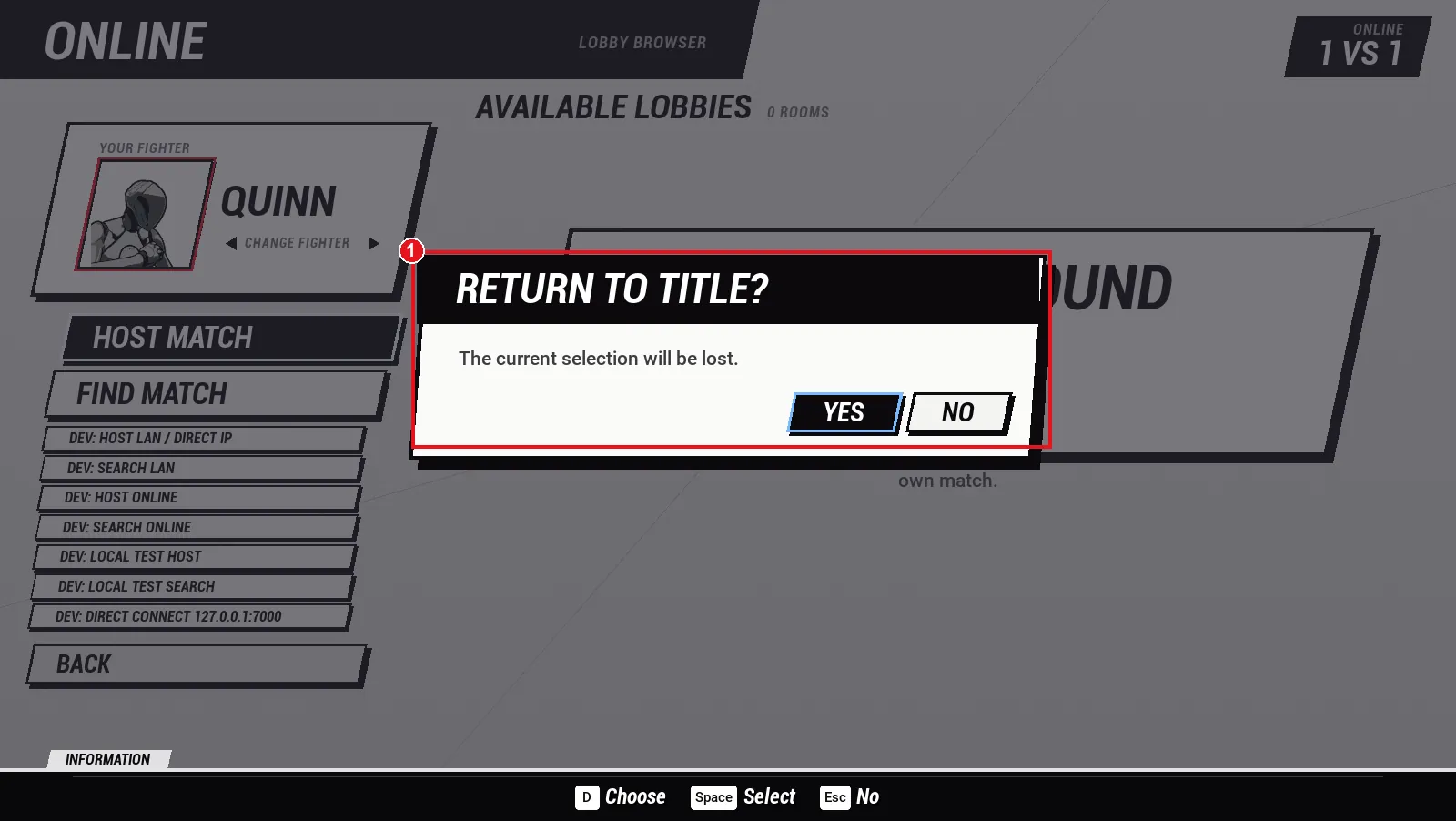
- A Yes / No confirmation
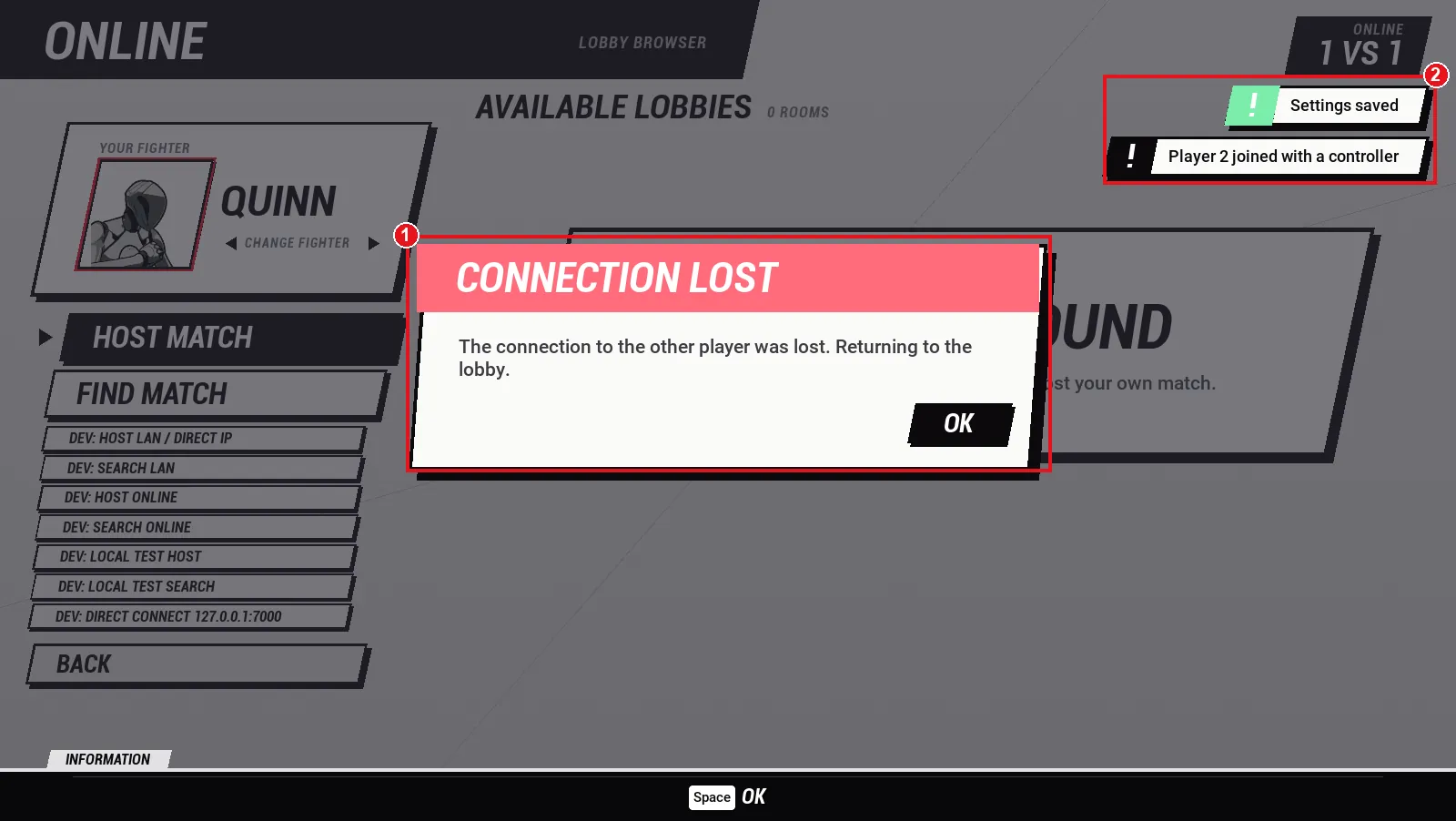
- An error alert (error color title band, OK)
- Notifications (toasts) at the top right
Notifications
Toasts shown at the top right of the layout by PushNotification(Message, Type, Duration): Info, Success, Warning or
Error, with the NotificationSound (or ErrorSound) of the UI policy.
Loading screen
UAFTLoadingScreen (policy entry Loading, SystemAlert layer): the NOW LOADING band, shown by ShowLoading / HideLoading and
automatically before every map travel of the match flow (policy bLoadingScreenOnTravel).
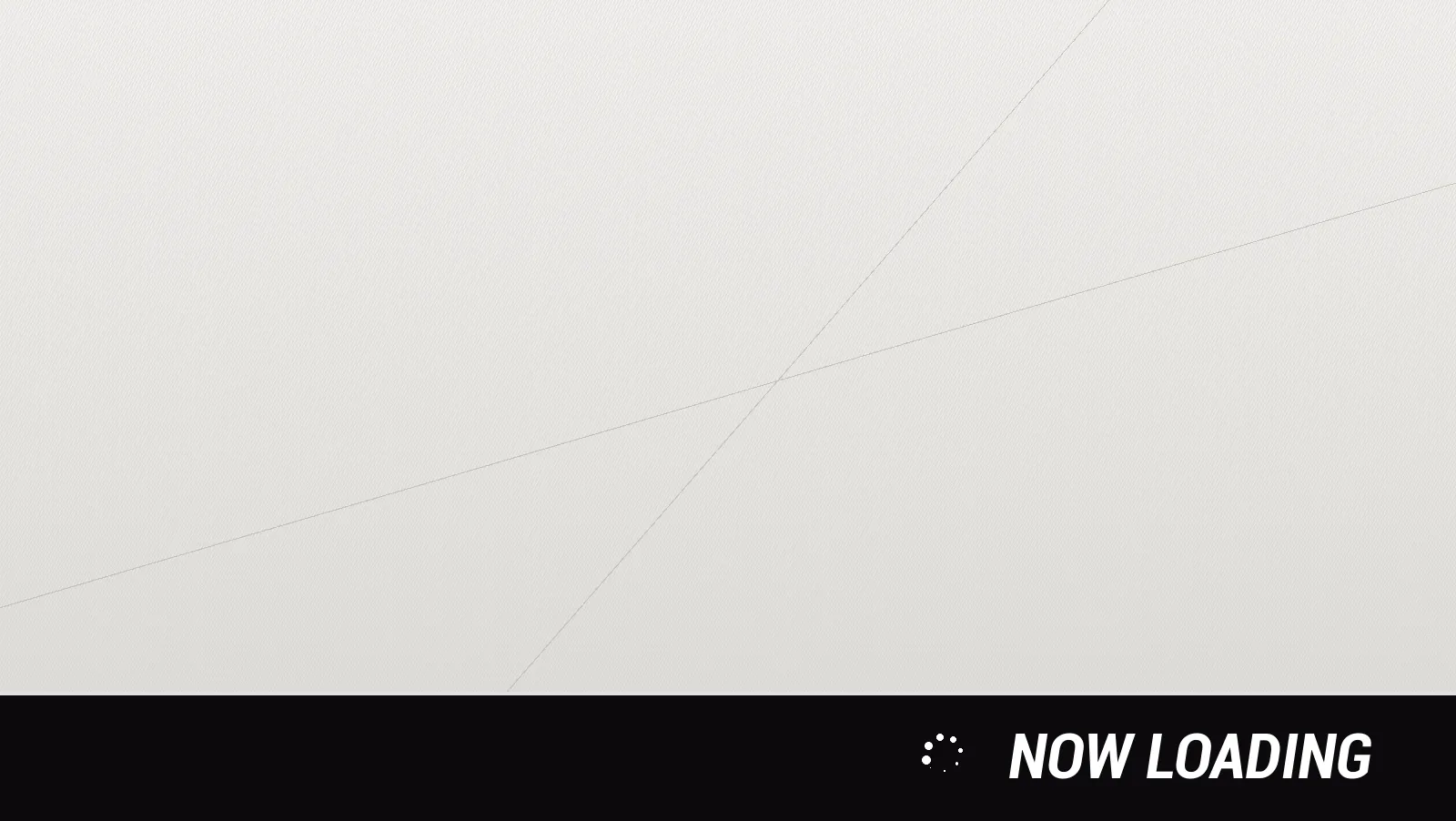
- NOW LOADING band, with the engine throbber (Circular Throbber)
In a Widget Blueprint deriving from the screen, bind MessageText (the message) and Spinner: a Circular Throbber or a
Throbber named Spinner animates itself, any other widget named Spinner (an image, a logo) is turned by the screen.
Controller disconnected
UAFTControllerDisconnectedScreen (policy entry ControllerDisconnected, SystemAlert layer): when the device of a player slot
disconnects, offline battles are paused and this alert, with the silhouette of the lost controller, asks the player to reconnect
it. It closes when the controller is back, or when the player confirms on another free controller, which becomes the player's
device. Disable it with the policy bControllerDisconnectAlert.
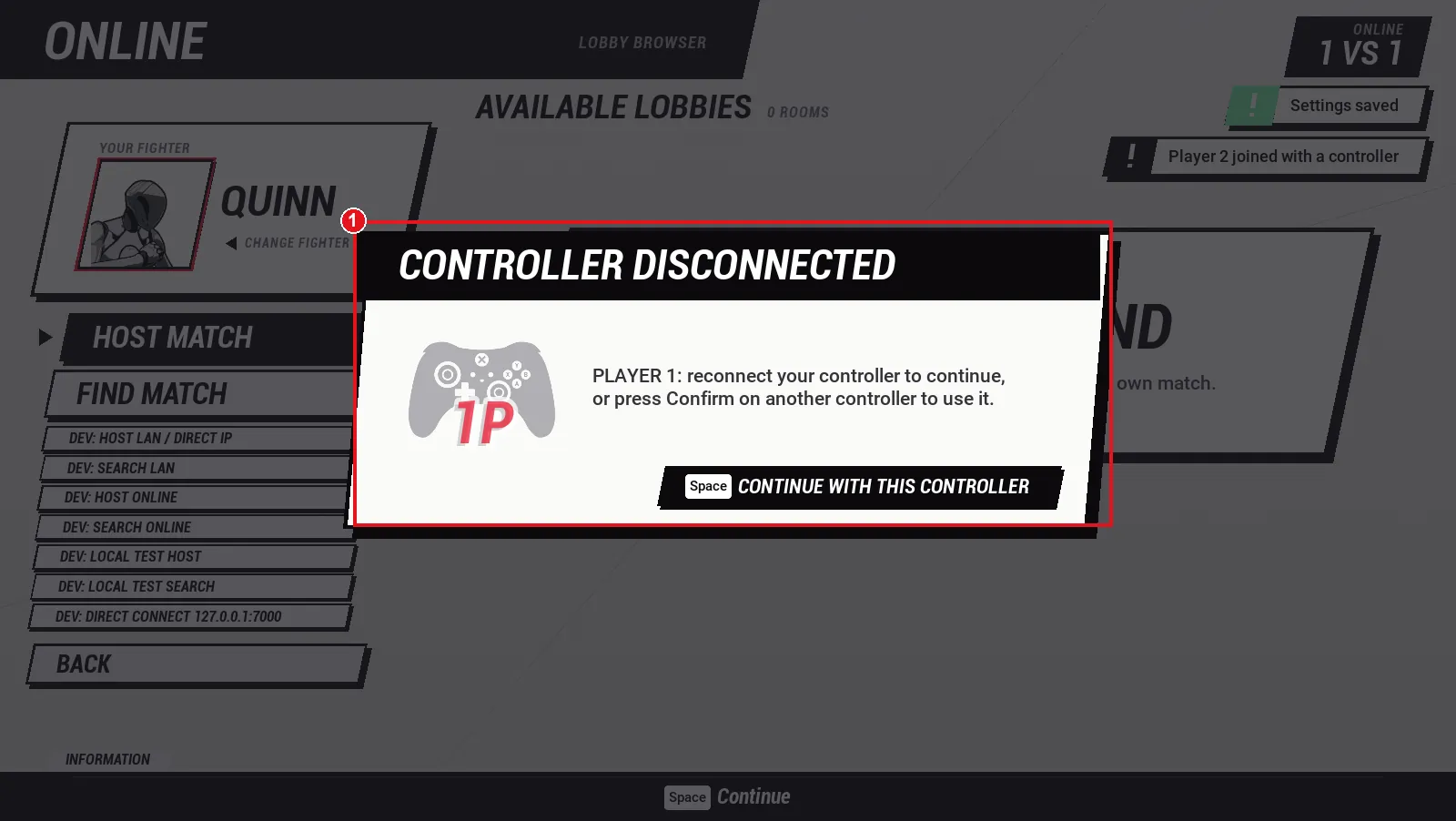
- The system alert, above every other layer, with the controller silhouette
Settings and button layout
The Settings entry (main menu, pause) opens UAFTSettingsScreen. Its tabs and rows come from the settings collection of
the UI policy (Settings): add, remove or reorder settings there, in data or Blueprint, without C++. Without a collection (and
without a screen class in AFT Game > UI > Settings Screen Class or the policy Screens), the entry becomes Button Layout.
- Settings collection (
UAFTSettingsCollectiondata asset, template:/AFT/UI/Settings/DA_AFT_Settings): tabs > sections > settings. The template tabs: Gameplay (language, screen shake), Video (window mode, resolution, auto quality, quality preset and groups, 3D resolution, vertical sync, frame rate limit, DirectX), Audio (volumes) and Controls (button layouts, button icons, vibration). - Settings (
UAFTSetting): an Id (save key), a name, a description, a type (Toggle, Choice, Slider or Action), the options or the slider range, a default value. The built-in settings are configured with their properties: Video: Window Mode, Resolution, Quality Preset, Scalability Group, 3D Resolution, Vertical Sync, Frame Rate Limit, Auto-Set Quality, Graphics API (DirectX); Game: Language, Console Variable; Audio: Control Bus Volume; Controls: Vibration (see Vibration), Gamepad Button Icons, Button Layout Page. Platform traits (Required Platform Traits) and Desktop Only hide a row on the platforms without it. UAFTSettingsSubsystem(game instance subsystem): the settings of the running game,FindSetting(Id),ApplyChanges,CancelChanges,ResetAllToDefaults, theOnSettingsAppliedevent.UAFTSettingsScreen: tabs, sections, rotators, ON / OFF switches, percent bars, a description panel (with the reason of a disabled row) and scrolling. Changes wait: Start applies, Select cancels, Back applies and closes.
The video settings use the engine game user settings (resolution, scalability, frame rate limit...). The values of the other
settings are saved by AFT in GameUserSettings.ini, section [AFT.Settings], one key per setting Id.
Add your own setting in Blueprint
- Content Browser > Add > Blueprint Class, parent class AFT Setting.
- In the Class Defaults: Id (unique, e.g.
Gameplay.ShowDamage), Display Name, Description, Type, the Options (Choice) or Slider Min / Max / Step (Slider), and the Default Value. - Override the Apply event: read Get Value (or Get Bool Value, Get Int Value) and push it to your game (game instance, console variable, save game...). AFT keeps and saves the value, and calls Apply when the player applies a change and when every map starts, so the saved value is in effect from the start of the game.
- Open the settings collection (
DA_AFT_Settings) and add your class to a section of a tab.
The template example is /AFT/UI/Settings/BP_AFT_Setting_ScreenShake (Gameplay > Battle > Screen Shake): a slider from 0 to
150 % whose Apply runs the console command aft.CameraShake <value>. Override Get Options for a list built at runtime,
Can Edit to grey a row out with a reason, Is Available to hide it. A setting that keeps its value elsewhere turns
Save Value off and overrides Get Value and Set Value; Apply Immediately previews a change before it is applied
(volumes).
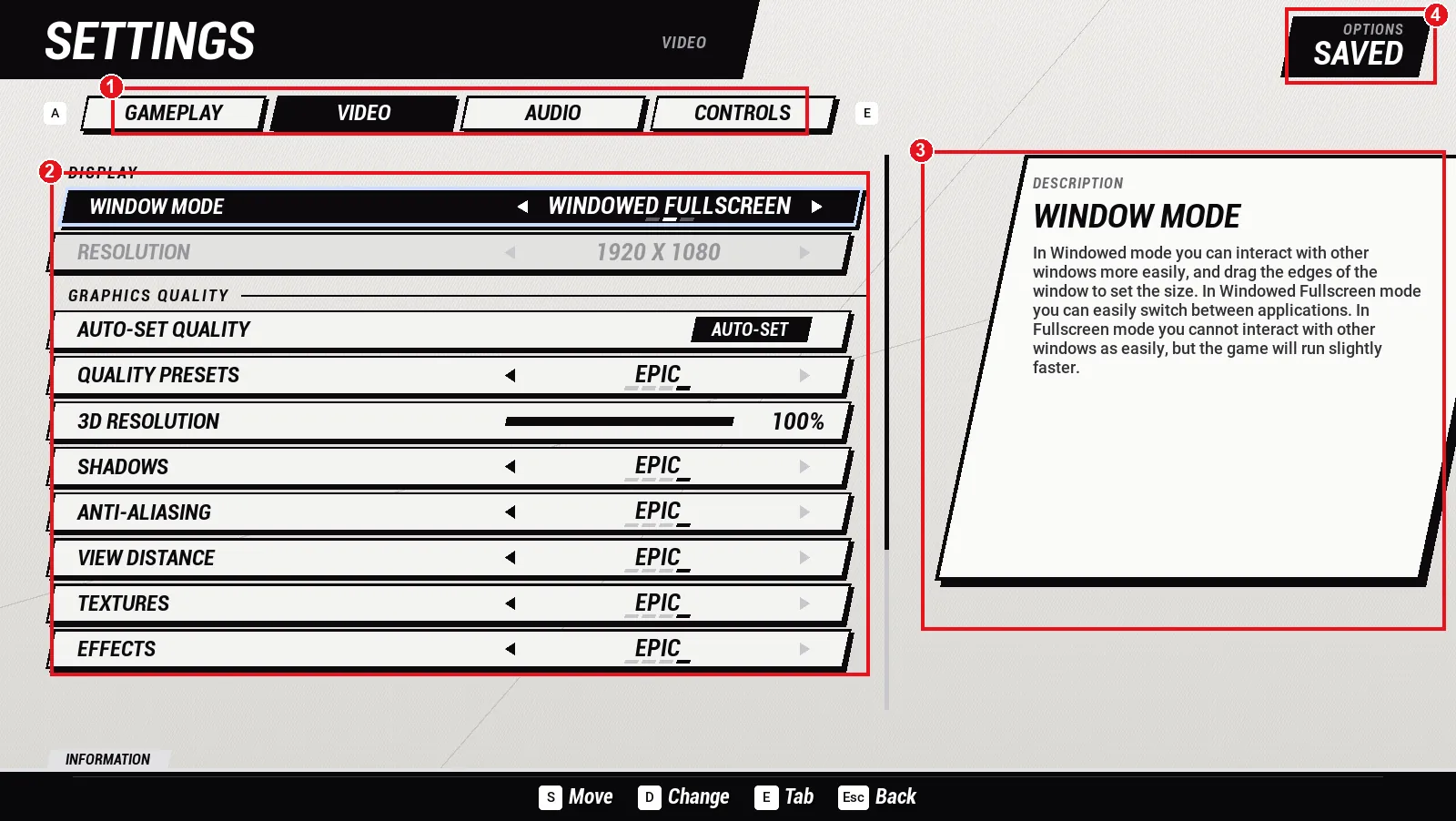
- Tabs: Gameplay, Video, Audio, Controls
- Settings of the tab
- Description of the focused setting
- SAVED / CHANGED state
UAFTButtonLayoutScreen (plugin) remaps the fight buttons of the AFT bindings, one tab per device kind (saved per user in
GameUserSettings.ini):
- Gamepad: the silhouette of player 1 controller and its face buttons, bumpers and triggers; a button opens a picker (fight buttons A to H with the project button names, or empty). An action already on another button swaps.
- Keyboard left / right half: directions and fight buttons; Confirm waits for the new key (Escape cancels). A key already used swaps.
Menu keys are not remapped. Select restores the default layout of the tab.
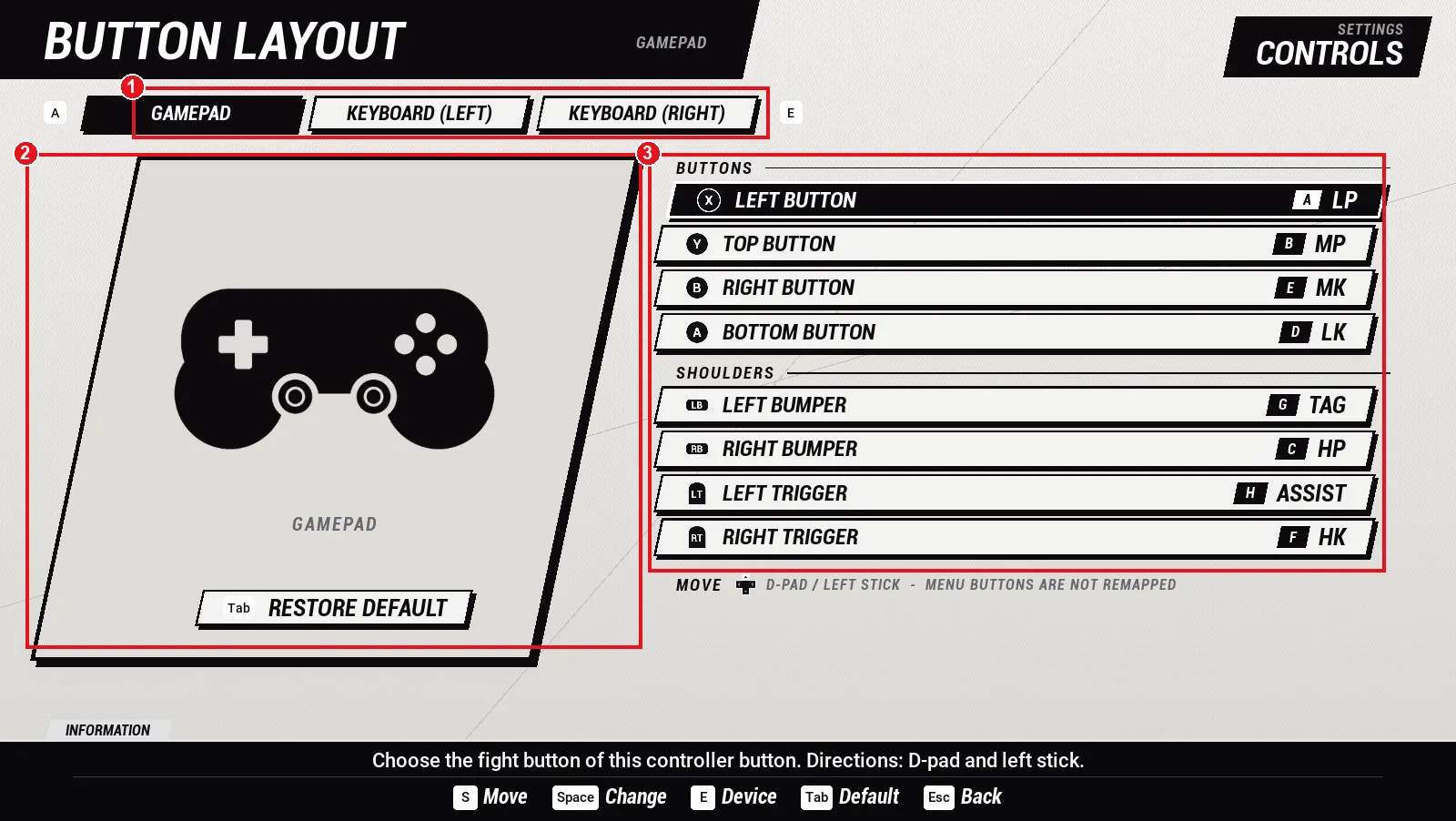
- Device tabs: gamepad, keyboard (left), keyboard (right)
- Controller silhouette and Restore Default
- Fight button of each controller button