
In this article, I explain how I implemented a method to override which gamepad icon set should be used in Common UI Input.
This allows adding a user setting to manually override the detected controller type.
This feature is useful when a player plugs a generic controller but the physical buttons match a PlayStation or Switch layout.
This behavior can also be found in Monster Hunter Wild.
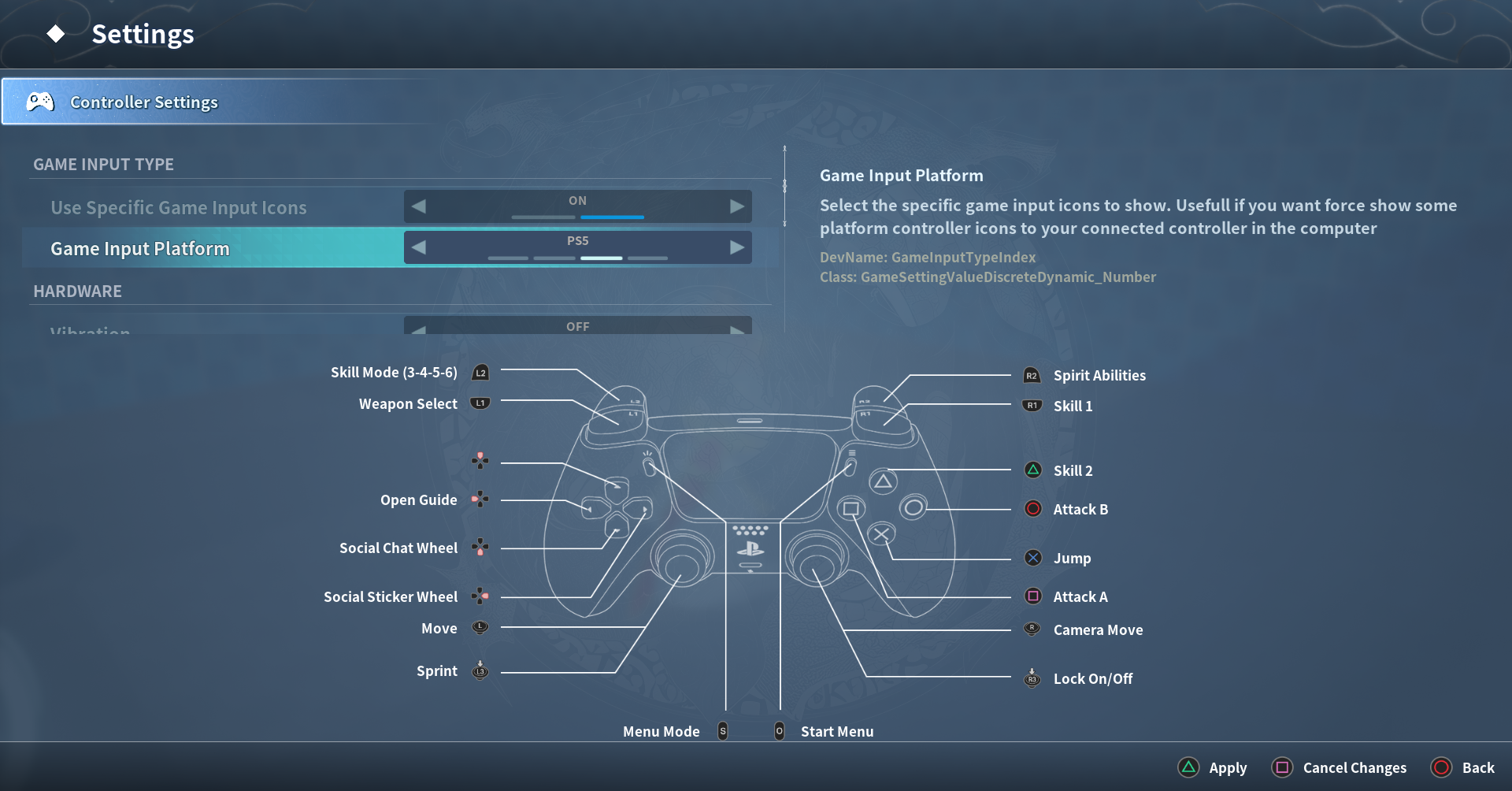
Example from my game:
Useful Resources
- Blog on Common UI gamepad handling: Game Input
- My shared plugin repository: https://github.com/SomndusStudio/SomndusGamePlugin
- A video demonstrating my implementation : https://youtu.be/G-FM0_D_JdI
Modifying the Common UI Input Plugin
The downside is that this requires editing Common UI Input source files, because the override behavior is not exposed publicly by default.
Updated files:
- CommonUI/Source/CommonInput/Public/CommonInputSubsystem.h
- CommonUI/Source/CommonInput/Private/CommonInputSubsystem.cpp
- CommonUI/Source/CommonInput/Private/CommonInputPreprocessor.cpp
CommonInputSubsystem.h
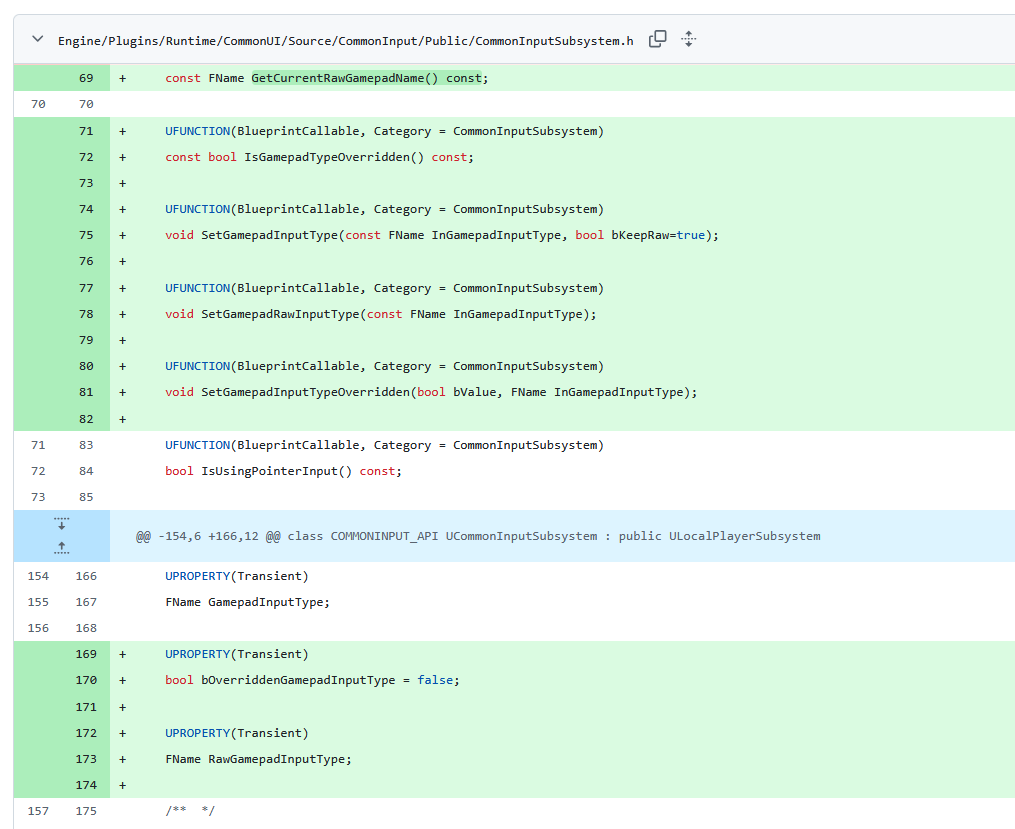
UFUNCTION(BlueprintCallable, Category = CommonInputSubsystem)
const FName GetCurrentRawGamepadName() const;

UFUNCTION(BlueprintCallable, Category = CommonInputSubsystem)
const bool IsGamepadTypeOverridden() const;

UFUNCTION(BlueprintCallable, Category = CommonInputSubsystem)
void SetGamepadInputType(const FName InGamepadInputType, bool bKeepRaw=true);

UFUNCTION(BlueprintCallable, Category = CommonInputSubsystem)
void SetGamepadRawInputType(const FName InGamepadInputType);

UFUNCTION(BlueprintCallable, Category = CommonInputSubsystem)
void SetGamepadInputTypeOverridden(bool bValue, FName InGamepadInputType);

...

UPROPERTY(Transient)
bool bOverriddenGamepadInputType = false;

UPROPERTY(Transient)
FName RawGamepadInputType;
CommonInputSubsystem.cpp
const FName UCommonInputSubsystem::GetCurrentRawGamepadName() const
{
return RawGamepadInputType;
}

const bool UCommonInputSubsystem::IsGamepadTypeOverridden() const
{
return bOverriddenGamepadInputType;
}

void UCommonInputSubsystem::SetGamepadInputType(const FName InGamepadInputType, bool bKeepRaw)
{
	if (ensure(UCommonInputPlatformSettings::Get()->CanChangeGamepadType()))
	{
		if (!bKeepRaw){
			RawGamepadInputType = InGamepadInputType;
		}
		GamepadInputType = InGamepadInputType;

		// Send out notifications so we update our buttons
		//BroadcastLastInputDeviceChanged();
		BroadcastInputMethodChanged();
	}
}

void UCommonInputSubsystem::SetGamepadRawInputType(const FName InGamepadInputType)
{
	RawGamepadInputType = InGamepadInputType;
}

void UCommonInputSubsystem::SetGamepadInputTypeOverridden(bool bValue, FName InGamepadInputType)
{
	bOverriddenGamepadInputType = bValue;

	if (bValue){
		GamepadInputType = InGamepadInputType;

		UE_LOG(LogCommonInput, Log, TEXT("[CommonInput] Override enabled"));

		if (GetCurrentInputType() == ECommonInputType::Gamepad)
		{
			UE_LOG(LogCommonInput, Log, TEXT("[CommonInput] Current input is Gamepad. Setting overridden GamepadInputType: '%s'"), *InGamepadInputType.ToString());
			SetGamepadInputType(InGamepadInputType);
		}
	} else {
		UE_LOG(LogCommonInput, Log, TEXT("[CommonInput] Override disabled. Attempting to fallback to current raw gamepad name."));

		if (GetCurrentInputType() == ECommonInputType::Gamepad)
		{
			// Only if valid and not empty
			FName Raw = GetCurrentRawGamepadName();

			if (!Raw.IsNone()) {
				UE_LOG(LogCommonInput, Log, TEXT("[CommonInput] Fallback active. Setting GamepadInputType to raw gamepad name: '%s'"), *Raw.ToString());
				SetGamepadInputType(Raw);
			} else {
				const UCommonInputPlatformSettings* Settings = UPlatformSettingsManager::Get().GetSettingsForPlatform<UCommonInputPlatformSettings>();
				GamepadInputType = Settings->GetDefaultGamepadName();

				UE_LOG(LogCommonInput, Log, TEXT("[CommonInput] No valid raw gamepad name found. Restoring default GamepadInputType: '%s'"), *GamepadInputType.ToString());

				SetGamepadInputType(GamepadInputType);
			}
		}
	}
}
CommonInputPreprocessor.cpp
In the method RefreshCurrentInputMethod, right after:
cpp LastSeenGamepadHardwareDeviceIdentifier = DeviceScope->HardwareDeviceIdentifier;
J'ai remplacé par:
const FName GamepadInputType = InputSubsystem.GetCurrentRawGamepadName();
const FName BestGamepadType = UCommonInputPlatformSettings::Get()->GetBestGamepadNameForHardware(GamepadInputType, DeviceScope->InputDeviceName, DeviceScope->HardwareDeviceIdentifier);
if (BestGamepadType != GamepadInputType)
{
    UE_LOG(LogCommonInput, Log, TEXT("UCommonInputSubsystem: Autodetect changed GamepadInputType to %s"), *BestGamepadType.ToString());

    // Update raw
    InputSubsystem.SetGamepadRawInputType(BestGamepadType);

    const bool bGamepadTypeOverridden = InputSubsystem.IsGamepadTypeOverridden();
    if (!bGamepadTypeOverridden){
        InputSubsystem.SetGamepadInputType(BestGamepadType);
        OnGamepadChangeDetected.Broadcast(BestGamepadType);
    }
}


