· 4 min read
Schartier Isaac

Screenshot

Objective

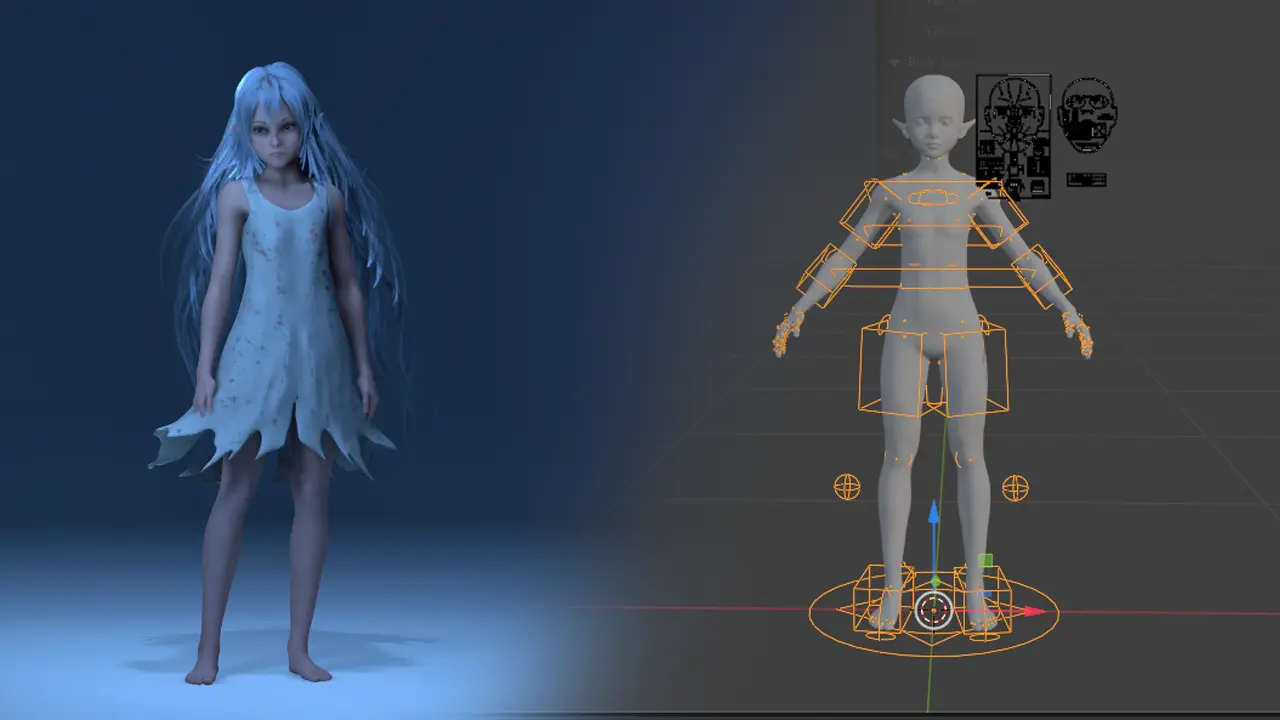
The goal of this blog post is to explain a complete workflow to use a MetaHuman in Blender and convert it into a game-ready rig.

This workflow allows you to use your MetaHuman character:

  • inside Blender
  • with a custom rig
  • to create your own animations
  • and reimport it into Unreal Engine 5 for runtime gameplay usage
Attention

This tutorial uses paid plugins.

Youtube Video Version

Prerequisites

Useful Resources

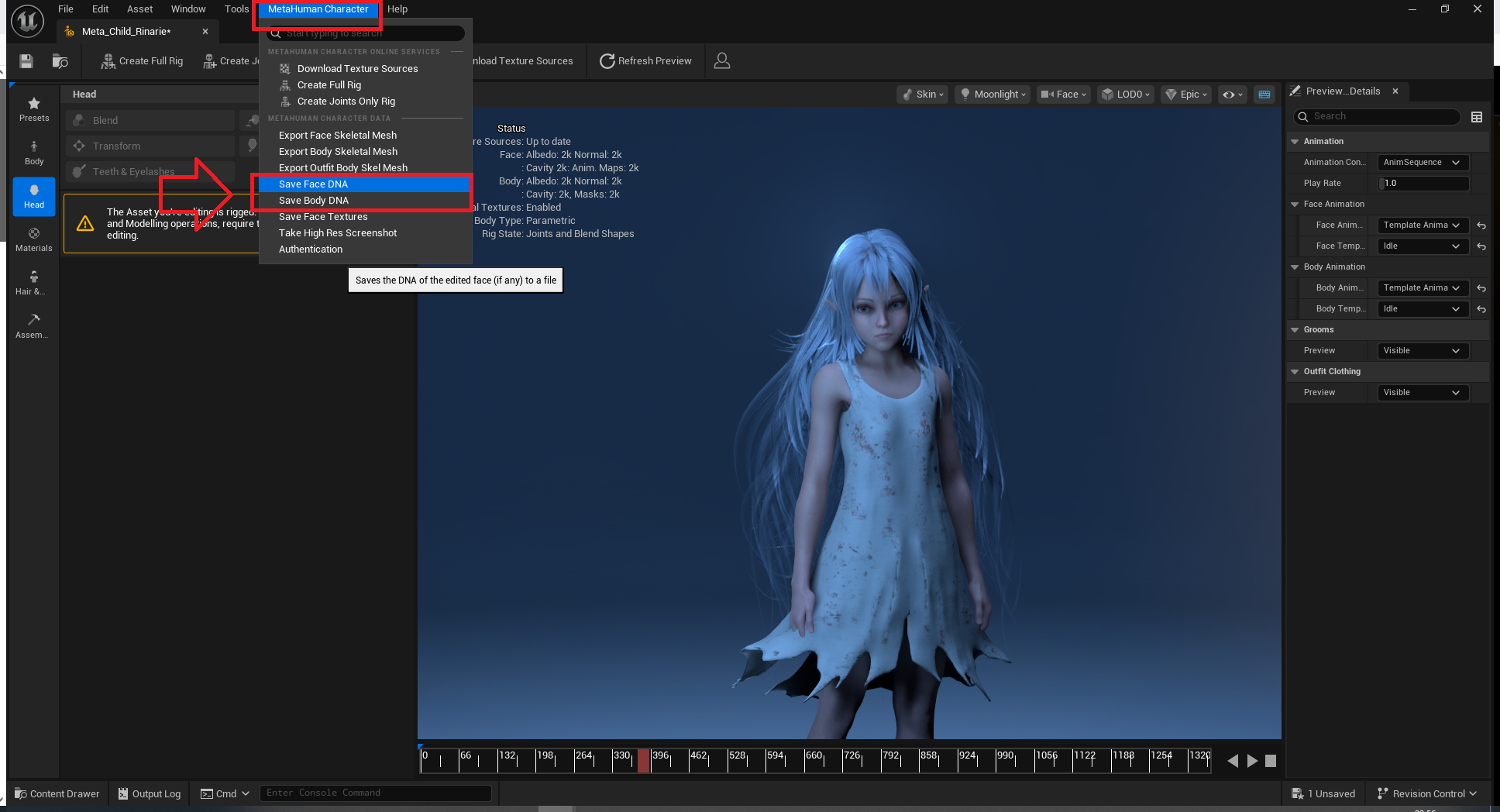
Unreal Engine 5 Side

I use the Poly-Hammer plugin to import MetaHuman DNA files into Blender.
This allows us to keep:

  • the body and head meshes
  • the original proportions
  • the rig structure
  • all blendshapes intact

Screenshot

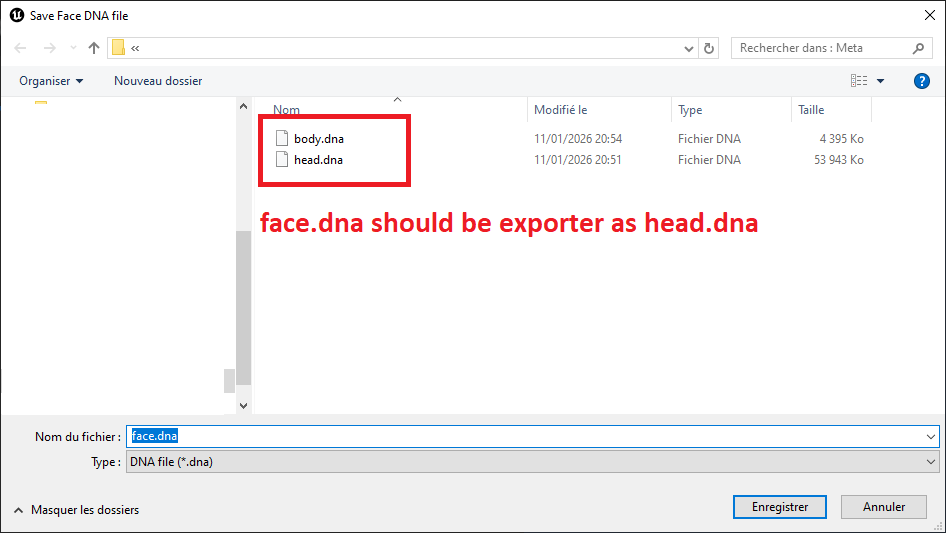
Attention

The head DNA must be named head.dna and not face.dna.

Poly-Hammer requires this exact name to correctly detect and link the head with the body later in the workflow.
Screenshot

Blender Side

Blender Version

This workflow uses Blender 4.5 LTS.
Be careful if you are using an older version.

Before importing the DNA files, make sure your Blender scene uses the correct units:

  • Unit Scale: 1.0
  • Unit System: Metric
  • Length: Meters

This is important to avoid scale issues when exporting back to Unreal Engine.
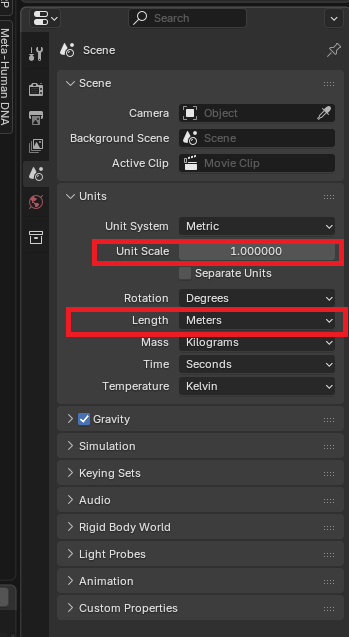
Screenshot

Importing the DNA

Menu path:

File > Import > MetaHuman DNA (.dna)

Make sure you select head.dna.

When head.dna is selected, an extra option will appear allowing you to automatically include the body.dna during import.
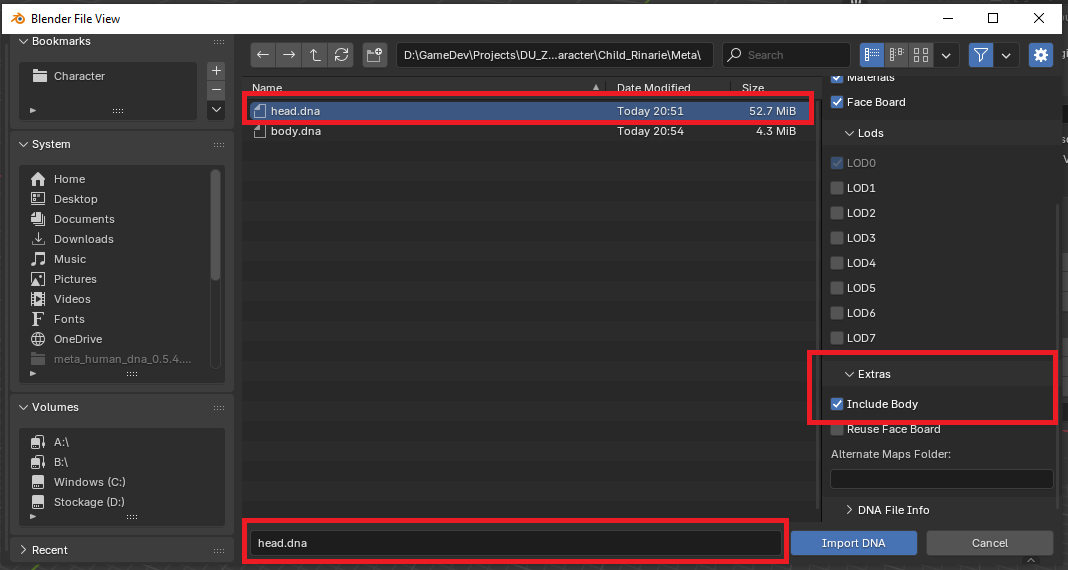
Screenshot

Converting the Rig

Important note:

The goal of this workflow is not to re-export the character to MetaHuman Creator.

We want:

  • a game-ready rig
  • a custom Auto Rig Pro skeleton
  • meshes bound to this new rig

So we will replace the original MetaHuman rig.

Steps:

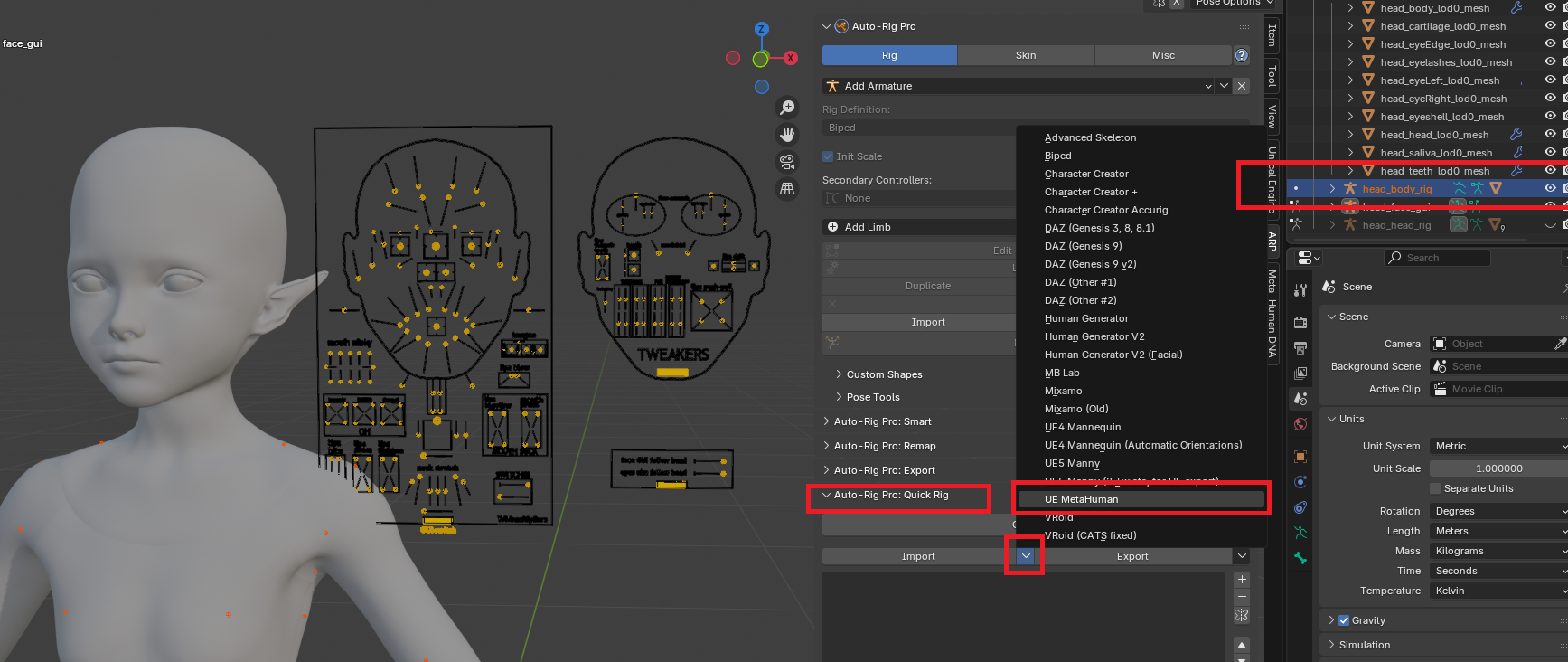
  • Select the body rig only
    Make sure the selected rig is the body rig and not the face rig.

    In my case, the correct rig name is:
    head_body_rig

  • Open Auto Rig Pro > Quick Rig

  • Select the MetaHuman preset

Screenshot

Then use Quick Export and set the mode to Convert.

This converts the DNA-imported rig into an Auto Rig Pro rig.
We do not keep the original rigs, otherwise the final meshes will not be correctly bound.
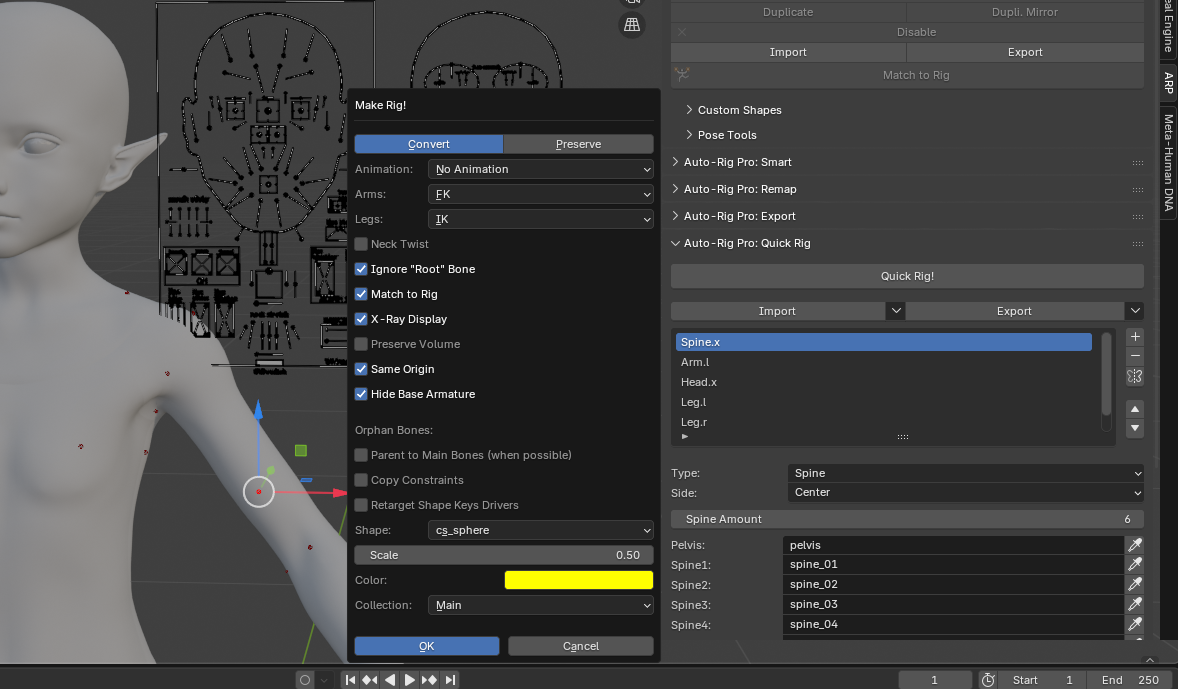
Screenshot

Result

Attention

In this guide, we only use the body.

The head should be exported separately and later parented to the body inside an Unreal Engine Blueprint.
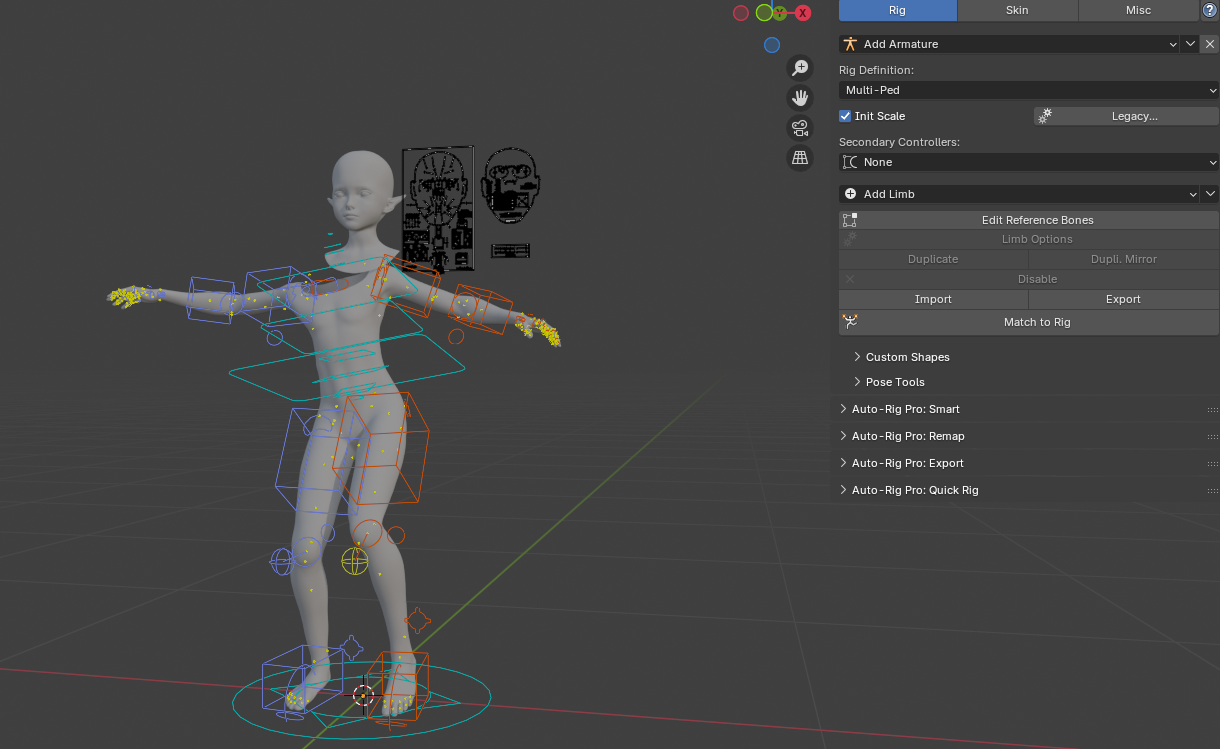
Screenshot

Exporting from Blender

Select the converted rig and click Export in:

Auto Rig Pro > Export
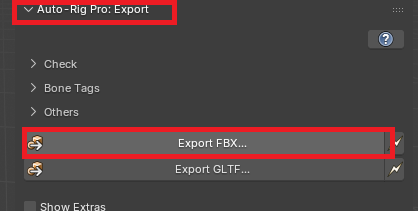
Screenshot

Make sure to enable the correct export settings for Unreal Engine.

Root Motion

Root Motion is not covered in this guide.

It depends on the type of animations you plan to create and should be tested according to your project needs.

Importing the Skeletal Mesh into Unreal Engine 5

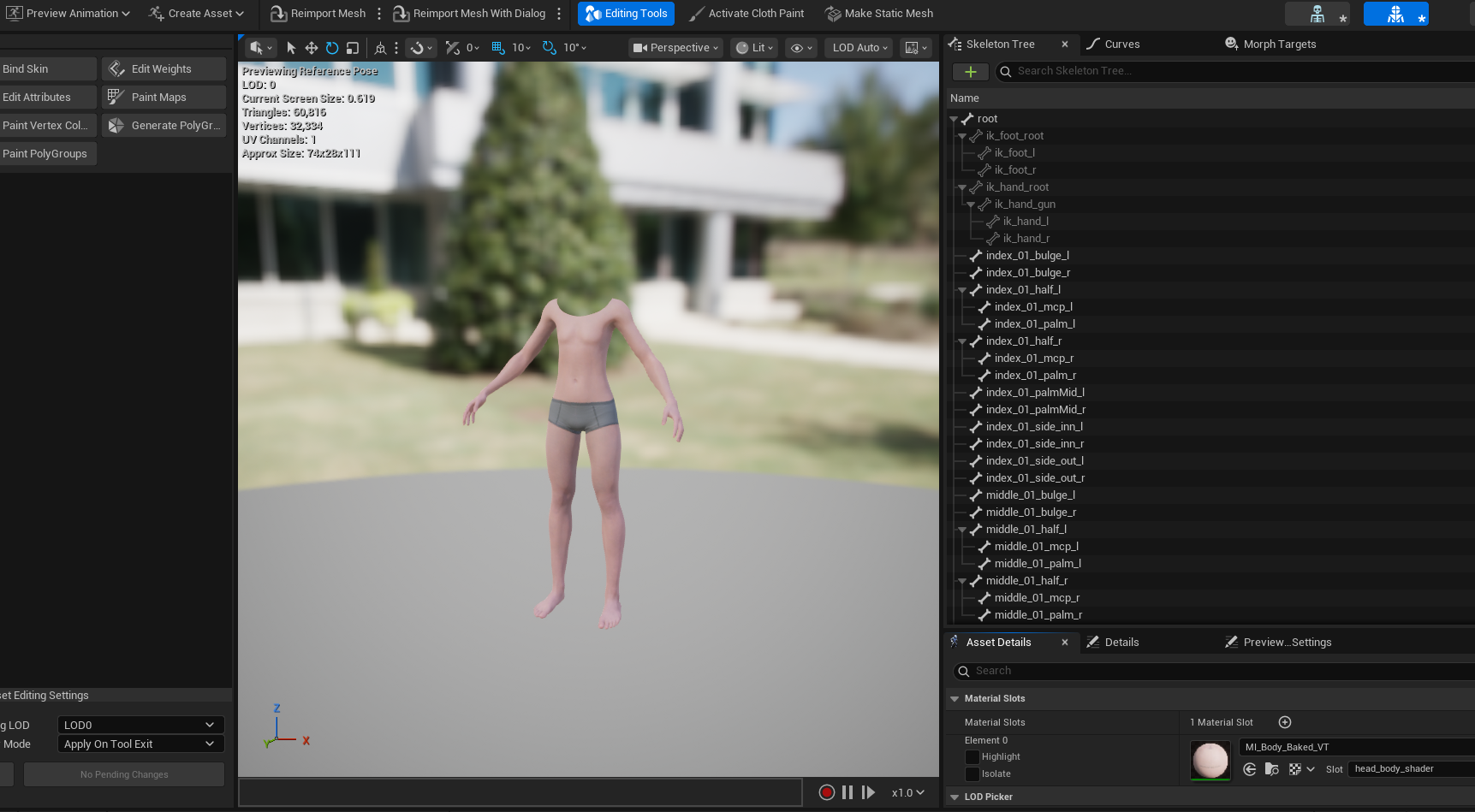
Import the exported FBX as a standard Skeletal Mesh.

After import:

  • Assign the original MetaHuman body material
  • Verify scale and skeleton orientation

Screenshot

Final Result

Next, you simply need to create your Character Blueprint.

In this example, I am only demonstrating that using a Set Leader Pose Component on your meshes is more than sufficient for basic body animation sharing.

For the head:

  • If you want to use facial animations, you should not rely solely on Set Leader Pose.
  • Instead, you should take inspiration from the MetaHuman Blueprint Live Link setup, which provides the proper facial animation pipeline.
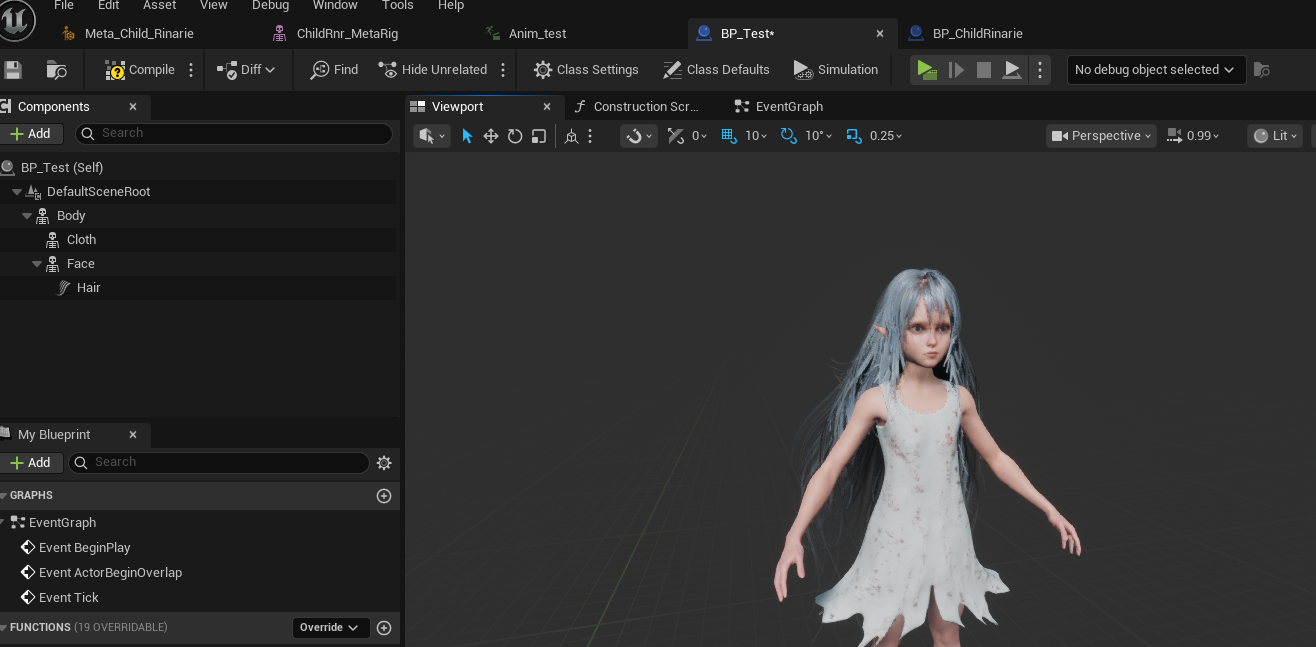
Screenshot

Below is the Construction Script used to set up the Leader Pose Component.
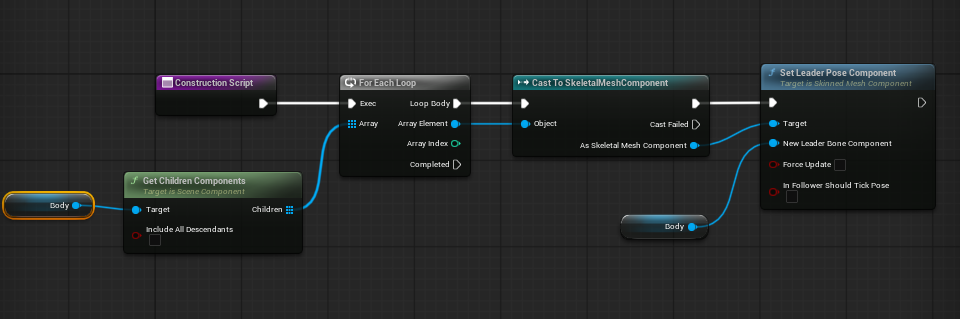
Screenshot

Conclusion

This is a first working version of the workflow, allowing you to:

  • animate a MetaHuman body with custom animations
  • use the character at runtime in Unreal Engine 5

Animation import and advanced facial workflows are out of scope for this guide.

I may update this post in the future after experimenting with facial animation and head mocap, once the required hardware and data are available.
· 3 min read
Schartier Isaac

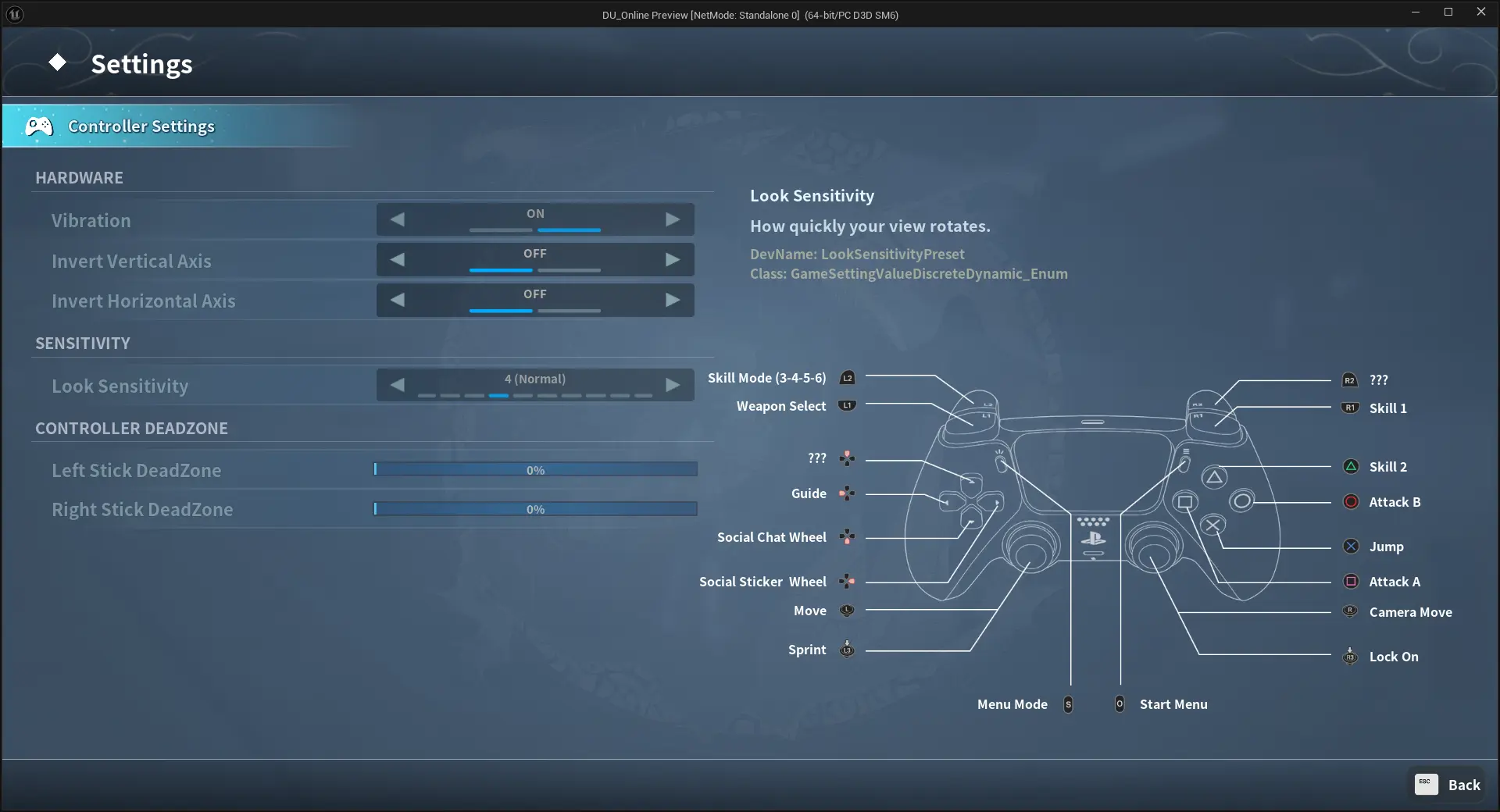
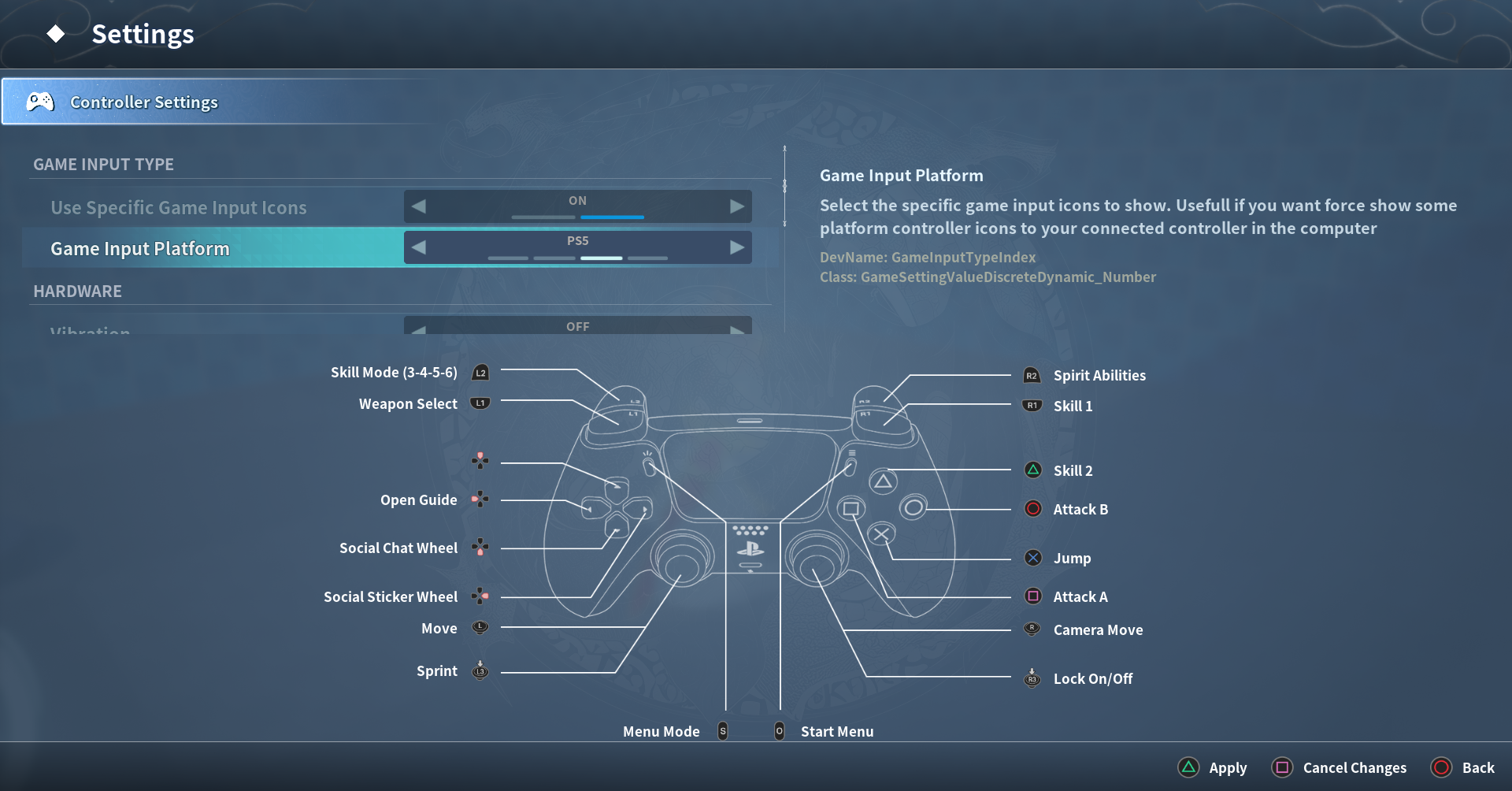
In this article, I explain how I implemented a method to override which gamepad icon set should be used in Common UI Input.
This allows adding a user setting to manually override the detected controller type.

This feature is useful when a player plugs a generic controller but the physical buttons match a PlayStation or Switch layout.
This behavior can also be found in Monster Hunter Wild.

Example from my game:

Screenshot

Useful Resources

Modifying the Common UI Input Plugin

The downside is that this requires editing Common UI Input source files, because the override behavior is not exposed publicly by default.

Updated files:

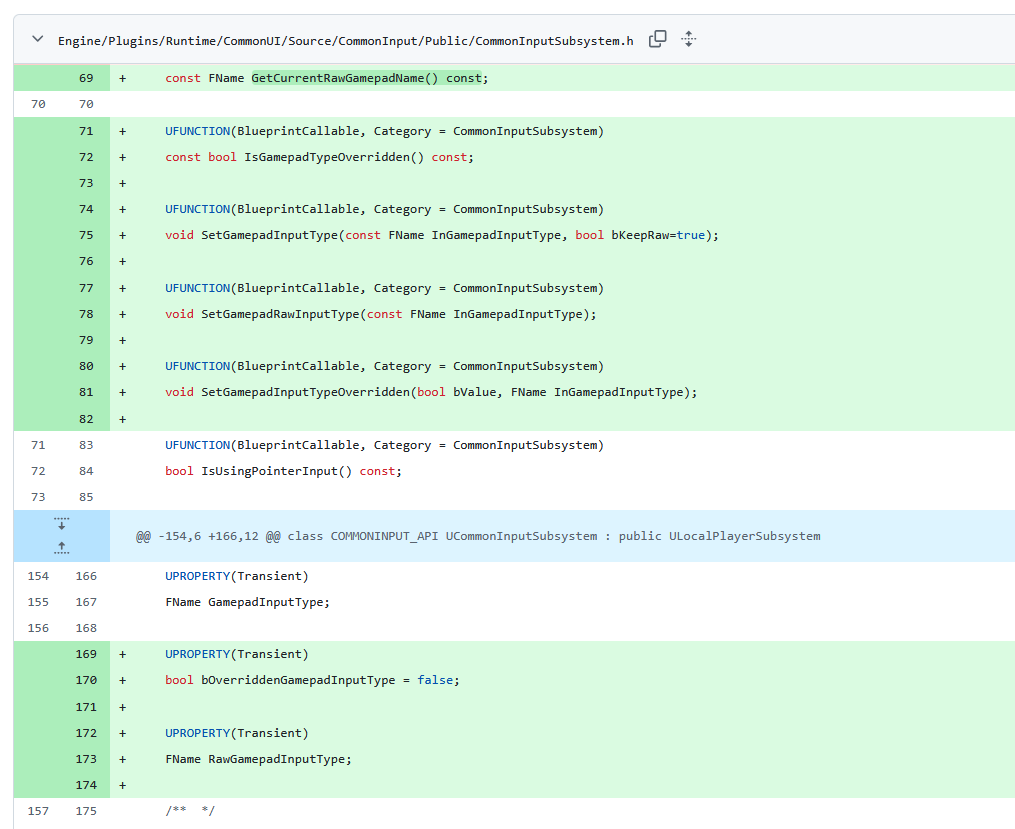
  • CommonUI/Source/CommonInput/Public/CommonInputSubsystem.h
  • CommonUI/Source/CommonInput/Private/CommonInputSubsystem.cpp
  • CommonUI/Source/CommonInput/Private/CommonInputPreprocessor.cpp

CommonInputSubsystem.h

Screenshot

UFUNCTION(BlueprintCallable, Category = CommonInputSubsystem)
const FName GetCurrentRawGamepadName() const;

UFUNCTION(BlueprintCallable, Category = CommonInputSubsystem)
const bool IsGamepadTypeOverridden() const;

UFUNCTION(BlueprintCallable, Category = CommonInputSubsystem)
void SetGamepadInputType(const FName InGamepadInputType, bool bKeepRaw=true);

UFUNCTION(BlueprintCallable, Category = CommonInputSubsystem)
void SetGamepadRawInputType(const FName InGamepadInputType);

UFUNCTION(BlueprintCallable, Category = CommonInputSubsystem)
void SetGamepadInputTypeOverridden(bool bValue, FName InGamepadInputType);

...

UPROPERTY(Transient)
bool bOverriddenGamepadInputType = false;

UPROPERTY(Transient)
FName RawGamepadInputType;

CommonInputSubsystem.cpp

const FName UCommonInputSubsystem::GetCurrentRawGamepadName() const
{
return RawGamepadInputType;
}

const bool UCommonInputSubsystem::IsGamepadTypeOverridden() const
{
return bOverriddenGamepadInputType;
}

void UCommonInputSubsystem::SetGamepadInputType(const FName InGamepadInputType, bool bKeepRaw)
{
if (ensure(UCommonInputPlatformSettings::Get()->CanChangeGamepadType()))
{
if (!bKeepRaw){
RawGamepadInputType = InGamepadInputType;
}
GamepadInputType = InGamepadInputType;

// Send out notifications so we update our buttons
//BroadcastLastInputDeviceChanged();
BroadcastInputMethodChanged();
}
}

void UCommonInputSubsystem::SetGamepadRawInputType(const FName InGamepadInputType)
{
RawGamepadInputType = InGamepadInputType;
}

void UCommonInputSubsystem::SetGamepadInputTypeOverridden(bool bValue, FName InGamepadInputType)
{
bOverriddenGamepadInputType = bValue;

if (bValue){
GamepadInputType = InGamepadInputType;

UE_LOG(LogCommonInput, Log, TEXT("[CommonInput] Override enabled"));

if (GetCurrentInputType() == ECommonInputType::Gamepad)
{
UE_LOG(LogCommonInput, Log, TEXT("[CommonInput] Current input is Gamepad. Setting overridden GamepadInputType: '%s'"), *InGamepadInputType.ToString());
SetGamepadInputType(InGamepadInputType);
}
} else {
UE_LOG(LogCommonInput, Log, TEXT("[CommonInput] Override disabled. Attempting to fallback to current raw gamepad name."));

if (GetCurrentInputType() == ECommonInputType::Gamepad)
{
// Only if valid and not empty
FName Raw = GetCurrentRawGamepadName();

if (!Raw.IsNone()) {
UE_LOG(LogCommonInput, Log, TEXT("[CommonInput] Fallback active. Setting GamepadInputType to raw gamepad name: '%s'"), *Raw.ToString());
SetGamepadInputType(Raw);
} else {
const UCommonInputPlatformSettings* Settings = UPlatformSettingsManager::Get().GetSettingsForPlatform<UCommonInputPlatformSettings>();
GamepadInputType = Settings->GetDefaultGamepadName();

UE_LOG(LogCommonInput, Log, TEXT("[CommonInput] No valid raw gamepad name found. Restoring default GamepadInputType: '%s'"), *GamepadInputType.ToString());

SetGamepadInputType(GamepadInputType);
}
}
}
}

CommonInputPreprocessor.cpp

In the method RefreshCurrentInputMethod, right after:

cpp LastSeenGamepadHardwareDeviceIdentifier = DeviceScope->HardwareDeviceIdentifier;

J'ai remplacé par:

const FName GamepadInputType = InputSubsystem.GetCurrentRawGamepadName();
const FName BestGamepadType = UCommonInputPlatformSettings::Get()->GetBestGamepadNameForHardware(GamepadInputType, DeviceScope->InputDeviceName, DeviceScope->HardwareDeviceIdentifier);
if (BestGamepadType != GamepadInputType)
{
UE_LOG(LogCommonInput, Log, TEXT("UCommonInputSubsystem: Autodetect changed GamepadInputType to %s"), *BestGamepadType.ToString());

// Update raw
InputSubsystem.SetGamepadRawInputType(BestGamepadType);

const bool bGamepadTypeOverridden = InputSubsystem.IsGamepadTypeOverridden();
if (!bGamepadTypeOverridden){
InputSubsystem.SetGamepadInputType(BestGamepadType);
OnGamepadChangeDetected.Broadcast(BestGamepadType);
}
}

· 3 min read
Schartier Isaac

Why I Created the Somndus Voice Culture Plugin

Unreal Engine 5 offers a powerful localization pipeline for text, UI, and subtitles, but it lacks a dedicated and flexible workflow for localized voice-over, especially when voice languages do not match the game's primary text language.

For developers who need multi-language voice acting or separate text/voice localization, the default UE5 tools quickly become restrictive.

Here is a screenshot of my free plugin usage for voice over :

Screenshot

The Limitations of Native UE5 Voice Handling

UE5 allows audio localization, but it is tightly coupled to the engine’s global localization pipeline.
This means:

  • You cannot easily manage voice lines in languages that differ from the main game language.
  • Audio localization is not treated as a standalone system.
  • Every voice language must follow the same localization routes used for text, which is not ideal for projects that separate spoken dialogue from written content.

Technically, it is possible to build a custom workflow manually, but it becomes a heavy process involving:

  • A manually maintained directory structure
  • A custom asset or database system for each language
  • Repetitive verification work to ensure each line exists in every language

This approach works, but it is tedious and scales poorly with large dialogues or multiple languages.

Why I Built Voice Culture

To experiment with a better solution, I created Voice Culture, a free plugin designed to give developers a clear and unified pipeline for multilingual voice-over inside UE5’s editor.

Some examples with my plugin

VoiceOver audio asset

Screenshot

Editor Dashboard

Screenshot

Change VoiceOver culture in game

Screenshot

The plugin introduces:

• A custom voice-over asset

A single asset can contain all voice languages at once, properly organized and easy to preview.

• Editor tools for coverage checking

Developers can inspect:

  • Which lines exist in each language
  • If a language is missing a recording
  • Whether naming conventions are respected

This removes the guesswork and manual auditing typically required in UE5 voice pipelines.

• An independent, lightweight workflow

Voice Culture does not depend on UE5’s global text localization system, allowing teams to:

  • Use different languages for text and voice
  • Replace or add audio languages without touching the localization pipeline
  • Keep multilingual audio cleanly separated from subtitles or UI text

Why It Helps Developers

The plugin’s goal is simple:
make multilingual voice-over easier, cleaner, and more scalable inside UE5.

With Voice Culture:

  • You centralize all audio languages in organized assets
  • You avoid building your own database system
  • You can track voice-over coverage directly in the editor
  • You keep text and voice pipelines independent if needed
  • You reduce the risk of missing, misnamed, or unsynchronized lines

This tool was built out of necessity, and shared freely so that other indie and professional studios don’t have to reinvent the wheel.

For the full documentation and the actual getting-started guide, visit:

· 2 min read
Schartier Isaac

Generic Param Diffing in Unreal with Templated Structs

Example Context

To illustrate the usage, imagine we have a base FACCParam struct and two derived types: FACCIntParam and FACCFloatParam, each implementing their own IsDiff(const TParam&) and GetUniqueKey() methods. These child structs hold specific value types (int, float) and are compared accordingly inside the generic diffing template.

In Unreal Engine, it's common to work with USTRUCT-based parameter types like FACCIntParam, FACCFloatParam, etc. These often inherit from a common base like FACCParam. But what happens when you want to write generic diffing logic, such as detecting added/removed/changed values in a templated function?

You might first think of polymorphism:

struct FACCParam
{
virtual bool IsDiff(const FACCParam& Other) const;
};

Wrong approachUSTRUCTs do not support virtual methods reliably, and Unreal's reflection system doesn’t play well with polymorphic inheritance in structs.


Correct Approach: Use Template Specialization

Instead of relying on virtual methods, use C++ templates and monomorphization. Here's why this works:

  • Each FACCIntParam, FACCFloatParam, etc. implements its own IsDiff(const TParam&).
  • When using TParam in a template, the compiler generates a concrete version at compile time.
  • You don’t need any virtual functions, nor any base IsDiff.

Example: Generic Diff Template

template<typename TParam>
void DetectModifiedParams(const TArray<TParam>& NewParams, const TArray<TParam>& OldParams)
{
// Map param by their unique composite key (e.g., Key + CustomInfo)
TMap<FName, TParam> NewMap;
for (const TParam& Param : NewParams)
{
NewMap.Add(Param.GetUniqueKey(), Param);
}

TMap<FName, TParam> OldMap;
for (const TParam& Param : OldParams)
{
OldMap.Add(Param.GetUniqueKey(), Param);
}

// Compare
for (const auto& Elem : NewMap)
{
const FName& UniqueKey = Elem.Key;
const TParam& NewValue = Elem.Value;

if (const TParam* OldValue = OldMap.Find(UniqueKey))
{
if (NewValue.IsDiff(*OldValue))
{
// modified
}
}
else
{
// added
}
}

for (const auto& Elem : OldMap)
{
if (!NewMap.Contains(Elem.Key))
{
// removed
}
}
}

IsDiff stays local to each child

In FACCIntParam:

bool IsDiff(const FACCIntParam& Other) const
{
return !Equals(Other) || Value != Other.Value;
}

No need to declare anything in the base FACCParam.


Summary

  • ❌ Do not use virtual methods in USTRUCTs.
  • ✅ Templates let you write reusable diff logic with zero runtime cost.
  • ✅ Keep IsDiff() defined per param type.
  • ✅ Use TParam::IsDiff() safely inside template functions.

Clean. Performant. Unreal-friendly.

· 5 min read
Schartier Isaac

In this post, I will guide you through a solution to detect your console controllers (using PS5 as an example) in your Unreal Engine project. We'll achieve this with the help of Unreal Engine's GameInput plugin and its integration with Common Input. I'll clarify how mapping and detection work, even beyond the GameInput plugin.

Overview

We'll explore how to set up controller detection and mapping using Unreal Engine's GameInput plugin. This tutorial will help you understand the underlying processes and how you can leverage these features effectively in your project.

What You'll Learn

  • Setting Up the GameInput Plugin: Learn how to configure and utilize the GameInput plugin to detect PS5 controllers.
  • Integrating with Common Input: Discover how to combine the GameInput plugin with Common Input for enhanced functionality.
  • Mapping and Detection: Gain insights into how controller mapping and detection operate, both within and outside of the GameInput plugin.

By the end of this guide, you'll have a clearer understanding of how to manage console controllers in Unreal Engine and how to make the most of these tools for your project.

Basic explain

I assume you are familiar with the basics of the Common Input plugin.

Here is a brief explanation of how CommonInputBaseControllerData works.

CommonInputBaseControllerData allows you to define the visual information for a controller (keyboard/mouse or gamepads). In theory, you will have one for each type of controller (Xbox, PS5, Switch, etc.).

There are three key pieces of information to remember about CommonInputBaseControllerData:

  • GamepadName: The name you assign to the device (XSX, PS5, PS4, etc.).
  • Activation Conditions: The conditions under which the CommonInputBaseControllerData will be activated.
  • InputBrushDataMap: The icons for the buttons of this device.

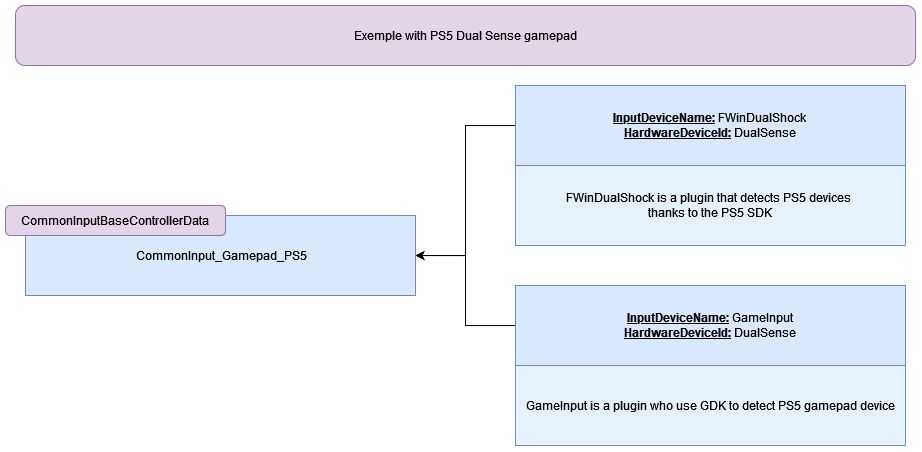
Activation Conditions

Each condition contains two pieces of information:

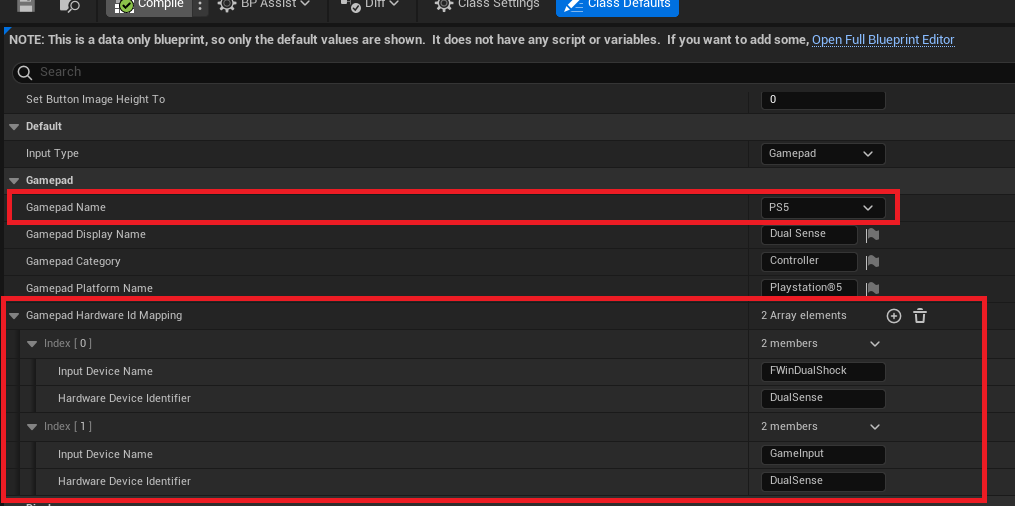
  • InputDeviceName: The internal interface in UE5 that will detect the device.
  • HardwareDeviceId: The ID of the device.

This information is emitted through interfaces that determine which device is currently in use, often through plugins such as WindowsDualShock or GameInput.

Screenshot

Condition example with PS5 gamepad

Screenshot

An quick view on the blueprint i named CommonInput_Gamepad_PS5

Screenshot

Of course, we assume that you have already configured Common UI and Common Input correctly. You can refer to the Lyra project to see the suggested setups.

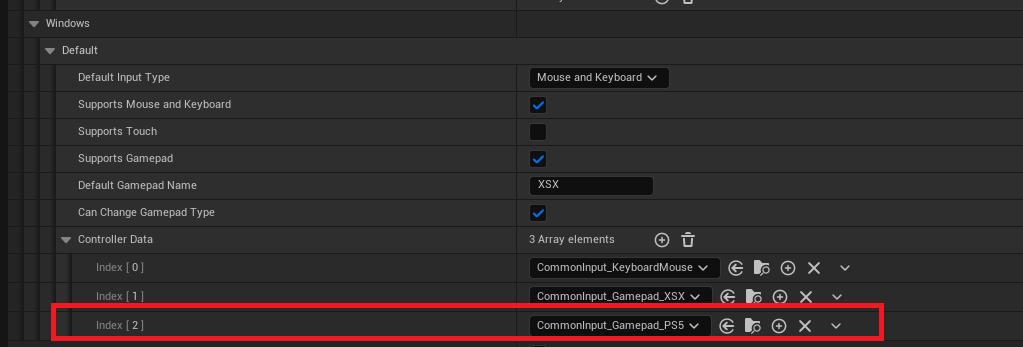
For example, I have 3 controller data configurations in my game for Windows: Keyboard/Mouse, Xbox, and PS5:

Screenshot

Use GameInput plugin and GDK

We will see how to detect, for example, the PS5 DualSense controller using Epic Games' GameInput plugin, which has been available since UE5.4:

https://dev.epicgames.com/community/learning/tutorials/EpZ4/unreal-engine-game-input-for-windows-experimental-release-notes

Check the link I provided for more information on the feedback regarding this topic:

https://forums.unrealengine.com/t/tutorial-game-input-for-windows-experimental-release-notes/1763696

You need to install Windows GDK and Windows Game Input separately:

Windows Game Input

You can download the package and run GameInputRedist.msi.

Screenshot

Make UE5 detect the GDK

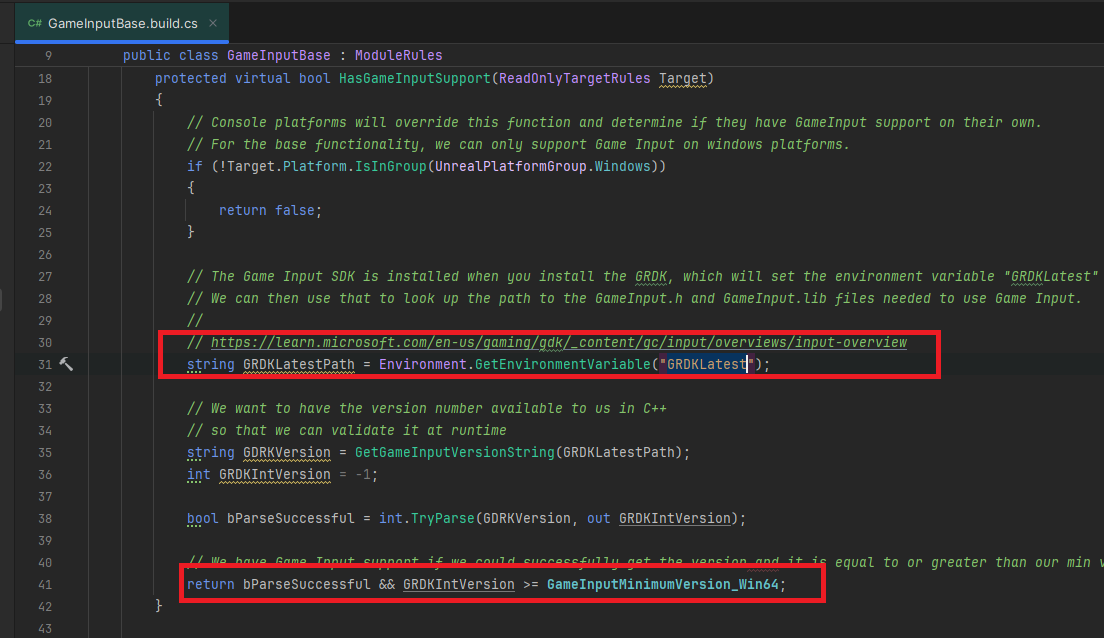
Unfortunately, UE5 installed from the launcher cannot detect if GDK is installed, as it looks for the GRDKLatest environment variable on your Windows system to determine the version of your GDK. This allows UE5 to enable its use only when the GameInput plugin is built. The relevant code can be found in GameInputBase.cs, which is part of the build files.

Screenshot

Screenshot

Otherwise, you will encounter the following error in the logs. :

LogGameInput: Error: [FGameInputWindowsModule] Failed to create a GameInput device! GAME_INPUT_SUPPORT is false!

  • Either you find a way to rebuild the plugin from the prebuilt version of the engine
  • Or you need to compile UE5 from the source, which requires several prerequisites and will take some time the first few times
Source Build

In any case, if you plan to compile console versions of your game, you'll need the source version of Unreal Engine anyway.

UE5 Game Input / Input Scope

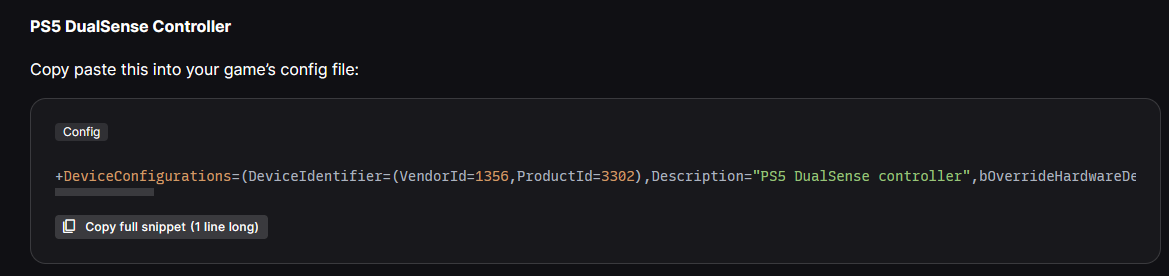
Now in UE5, you need to add the necessary configuration so that GameInput can detect the PS5 DualSense controller. The configuration is provided on the site I shared with you:

https://dev.epicgames.com/community/learning/tutorials/EpZ4/unreal-engine-game-input-for-windows-experimental-release-notes

Screenshot

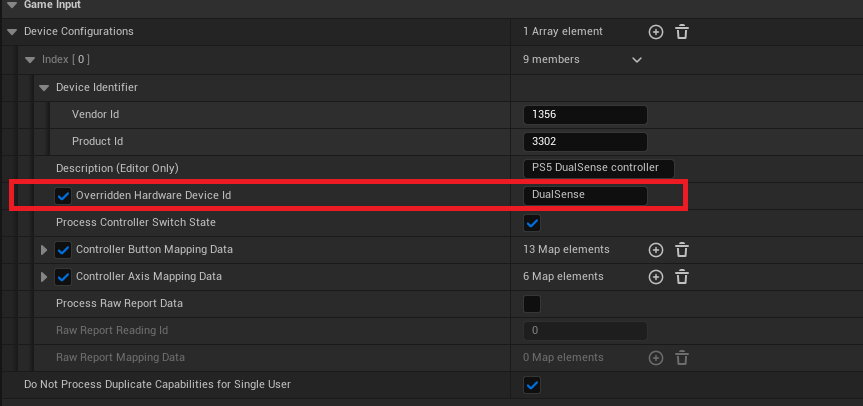
Visually, it looks like this configuration in Project Settings:

Screenshot

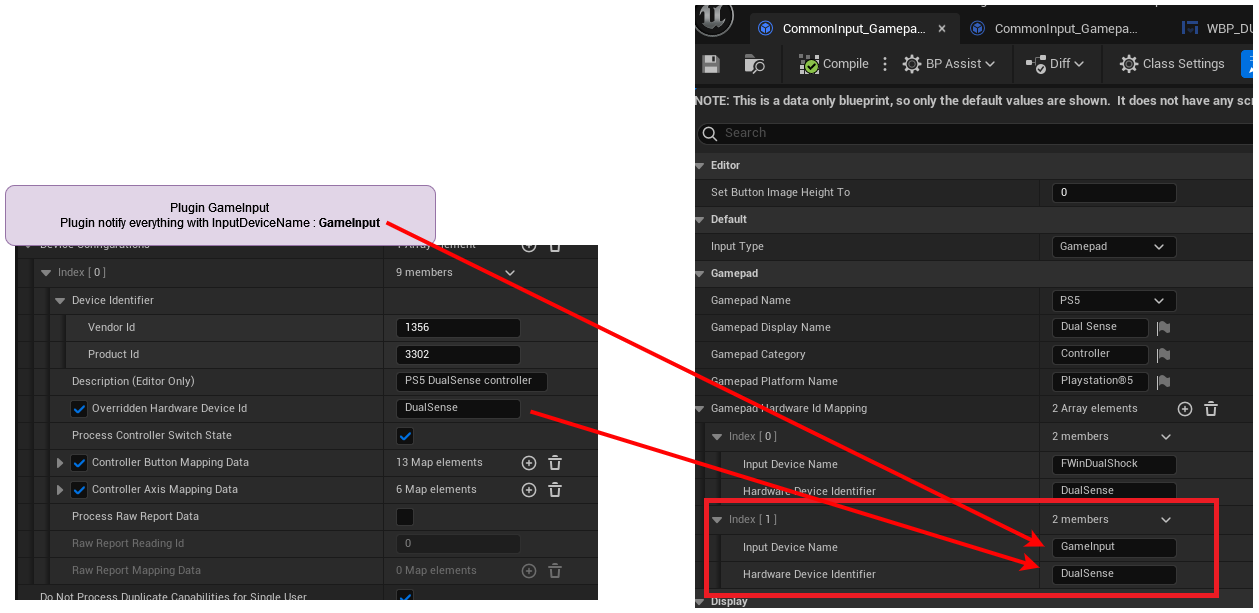
OverriddenHardwareId is very important because it allows us to link controller data in CommonInput, specifically the conditions.

In short, the GameInput plugin will notify:

  • InputDeviceName: GameInput, the plugin that notifies the activation of the device.
  • HardwareDeviceId: DualSense, the OverriddenHardwareId.

You can verify this by debugging the plugin; for example, when a button is pressed, you can see how it works in GameInputDeviceProcessor.

FInputDeviceScope InputScope(nullptr, UE::GameInput::InputClassName, DeviceMapper.GetUserIndexForPlatformUser(Params.PlatformUserId), GetHardwareDeviceIdentifierName(Params));

Another important point to remember is that, natively in UE5, it's FInputDeviceScope InputScope that allows notification of which type of controller is actively being used. The plugins utilize this structure.

Finally

So, ultimately, this is how the controller will work, and also, thanks to this information, we can display the correct buttons in the game (CommonInputControllerBaseData).

Screenshot

If it's not work

Obviously, there may be some issues, and you’ll need to troubleshoot if it doesn’t work. However, here are a few reminders:

  • Properly configure CommonInput
  • Avoid device conflicts
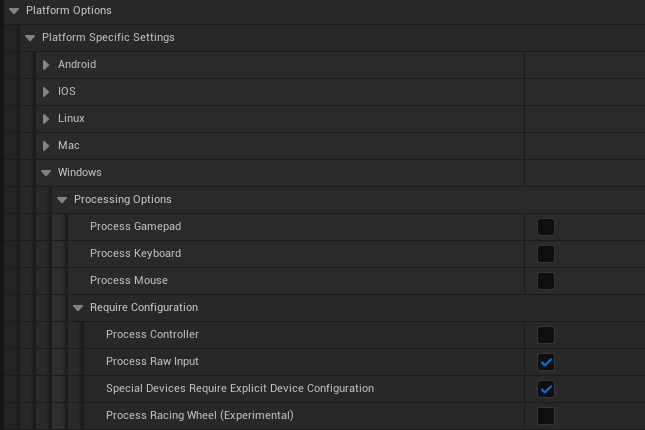
  • Configure or adjust platform options in GameInput according to your setup (the screenshot is just an example)

Screenshot

Bonus : Example in my game

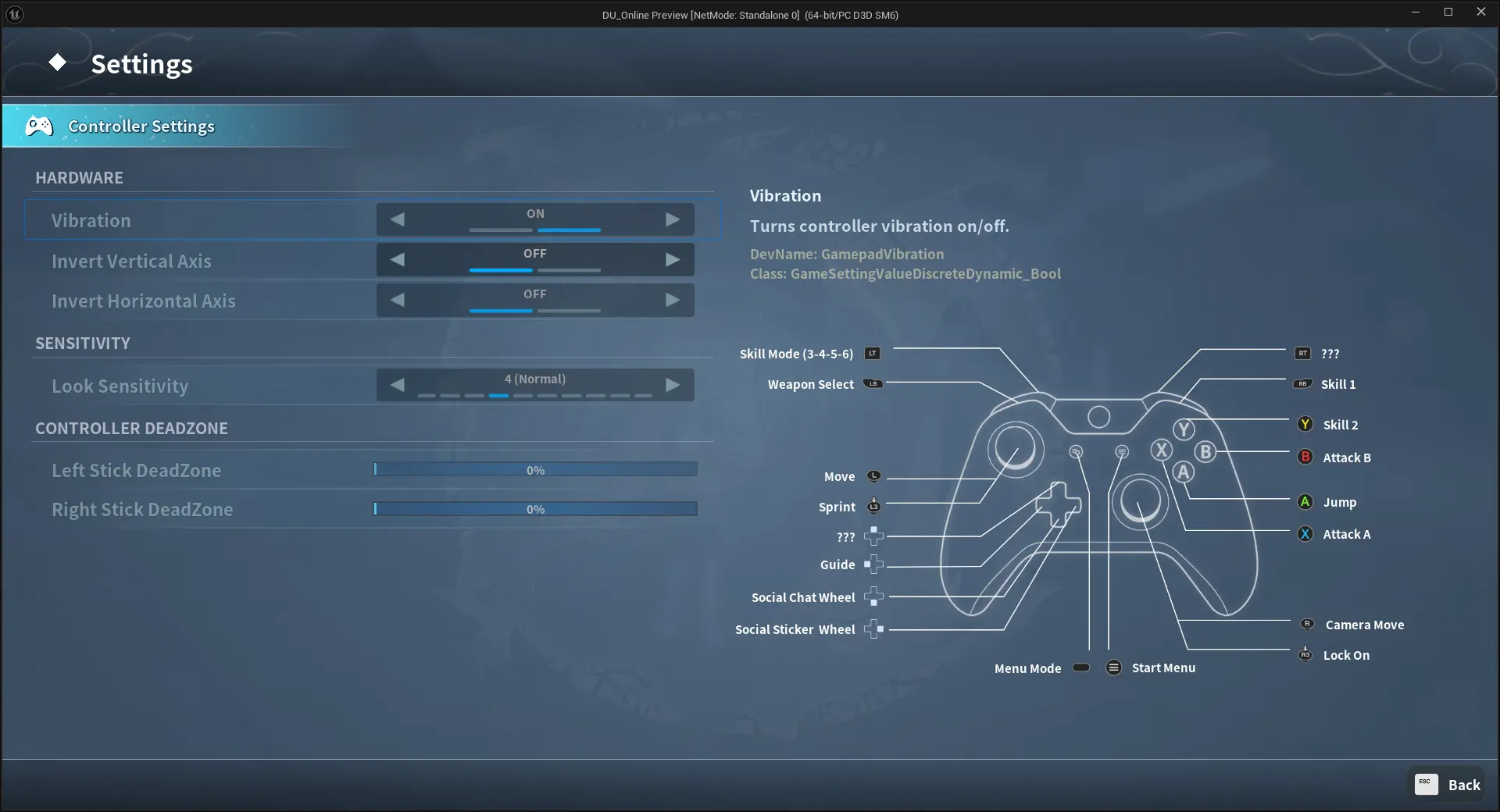
For example, in my game, in the settings menu, I display certain button diagrams depending on the detected device.

Gamepad name : XSX

Screenshot

Gamepad name : PS5

Screenshot

Screenshot

Good luck!

· One min read
Schartier Isaac

Naming Convention

Of course Naming Convention on assets still subjective to each.

But if have some doubt about some asset naming you can look at this github repository

It remains a good way to start and prepare your landmark

Versionning

Basically you can use Git or Perforce as a Versionning Tool in Unreal Engine

It's very important when you create a project especially for backup or rollback

And more for team work I would say it’s almost essential.

Of course when it's the first time you use it or still learning, It will take you a long time to learn and assimilate it

So maybe it's better to learn it on a project test or small project before making critical manipulations on a too much important project

Sementic

About version number on a game (like 0.2.1), you can read this semver.org

A very great resource about how you should number your project versions

· One min read
Schartier Isaac

My Game Development

I experiment creating a game in my free time

You can test it for free by request access in Steam as a Playtest

Dragon Uprising - Online

Assets

You can found my assets documentation here

The current state of documentation comes from a big migration, it will be easier to maintain/ correct some points now

So do not hesitate to tell me which point are blurred to know if I can complete little by little